This article was originally published on OKTA Blog. Thank you for supporting the partners who make SitePoint possible.
Today’s internet users expect a personalized experience. Developers must learn to develop websites that provide that personalized experience while keeping their user’s information private. Modern web applications also tend to have a server-side API and a client-side user interface. it can be challenging to get make both ends aware of the currently logged in user. In this tutorial, I will walk you through setting up a Node API that feeds a React UI, and build a user registration that keeps the user’s information private and personal.
In this tutorial, I won’t use any state management libraries like Redux or ReduxThunk. In a more robust application, you’ll probably want to do that, but it will be easy to wire up Redux and ReduxThunk and then add the fetch statements used here as your thunks. For the sake of simplicity, and to keep this article focused on adding user management, I’ll be adding fetch statements into componentDidMount functions.
Install the Node and React Prerequisites
To set up the base application, make sure you have these basic tools installed:
- Node (8+)
- npm (5+)
- create-react-app (npm package)
- express-generator (npm package)
You’ll also need an Okta developer account.
To install Node and npm, you can follow the instructions for your operating system at https://nodejs.org/en/.
Then just install the two npm packages with the npm command line:
npm i -g create-react-app express-generator
Now you’re ready to set up the basic application structure.
Scaffold the Base Application
Go to the folder where you want your application to live and create a new folder for it:
mkdir MembershipSample
cd MembershipSample
express api
create-react-app client
This will create two folders in the MembershipSample folder called api and client, with a NodeJS and Express application in the api folder and a base React application in the client folder. So your folder structure will look like:
- MembershipSample
- api
- client
To make this next part easier, open two terminals or terminal tabs; one to the express app folder api and the other to the React app folder client.
By default, the React app and the Node app will both run on port 3000 in development, so you’ll need to get the API to run on a different port and then proxy it in the client app.
In the api folder, open the /bin/www file and change the port the API will be running on to 3001.
/**
 * Get port from environment and store in Express.
 */

var port = normalizePort(process.env.PORT || '3001');
app.set('port', port);
Then set up the proxy for the API in the client application so that you can still call /api/{resource} and have it proxied from port 3000 to port 3001. In the client/package.json file, add the proxy setting below name:
"name": "client",
"proxy": "http://localhost:3001"
Lastly, don’t forget to run npm install or yarn install for each subfolder (api and client) to ensure that the dependencies are installed.
You can now run both applications by running npm start or yarn start in the appropriate folders for the API and the client application.
Add an Okta Application
If you haven’t already done so, create a free forever developer account at https://developer.okta.com/signup/.
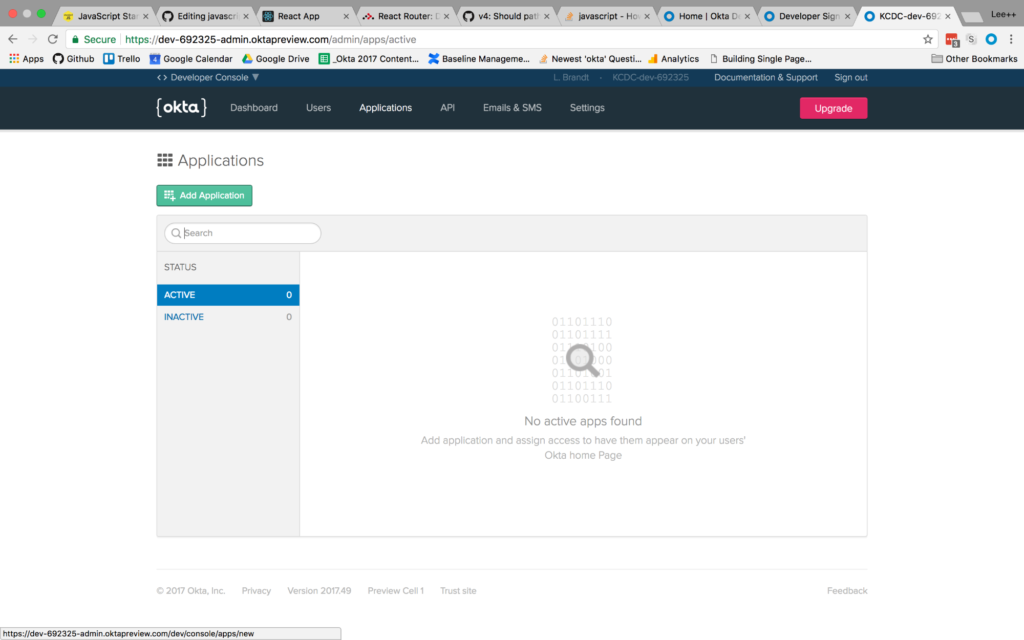
Once you’ve registered, click on Applications in the top menu. Then click the Add Application button.
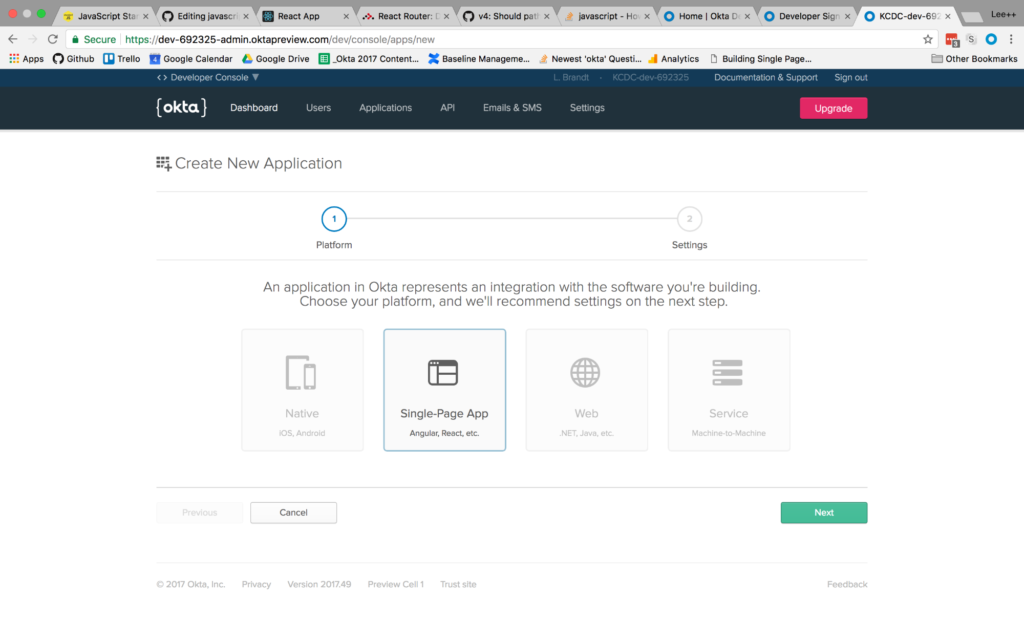
You will then be taken to the application creation wizard. Choose the Single-Page App button and click Next at the bottom.
On the next screen, you will see the default settings provided by the single-page application template. Change the name of the application to something more descriptive, like “Membership Application”. Also, change the base URIs and the login redirect URIs settings to use port 3000 because that is where your application will be running. The rest of the default settings are fine.
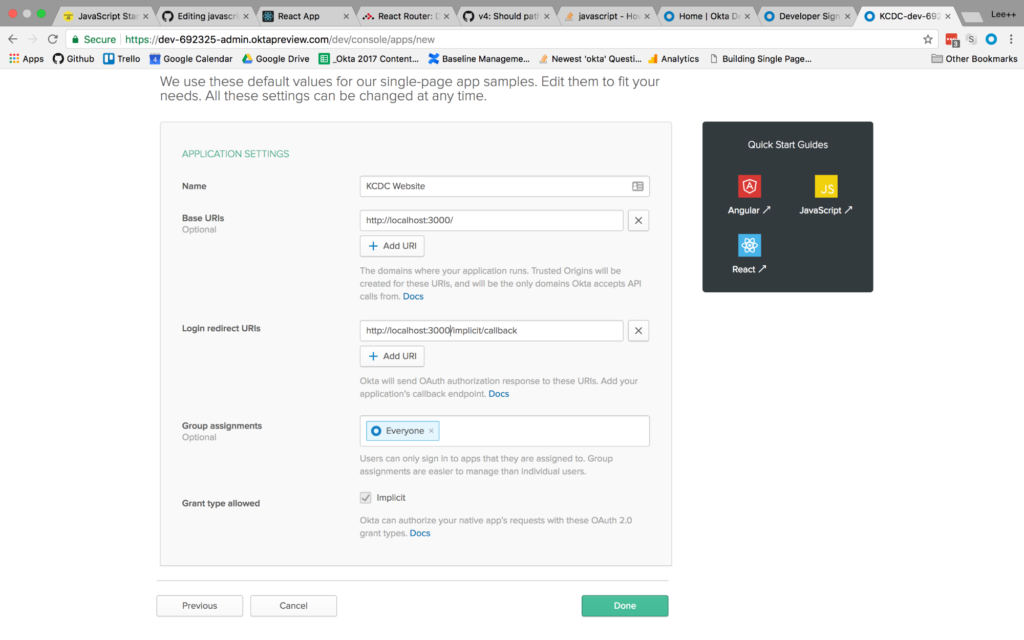
Then click the Done button at the bottom.
Once the application has been created, select it from the applications listing, and click on the General tab to view the general settings for your application.
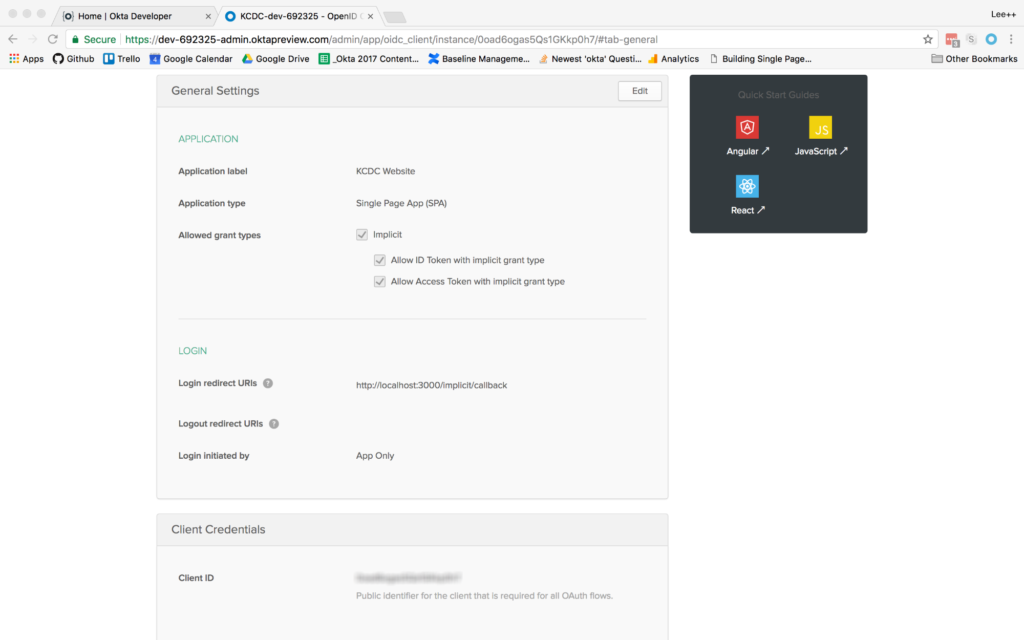
At the bottom, you will see a Client ID setting (yours won’t be blurred out, obviously). Copy this to use in your React application. You will also need your Okta organization URL, which you can find at the top left of the dashboard page. It will probably look something like “https://dev-XXXXXX.oktapreview.com”.
Add Authentication to the ReactJS Application
Now that the application is created, add authentication using Okta by adding a couple of npm dependencies. From the client folder run:
npm install @okta/okta-react react-router-dom --save
Or, if you’re using the yarn package manager:
yarn add @okta/okta-react react-router-dom
Add a file to the client/src folder called app.config.js. The contents of the file are:
export default {
  url: '{yourOktaDomain}',
  issuer: '{yourOktaOrgUrl}/oauth2/default',
  redirect_uri: window.location.origin + '/implicit/callback',
  client_id: '{yourClientID}'
}
Then, setup the index.js file to use the React Router and Okta’s React SDK. When the index.js file is complete, it will look like this:
import React from 'react';
import ReactDOM from 'react-dom';
import { BrowserRouter as Router } from 'react-router-dom';
import { Security } from '@okta/okta-react';

import './index.css';
import config from './app.config';
import App from './App';
import registerServiceWorker from './registerServiceWorker';

function onAuthRequired({ history }) {
  history.push('/login');
}

ReactDOM.render(
  <Router>
    <Security issuer={config.issuer}
      client_id={config.client_id}
      redirect_uri={config.redirect_uri}
      onAuthRequired={onAuthRequired}>
      <App />
    </Security>
  </Router>,
  document.getElementById('root')
);
registerServiceWorker();
Once complete, you will have added the BrowserRouter component (aliased as “Router”) from the React Router, and the Security component from Okta’s React SDK. Also that the app.config.js file is imported as “config” so that you can use the config values in the properties required by the Security component.
You will also have surrounded the App component with the Router and Security components, passing in the values specified. The onAuthRequired method, simply tells Okta’s React SDK that when somebody tries to access a secure route and they are not logged in, redirect them to the login page.
Everything else will have come from the create-react-app command you ran previously.
Add Pages to the ReactJS App
Before adding any routes to the React app, create some components to handle the routes you want to add.
Add a components folder to the client/src folder. This is where all your components will live and the easiest way to organize them. Then create a home folder for your home page components. For now there will be just one, but there may be more components used only for the home page later. Add a HomePage.js file to the folder with the following contents:
import React from 'react';

export default class HomePage extends React.Component{
  render(){
    return(
      <h1>Home Page</h1>
    );
  }
}
This is all you really need for the home page at the moment. The most important point is to make the HomePage component a class type. Even though right now it only contains a single h1 tag, it is meant to be a “page”, meaning it will likely contain other components, so it’s important that it be a container component.
Next, create an auth folder in components. This is where all components that have to do with authentication will live. In that folder, create a LoginForm.js file.
The first thing to note is that you’ll be using the withAuth higher-order component from Okta’s React SDK to wrap the entire login form. This adds a prop to the component called auth, making it possible to access things like the isAuthenticated and redirect functions on that higher-order component.
The code for the LoginForm component is as follows:
import React from 'react';
import OktaAuth from '@okta/okta-auth-js';
import { withAuth } from '@okta/okta-react';

export default withAuth(class LoginForm extends React.Component {
  constructor(props) {
    super(props);
    this.state = {
      sessionToken: null,
      error: null,
      username: '',
      password: ''
    }

    this.oktaAuth = new OktaAuth({ url: props.baseUrl });

    this.handleSubmit = this.handleSubmit.bind(this);
    this.handleUsernameChange = this.handleUsernameChange.bind(this);
    this.handlePasswordChange = this.handlePasswordChange.bind(this);
  }

  handleSubmit(e) {
    e.preventDefault();
    this.oktaAuth.signIn({
      username: this.state.username,
      password: this.state.password
    })
      .then(res => this.setState({
        sessionToken: res.sessionToken
      }))
      .catch(err => {
        this.setState({error: err.message});
        console.log(err.statusCode + ' error', err)
      });
  }

  handleUsernameChange(e) {
    this.setState({ username: e.target.value });
  }

  handlePasswordChange(e) {
    this.setState({ password: e.target.value });
  }

  render() {
    if (this.state.sessionToken) {
      this.props.auth.redirect({ sessionToken: this.state.sessionToken });
      return null;
    }

    const errorMessage = this.state.error ?
    <span className="error-message">{this.state.error}</span> :
    null;

    return (
      <form onSubmit={this.handleSubmit}>
        {errorMessage}
        <div className="form-element">
          <label>Username:</label>
          <input
            id="username" type="text"
            value={this.state.username}
            onChange={this.handleUsernameChange} />
        </div>

        <div className="form-element">
          <label>Password:</label>
          <input
            id="password" type="password"
            value={this.state.password}
            onChange={this.handlePasswordChange} />
        </div>
        <input id="submit" type="submit" value="Submit" />
      </form>
    );
  }
});
The other thing of note here is the OktaAuth library being imported. This is the base library for doing things like signing in using the Okta application you created previously. You’ll notice an OktaAuth object being created in the constructor that gets a property of baseUrl passed to it. This is the URL for the issuer that is in your app.config.js file. The LoginForm component is meant to be contained in another component, so you’ll have to create a LoginPage.js file to contain this component. You’ll use the withAuth higher-order component again, to get access to the isAuthenticated function. The contents of LoginPage.js will be:
Continue reading %Build User Registration with Node, React, and Okta%
by Lee Brandt via SitePoint
No comments:
Post a Comment