[ This is a content summary only. Visit our website https://ift.tt/1b4YgHQ for full links, other content, and more! ]


by Zia Muhammad via Digital Information World
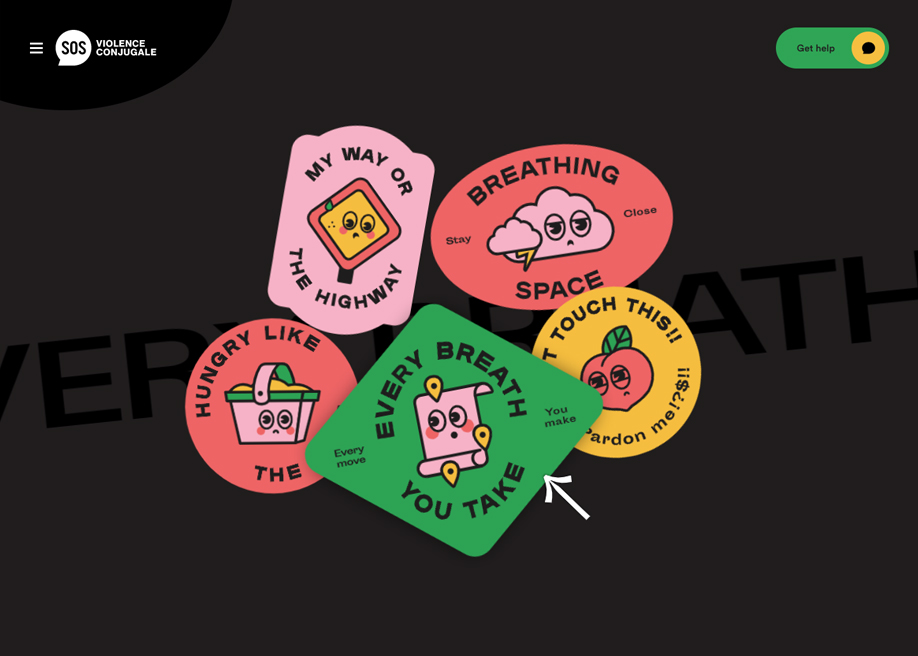

Beautifully designed Landing Page for logo design service Logoswift. Note how the central CTA button animates on first page load, the geo-location business pitch and what a great reference to a perfect testimonial.


Fun day night mode switcher (dark mode FTW) in this One Page portfolio for software engineer Vandré Leal. Quite a neat touch too with the Uberlandia (in Brazil) highlight on the header world map.


Many programming languages have a sleep function that will delay a program's execution for a given number of seconds. This functionality is absent from JavaScript, however, owing to its asynchronous nature. In this article, we'll look briefly at why this might be, then how we can implement a sleep function ourselves.
Before we get going, it's important to make sure we understand JavaScript's execution model correctly.
Consider the following Ruby code:
require 'net/http'
require 'json'

url = 'https://api.github.com/users/jameshibbard'
uri = URI(url)
response = JSON.parse(Net::HTTP.get(uri))
puts response['public_repos']
puts "Hello!"
As one might expect, this code makes a request to the GitHub API to fetch my user data. It then parses the response, outputs the number of public repos attributed to my GitHub account and finally prints "Hello!" to the screen. Execution goes from top to bottom.
Contrast that with the equivalent JavaScript version:
fetch('https://api.github.com/users/jameshibbard')
  .then(res => res.json())
  .then(json => console.log(json.public_repos));
console.log("Hello!");
If you run this code, it will output "Hello!" to the screen, then the number of public repos attributed to my GitHub account.
This is because fetching data from an API is an asynchronous operation in JavaScript. The JavaScript interpreter will encounter the fetch command and dispatch the request. It will not, however, wait for the request to complete. Rather, it will continue on its way, output "Hello!" to the console, then when the request returns a couple of hundred milliseconds later, it will output the number of repos.
If any of this is news to you, you should watch this excellent conference talk: What the heck is the event loop anyway?.
Now that we have a better understanding of JavaScript's execution model, let's have a look at how JavaScript handles delays and asynchronous operations.
setTimeoutThe standard way of creating a delay in JavaScript is to use its setTimeout method. For example:
console.log("Hello");
setTimeout(() => {  console.log("World!"); }, 2000);
This would log "Hello" to the console, then after two seconds "World!" And in many cases, this is enough: do something, wait, then do something else. Sorted!
However, please be aware that setTimeout is an asynchronous method. Try altering the previous code like so:
console.log("Hello");
setTimeout(() => { console.log("World!"); }, 2000);
console.log("Goodbye!");
It will log:
Hello
Goodbye!
World!
It's also possible to use setTimeout (or its cousin setInterval) to keep JavaScript waiting until a condition is met. For example, here's how you might use setTimeout to wait for a certain element to appear on a web page:
function pollDOM () {
  const el = document.querySelector('my-element');

  if (el.length) {
    // Do something with el
  } else {
    setTimeout(pollDOM, 300); // try again in 300 milliseconds
  }
}

pollDOM();
This assumes the element will turn up at some point. If you're not sure that's the case, you'll need to look at canceling the timer (using clearTimeout or clearInterval).
If you'd like to find out more about JavaScript's setTimeout method, please consult our tutorial which has plenty of examples to get you going.
The post Delay, Sleep, Pause, & Wait in JavaScript appeared first on SitePoint.


