Wednesday, March 14, 2018

User Authentication with the MEAN Stack

In this article, we’re going to look at managing user authentication in the MEAN stack. We’ll use the most common MEAN architecture of having an Angular single-page app using a REST API built with Node, Express and MongoDB.

When thinking about user authentication, we need to tackle the following things:

  1. let a user register
  2. save their data, but never directly store their password
  3. let a returning user log in
  4. keep a logged in user’s session alive between page visits
  5. have some pages that can only been seen by logged in users
  6. change output to the screen depending on logged in status (e.g. a “login” button or a “my profile” button).

Before we dive into the code, let’s take a few minutes for a high-level look at how authentication is going to work in the MEAN stack.

The MEAN Stack Authentication Flow

So what does authentication look like in the MEAN stack?

Still keeping this at a high level, these are the components of the flow:

  • user data is stored in MongoDB, with the passwords hashed
  • CRUD functions are built in an Express API — Create (register), Read (login, get profile), Update, Delete
  • an Angular application calls the API and deals with the responses
  • the Express API generates a JSON Web Token (JWT, pronounced “Jot”) upon registration or login, and passes this to the Angular application
  • the Angular application stores the JWT in order to maintain the user’s session
  • the Angular application checks the validity of the JWT when displaying protected views
  • the Angular application passes the JWT back to Express when calling protected API routes.

JWTs are preferred over cookies for maintaining the session state in the browser. Cookies are better for maintaining state when using a server-side application.

The Example Application

The code for this article is available on GitHub. To run the application, you’ll need to have Node.js installed, along with MongoDB. (For instructions on how to install, please refer to Mongo’s official documentation — Windows, Linux, macOS).

The Angular App

To keep the example in this article simple, we’ll start with an Angular app with four pages:

  1. home page
  2. register page
  3. login page
  4. profile page

The pages are pretty basic and look like this to start with:
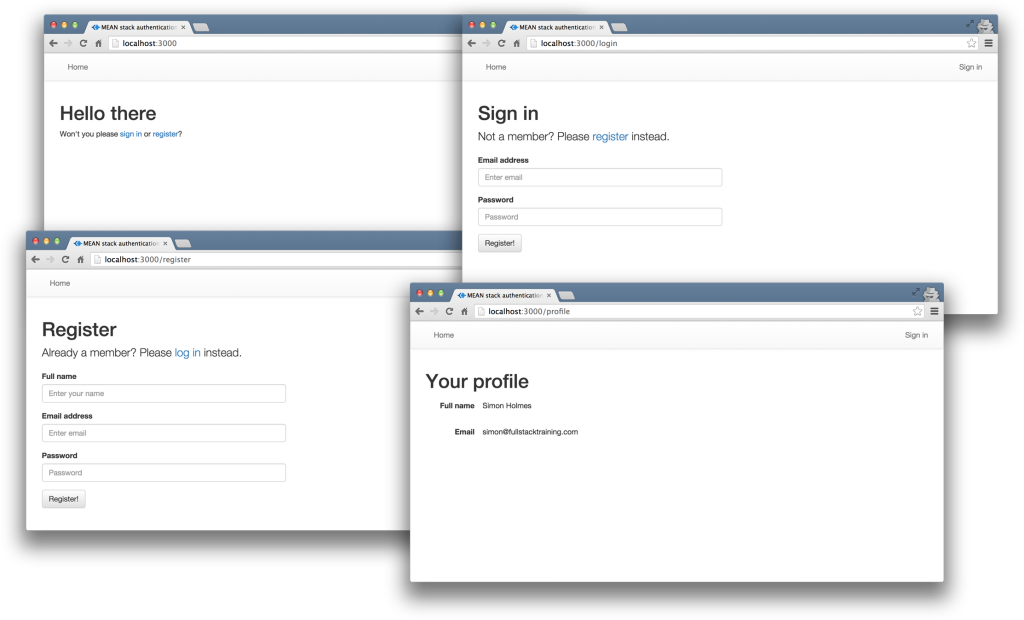
Screenshots of the app

The profile page will only be accessible to authenticated users. All the files for the Angular app are in a folder inside the Angular CLI app called /client.

We’ll use the Angular CLI for building and running the local server. If you’re unfamiliar with the Angular CLI, refer to the Angular 2 Tutorial: Create a CRUD App with Angular CLI to get started.

The REST API

We’ll also start off with the skeleton of a REST API built with Node, Express and MongoDB, using Mongoose to manage the schemas. This API has three routes:

  1. /api/register (POST) — to handle new users registering
  2. /api/login (POST) — to handle returning users logging in
  3. /api/profile/USERID (GET) — to return profile details when given a USERID.

The code for the API is all held in another folder inside the Express app, called api. This holds the routes, controllers and model, and is organized like this:
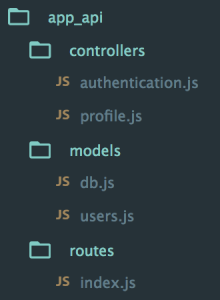
Screenshot of api folder structure

At this starting point, each of the controllers simply responds with a confirmation, like this:

module.exports.register = function(req, res) {
  console.log("Registering user: " + req.body.email);
  res.status(200);
  res.json({
    "message" : "User registered: " + req.body.email
  });
};

Okay, let’s get on with the code, starting with the database.

Creating the MongoDB Data Schema with Mongoose

There’s a simple user schema defined in /api/models/users.js. It defines the need for an email address, a name, a hash and a salt. The hash and salt will be used instead of saving a password. The email is set to unique as we’ll use it for the login credentials. Here’s the schema:

var userSchema = new mongoose.Schema({
  email: {
    type: String,
    unique: true,
    required: true
  },
  name: {
    type: String,
    required: true
  },
  hash: String,
  salt: String
});

Managing the Password without Saving It

Saving user passwords is a big no-no. Should a hacker get a copy of your database, you want to make sure they can’t use it to log in to accounts. This is where the hash and salt come in.

The salt is a string of characters unique to each user. The hash is created by combining the password provided by the user and the salt, and then applying one-way encryption. As the hash can’t be decrypted, the only way to authenticate a user is to take the password, combine it with the salt and encrypt it again. If the output of this matches the hash, the password must have been correct.

To do the setting and the checking of the password, we can use Mongoose schema methods. These are essentially functions that you add to the schema. They’ll both make use of the Node.js crypto module.

At the top of the users.js model file, require crypto so that we can use it:

var crypto = require('crypto');

Nothing needs installing, as crypto ships as part of Node. Crypto itself has several methods; we’re interested in randomBytes to create the random salt and pbkdf2Sync to create the hash (there’s much more about Crypto in the Node.js API docs).

Setting the Password

To save the reference to the password, we can create a new method called setPassword on the userSchema schema that accepts a password parameter. The method will then use crypto.randomBytes to set the salt, and crypto.pbkdf2Sync to set the hash:

userSchema.methods.setPassword = function(password){
  this.salt = crypto.randomBytes(16).toString('hex');
  this.hash = crypto.pbkdf2Sync(password, this.salt, 1000, 64, 'sha512').toString('hex');
};

We’ll use this method when creating a user. Instead of saving the password to a password path, we’ll be able to pass it to the setPassword function to set the salt and hash paths in the user document.

Checking the Password

Checking the password is a similar process, but we already have the salt from the Mongoose model. This time we just want to encrypt the salt and the password and see if the output matches the stored hash.

Add another new method to the users.js model file, called validPassword:

userSchema.methods.validPassword = function(password) {
  var hash = crypto.pbkdf2Sync(password, this.salt, 1000, 64, 'sha512').toString('hex');
  return this.hash === hash;
};

Generating a JSON Web Token (JWT)

One more thing the Mongoose model needs to be able to do is generate a JWT, so that the API can send it out as a response. A Mongoose method is ideal here too, as it means we can keep the code in one place and call it whenever needed. We’ll need to call it when a user registers and when a user logs in.

To create the JWT, we’ll use a module called jsonwebtoken which needs to be installed in the application, so run this on the command line:

npm install jsonwebtoken --save

Then require this in the users.js model file:

var jwt = require('jsonwebtoken');

This module exposes a sign method that we can use to create a JWT, simply passing it the data we want to include in the token, plus a secret that the hashing algorithm will use. The data should be sent as a JavaScript object, and include an expiry date in an exp property.

Adding a generateJwt method to userSchema in order to return a JWT looks like this:

userSchema.methods.generateJwt = function() {
  var expiry = new Date();
  expiry.setDate(expiry.getDate() + 7);

  return jwt.sign({
    _id: this._id,
    email: this.email,
    name: this.name,
    exp: parseInt(expiry.getTime() / 1000),
  }, "MY_SECRET"); // DO NOT KEEP YOUR SECRET IN THE CODE!
};

Note: It’s important that your secret is kept safe: only the originating server should know what it is. It’s best practice to set the secret as an environment variable, and not have it in the source code, especially if your code is stored in version control somewhere.

That’s everything we need to do with the database.

Set Up Passport to Handle the Express Authentication

Passport is a Node module that simplifies the process of handling authentication in Express. It provides a common gateway to work with many different authentication “strategies”, such as logging in with Facebook, Twitter or Oauth. The strategy we’ll use is called “local”, as it uses a username and password stored locally.

To use Passport, first install it and the strategy, saving them in package.json:

npm install passport --save
npm install passport-local --save

Configure Passport

Inside the api folder, create a new folder config and create a file in there called passport.js. This is where we define the strategy.

Before defining the strategy, this file needs to require Passport, the strategy, Mongoose and the User model:

var passport = require('passport');
var LocalStrategy = require('passport-local').Strategy;
var mongoose = require('mongoose');
var User = mongoose.model('User');

For a local strategy, we essentially just need to write a Mongoose query on the User model. This query should find a user with the email address specified, and then call the validPassword method to see if the hashes match. Pretty simple.

There’s just one curiosity of Passport to deal with. Internally, the local strategy for Passport expects two pieces of data called username and password. However, we’re using email as our unique identifier, not username. This can be configured in an options object with a usernameField property in the strategy definition. After that, it’s over to the Mongoose query.

So all in, the strategy definition will look like this:

passport.use(new LocalStrategy({
    usernameField: 'email'
  },
  function(username, password, done) {
    User.findOne({ email: username }, function (err, user) {
      if (err) { return done(err); }
      // Return if user not found in database
      if (!user) {
        return done(null, false, {
          message: 'User not found'
        });
      }
      // Return if password is wrong
      if (!user.validPassword(password)) {
        return done(null, false, {
          message: 'Password is wrong'
        });
      }
      // If credentials are correct, return the user object
      return done(null, user);
    });
  }
));

Note how the validPassword schema method is called directly on the user instance.

Now Passport just needs to be added to the application. So in app.js we need to require the Passport module, require the Passport config and initialize Passport as middleware. The placement of all of these items inside app.js is quite important, as they need to fit into a certain sequence.

The Passport module should be required at the top of the file with the other general require statements:

var express = require('express');
var path = require('path');
var favicon = require('serve-favicon');
var logger = require('morgan');
var cookieParser = require('cookie-parser');
var bodyParser = require('body-parser');
var passport = require('passport');

The config should be required after the model is required, as the config references the model.

require('./api/models/db');
require('./api/config/passport');

Finally, Passport should be initialized as Express middleware just before the API routes are added, as these routes are the first time that Passport will be used.

app.use(passport.initialize());
app.use('/api', routesApi);

We’ve now got the schema and Passport set up. Next, it’s time to put these to use in the routes and controllers of the API.

Continue reading %User Authentication with the MEAN Stack%


by Simon Holmes via SitePoint

MEAN Stack: Build an App with Angular 2+ and the Angular CLI

The MEAN stack comprises advanced technologies used to develop both the server-side and the client-side of a web application in a JavaScript environment. The components of the MEAN stack include the MongoDB database, Express.js (a web framework), Angular (a front-end framework), and the Node.js runtime environment. Taking control of the MEAN stack and familiarizing different JavaScript technologies during the process will help you in becoming a full-stack JavaScript developer.

JavaScript’s sphere of influence has dramatically grown over the years and with that growth, there’s an ongoing desire to keep up with the latest trends in programming. New technologies have emerged and existing technologies have been rewritten from the ground up (I’m looking at you, Angular).

This tutorial intends to create the MEAN application from scratch and serve as an update to the original MEAN stack tutorial. If you’re familiar with MEAN and want to get started with the coding, you can skip to the overview section.

Introduction to the MEAN Stack

Node.js - Node.js is a server-side runtime environment built on top of Chrome's V8 JavaScript engine. Node.js is based on an event-driven architecture that runs on a single thread and a non-blocking IO. These design choices allow you to build real-time web applications in JavaScript that scale well.

Express.js - Express is a minimalistic yet robust web application framework for Node.js. Express.js uses middleware functions to handle HTTP requests and then either return a response or pass on the parameters to another middleware. Application-level, router-level, and error-handling middlewares are available in Express.js.

MongoDB - MongoDB is a document-oriented database program where the documents are stored in a flexible JSON-like format. Being an NoSQL database program, MongoDB relieves you from the tabular jargon of the relational database.

Angular - Angular is an application framework developed by Google for building interactive Single Page Applications. Angular, originally AngularJS, was rewritten from scratch to shift to a Component-based architecture from the age old MVC framework. Angular recommends the use of TypeScript which, in my opinion, is a good idea because it enhances the development workflow.

Now that we’re acquainted with the pieces of the MEAN puzzle, let’s see how we can fit them together, shall we?

Overview

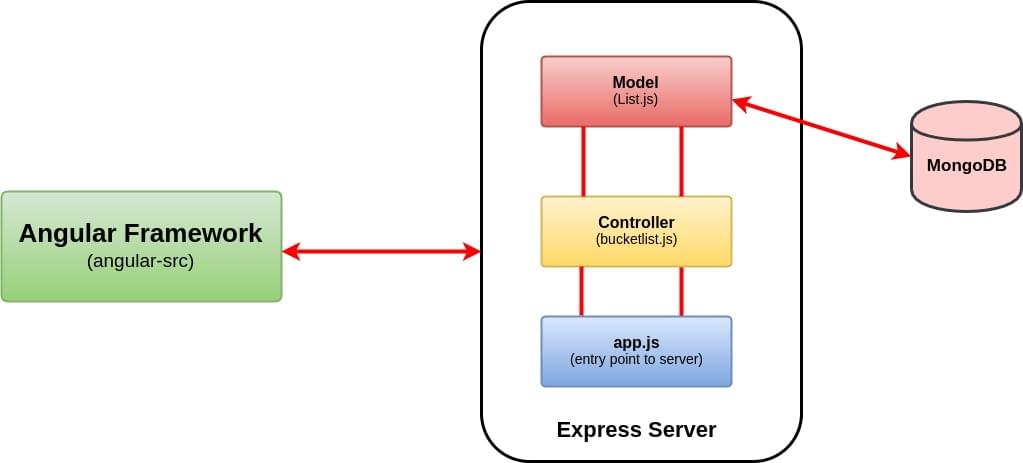
Here’s a high-level overview of our application.

High-level overview of our MEAN stack application

We’ll be building an Awesome Bucket List Application from the ground up without using any boilerplate template. The front end will include a form that accepts your bucket list items and a view that updates and renders the whole bucket list in real time.

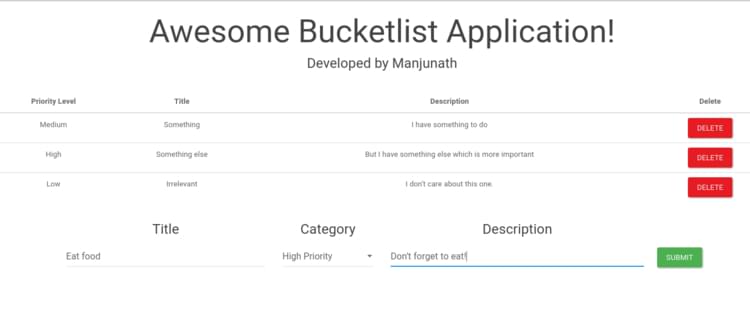
Any update to the view will be interpreted as an event and this will initiate an HTTP request. The server will process the request, update/fetch the MongoDB if necessary, and then return a JSON object. The front end will use this to update our view. By the end of this tutorial, you should have a bucket list application that looks like this.

Screenshot of the bucket list application that we are going to build

The entire code for the Bucket List application is available on GitHub.

Prerequisites

First things first, you need to have Node.js and MongoDB installed to get started. If you’re entirely new to Node, I would recommend reading the Beginner’s Guide to Node to get things rolling. Likewise, setting up MongoDB is easy and you can check out their documentation for installation instructions specific to your platform.

$ node -v
# v8.0.0

Start the mongo daemon service using the command.

sudo service mongod start

To install the latest version of Angular, I would recommend using Angular CLI. It offers everything you need to build and deploy your Angular application. If you’re not familiar with the Angular CLI yet, make sure you check out The Ultimate Angular CLI Reference.

npm install -g @angular/cli

Create a new directory for our bucket list project. That’s where both the front-end and the back-end code will go.

mkdir awesome-bucketlist
cd awesome-bucketlist

Creating the Backend Using Express.js and MongoDB

Express doesn’t impose any structural constraints on your web application. You can place the entire application code in a single file and get it to work, theoretically. However, your codebase would be a complete mess. Instead, we’re going to do this the MVC way (Model, View, and Controller)—minus the view part.

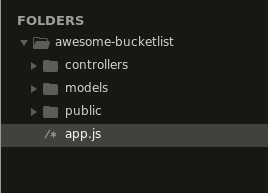
MVC is an architectural pattern that separates your models (the back end) and views (the UI) from the controller (everything in between), hence MVC. Since Angular will take care of the front end for us, we’ll have three directories, one for models and another one for controllers, and a public directory where we’ll place the compiled angular code.

In addition to this, we’ll create an app.js file that will serve as the entry point for running the Express server.

Directory structure of MEAN stack

Although using a model and controller architecture to build something trivial like our bucket list application might seem essentially unnecessary, this will be helpful in building apps that are easier to maintain and refactor.

Initializing npm

We’re missing a package.json file for our back end. Type in npm init and, after you’ve answered the questions, you should have a package.json made for you.

We’ll declare our dependencies inside the package.json file. For this project we’ll need the following modules:

  • express: Express module for the web server
  • mongoose: A popular library for MongoDB
  • bodyparser: Parses the body of the incoming requests and makes it available under req.body
  • cors: CORS middleware enables cross-origin access control to our web server.

I’ve also added a start script so that we can start our server using npm start.

{
  "name": "awesome-bucketlist",
  "version": "1.0.0",
  "description": "A simple bucketlist app using MEAN stack",
  "main": "app.js",
  "scripts": {
    "start": "node app"
  },

//The ~ is used to match the most recent minor version (without any breaking changes)

 "dependencies": {
    "express": "~4.15.3",
    "mongoose": "~4.11.0",
    "cors": "~2.8.3",
    "body-parser": "~1.17.2"
  },

  "author": "",
  "license": "ISC"
}

Now run npm install and that should take care of installing the dependencies.

Filling in app.js

First, we require all of the dependencies that we installed in the previous step.

// We’ll declare all our dependencies here
const express = require('express');
const path = require('path');
const bodyParser = require('body-parser');
const cors = require('cors');
const mongoose = require('mongoose');

//Initialize our app variable
const app = express();

//Declaring Port
const port = 3000;

As you can see, we’ve also initialized the app variable and declared the port number. The app object gets instantiated on the creation of the Express web server. We can now load middleware into our Express server by specifying them with app.use().

//Middleware for CORS
app.use(cors());

//Middleware for bodyparsing using both json and urlencoding
app.use(bodyParser.urlencoded({extended:true}));
app.use(bodyParser.json());

/*express.static is a built in middleware function to serve static files.
 We are telling express server public folder is the place to look for the static files
*/
app.use(express.static(path.join(__dirname, 'public')));

The app object can understand routes too.

app.get('/', (req,res) => {
    res.send("Invalid page");
})

Here, the get method invoked on the app corresponds to the GET HTTP method. It takes two parameters, the first being the path or route for which the middleware function should be applied.

The second is the actual middleware itself, and it typically takes three arguments: the req argument corresponds to the HTTP Request; the res argument corresponds to the HTTP Response; and next is an optional callback argument that should be invoked if there are other subsequent middlewares that follow this one. We haven’t used next here since the res.send() ends the request–response cycle.

Add this line towards the end to make our app listen to the port that we had declared earlier.

//Listen to port 3000
app.listen(port, () => {
    console.log(`Starting the server at port ${port}`);
});

npm start should get our basic server up and running.

By default, npm doesn’t monitor your files/directories for any changes, and you have to manually restart the server every time you’ve updated your code. I recommend using nodemon to monitor your files and automatically restart the server when any changes are detected. If you don't explicitly state which script to run, nodemon will run the file associated with the main property in your package.json.

npm install -g nodemon
nodemon

We’re nearly done with our app.js file. What’s left to do? We need to

  1. connect our server to the database
  2. create a controller, which we can then import to our app.js.

Setting up mongoose

Setting up and connecting a database is straightforward with MongoDB. First, create a config directory and a file named database.js to store our configuration data. Export the database URI using module.exports.

// 27017 is the default port number.
module.exports = {
    database: 'mongodb://localhost:27017/bucketlist'
}

And establish a connection with the database in app.js using mongoose.connect().

// Connect mongoose to our database
const config = require('./config/database');
mongoose.connect(config.database);

“But what about creating the bucket list database?”, you may ask. The database will be created automatically when you insert a document into a new collection on that database.

Working on the controller and the model

Now let’s move on to create our bucket list controller. Create a bucketlist.jsfile inside the controller directory. We also need to route all the /bucketlist requests to our bucketlist controller (in app.js).

const bucketlist = require('./controllers/bucketlist');

//Routing all HTTP requests to /bucketlist to bucketlist controller
app.use('/bucketlist',bucketlist);

Here’s the final version of our app.js file.

// We’ll declare all our dependencies here
const express = require('express');
const path = require('path');
const bodyParser = require('body-parser');
const cors = require('cors');
const mongoose = require('mongoose');
const config = require('./config/database');
const bucketlist = require('./controllers/bucketlist');

//Connect mongoose to our database
mongoose.connect(config.database);

//Declaring Port
const port = 3000;

//Initialize our app variable
const app = express();

//Middleware for CORS
app.use(cors());

//Middlewares for bodyparsing using both json and urlencoding
app.use(bodyParser.urlencoded({extended:true}));
app.use(bodyParser.json());


/*express.static is a built in middleware function to serve static files.
 We are telling express server public folder is the place to look for the static files

*/
app.use(express.static(path.join(__dirname, 'public')));


app.get('/', (req,res) => {
    res.send("Invalid page");
})


//Routing all HTTP requests to /bucketlist to bucketlist controller
app.use('/bucketlist',bucketlist);


//Listen to port 3000
app.listen(port, () => {
    console.log(`Starting the server at port ${port}`);
});

As previously highlighted in the overview, our awesome bucket list app will have routes to handle HTTP requests with GET, POST, and DELETE methods. Here’s a bare-bones controller with routes defined for the GET, POST, and DELETE methods.

//Require the express package and use express.Router()
const express = require('express');
const router = express.Router();

//GET HTTP method to /bucketlist
router.get('/',(req,res) => {
    res.send("GET");
});

//POST HTTP method to /bucketlist

router.post('/', (req,res,next) => {
    res.send("POST");

});

//DELETE HTTP method to /bucketlist. Here, we pass in a params which is the object id.
router.delete('/:id', (req,res,next)=> {
    res.send("DELETE");

})

module.exports = router;

I’d recommend using Postman app or something similar to test your server API. Postman has a powerful GUI platform to make your API development faster and easier. Try a GET request on http://localhost:3000/bucketlist and see whether you get the intended response.

And as obvious as it seems, our application lacks a model. At the moment, our app doesn’t have a mechanism to send data to and retrieve data from our database.

Create a list.js model for our application and define the bucket list Schema as follows:

//Require mongoose package
const mongoose = require('mongoose');

//Define BucketlistSchema with title, description and category
const BucketlistSchema = mongoose.Schema({
    title: {
        type: String,
        required: true
    },
    description: String,
    category: {
        type: String,
        required: true,
        enum: ['High', 'Medium', 'Low']
    }
});

When working with mongoose, you have to first define a Schema. We have defined a BucketlistSchema with three different keys (title, category, and description). Each key and its associated SchemaType defines a property in our MongoDB document. If you’re wondering about the lack of an id field, it's because we’ll be using the default _id that will be created by Mongoose.

Mongoose assigns each of your schemas an _id field by default if one is not passed into the Schema constructor. The type assigned is an ObjectId to coincide with MongoDB's default behavior.

You can read more about it in the Mongoose Documentation

However, to use our Schema definition we need to convert our BucketlistSchema to a model and export it using module.exports. The first argument of mongoose.model is the name of the collection that will be used to store the data in MongoDB.

const BucketList = module.exports = mongoose.model('BucketList', BucketlistSchema );

Apart from the schema, we can also host database queries inside our BucketList model and export them as methods.

//BucketList.find() returns all the lists
module.exports.getAllLists = (callback) => {
    BucketList.find(callback);
}

Here we invoke the BucketList.find method which queries the database and returns the BucketList collection. Since a callback function is used, the result will be passed over to the callback.

Let’s fill in the middleware corresponding to the GET method to see how this fits together.

const bucketlist = require('../models/List');

//GET HTTP method to /bucketlist
router.get('/',(req,res) => {
    bucketlist.getAllLists((err, lists)=> {
        if(err) {
            res.json({success:false, message: `Failed to load all lists. Error: ${err}`});
        }
        else {
            res.write(JSON.stringify({success: true, lists:lists},null,2));
            res.end();

    }
    });
});

We’ve invoked the getAllLists method and the callback takes two arguments, error and result.

All callbacks in Mongoose use the pattern: callback(error, result). If an error occurs executing the query, the error parameter will contain an error document, and result will be null. If the query is successful, the error parameter will be null, and the result will be populated with the results of the query.

-- MongoDB Documentation

Similarly, let’s add the methods for inserting a new list and deleting an existing list from our model.

//newList.save is used to insert the document into MongoDB
module.exports.addList = (newList, callback) => {
    newList.save(callback);
}

//Here we need to pass an id parameter to BUcketList.remove
module.exports.deleteListById = (id, callback) => {
    let query = {_id: id};
    BucketList.remove(query, callback);
}

We now need to update our controller’s middleware for POST and DELETE also.

//POST HTTP method to /bucketlist

router.post('/', (req,res,next) => {
    let newList = new bucketlist({
        title: req.body.title,
        description: req.body.description,
        category: req.body.category
    });
    bucketlist.addList(newList,(err, list) => {
        if(err) {
            res.json({success: false, message: `Failed to create a new list. Error: ${err}`});

        }
        else
            res.json({success:true, message: "Added successfully."});

    });
});

//DELETE HTTP method to /bucketlist. Here, we pass in a param which is the object id.

router.delete('/:id', (req,res,next)=> {
  //access the parameter which is the id of the item to be deleted
    let id = req.params.id;
  //Call the model method deleteListById
    bucketlist.deleteListById(id,(err,list) => {
        if(err) {
            res.json({success:false, message: `Failed to delete the list. Error: ${err}`});
        }
        else if(list) {
            res.json({success:true, message: "Deleted successfully"});
        }
        else
            res.json({success:false});
    })
});

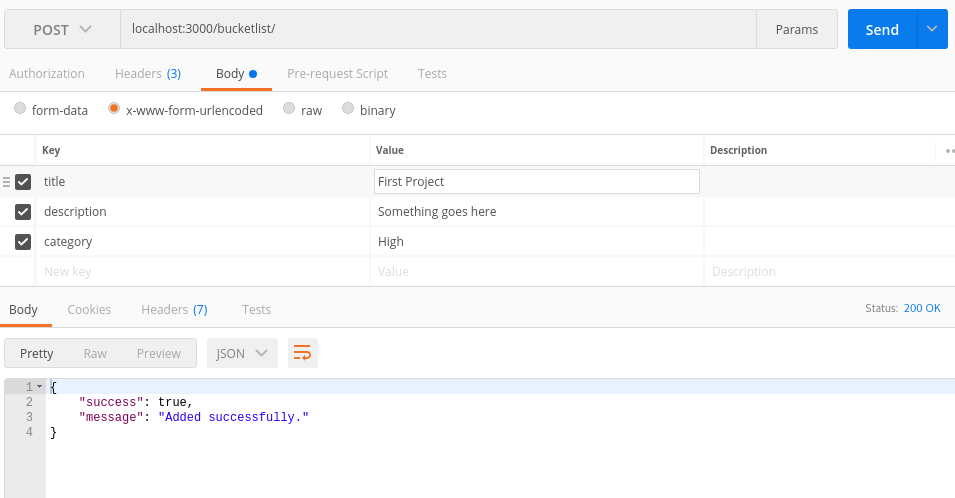
With this, we have a working server API that lets us create, view, and delete the bucket list. You can confirm that everything is working as intended by using Postman.

POST HTTP request using Postman

We’ll now move on to the front end of the application using Angular.

Continue reading %MEAN Stack: Build an App with Angular 2+ and the Angular CLI%


by Manjunath M via SitePoint

Driver.js – JavaScript Engine to Drive Users Focus Across the Page

Driver.js is lightweight, no-dependency, vanilla JavaScript engine to drive user's focus across the page with animation or without animation.


by via jQuery-Plugins.net RSS Feed

Uncode WordPress Theme: Share Your Creativity with the World

This article was created in partnership with BAWMedia. Thank you for supporting the partners who make SitePoint possible.

The world we live in is a visual world. We process information contained in images faster than we do when reading a text. Creatives' websites largely rely on stunning visual experiences that can command attention. These visuals usually make a strong impression on their visitors.

It takes a significant amount of planning to produce a website that can make a strong statement. The process also requires careful attention to detail.

Uncode is the ideal choice if your objective is to take full advantage of the power of visuals. The website-building tools and features you need will be at your fingertips. So, you don't have to be an expert in website design to apply them.

Why Uncode?

Uncode has everything a creative type requires to create a website, blog, or portfolio. They will be able to capture a visitor's attention and keep that visitor engaged and looking for more.

No special technical or coding skills are needed. Uncode is exceptionally easy to work with. It's simply a matter of selecting a template and uploading your content. Then, the only thing left is to hit the Publish button. If you have your own idea for a template, you can build your own; all the tools you need are there.

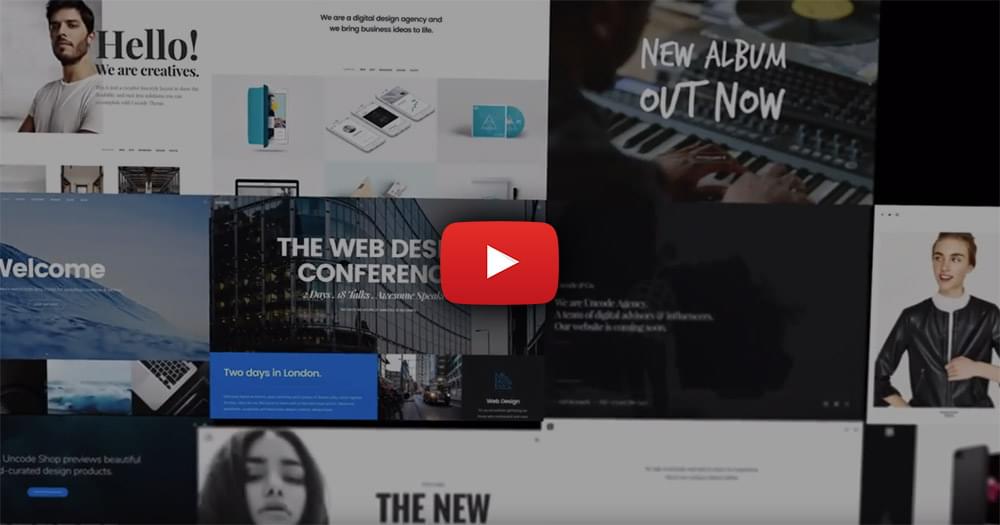
Uncode's selection of demos are themselves memorable visual experiences. They are designed to help you provide the same experiences to your visitors. Is a cool eCommerce design, a one-click gallery, or a hypnotic parallax image to your liking? It is all there, and much more.

Uncode's New and Improved Features

A cool and exciting assortment of new features were introduced in Uncode version 1.7. With these features, you can create visual experiences that are even more memorable.

Slides Scroll and Snap Scroll

In terms of what you can do with a one-page website, Slides Scroll is a jaw-dropper. Do not attempt to create an attractive yet somewhat ho-hum page. Instead, you can apply this feature to accomplish the following:

  • You can mix and match galleries, slides, and content sections. Do this to get the maximum effect – no constraints.
  • You can place visuals wherever you want on a blank canvas while building a single, scrollable page.
  • Your site visitors can effortlessly move from section to section. They can experience awesome transitions you've created as they do so.

Use the Gallery Manager and Albums Gallery Features for Extra Sparkle

With Gallery Manager, you can arrange a showcase or portfolio of your work with just a few clicks. This makes it much easier for you to achieve the most impressive arrangement of visuals. You can do so in the shortest amount of time.

You'll find Albums Gallery helpful when you have an abundance of material to display. You can place and locate independent or categorized galleries within a parent gallery.

A New Admin – and More

The new admin panel isn't an upgrade. It's been redesigned from the ground up. It sports an attractive new user interface and enhanced Demo Layout Installer. Do not forget about reorganized Theme Options.

The popular Adaptive Images feature has also undergone improvement. As an added touch, Uncode's entire UI has been reworked, improved, and nicely matches a sleek new skin.

You'll Find Great New Concepts to Work With

New concepts are forever being added. As usual, the following new concepts are based on user feedback.

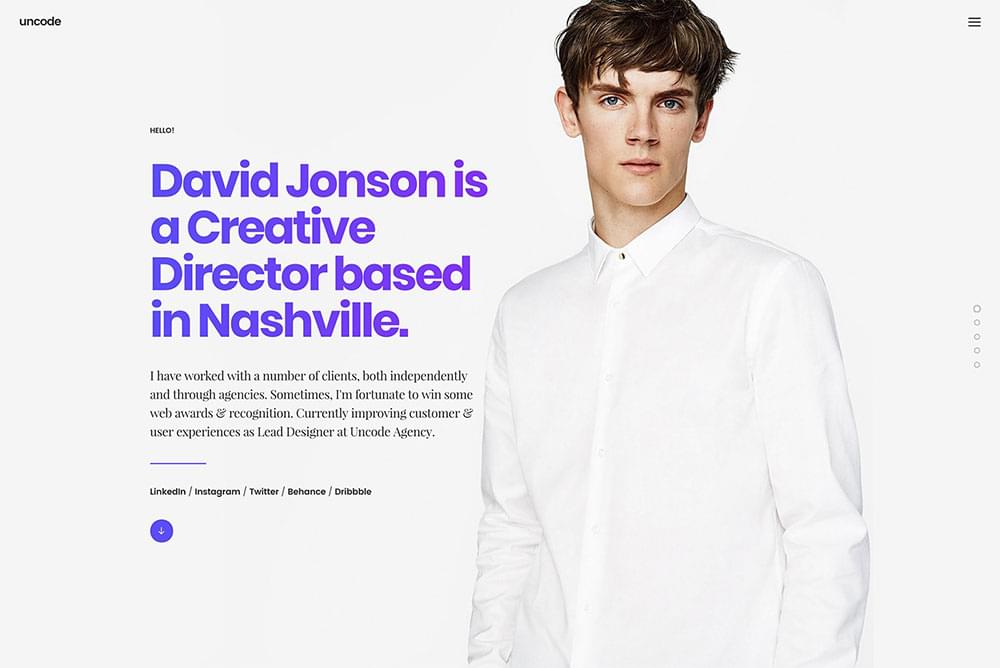
Creative Director

Creative Director

Have you been itching to tell the world what you're capable of creating? Then, the attention-getting Creative Director layout is what you are looking for.

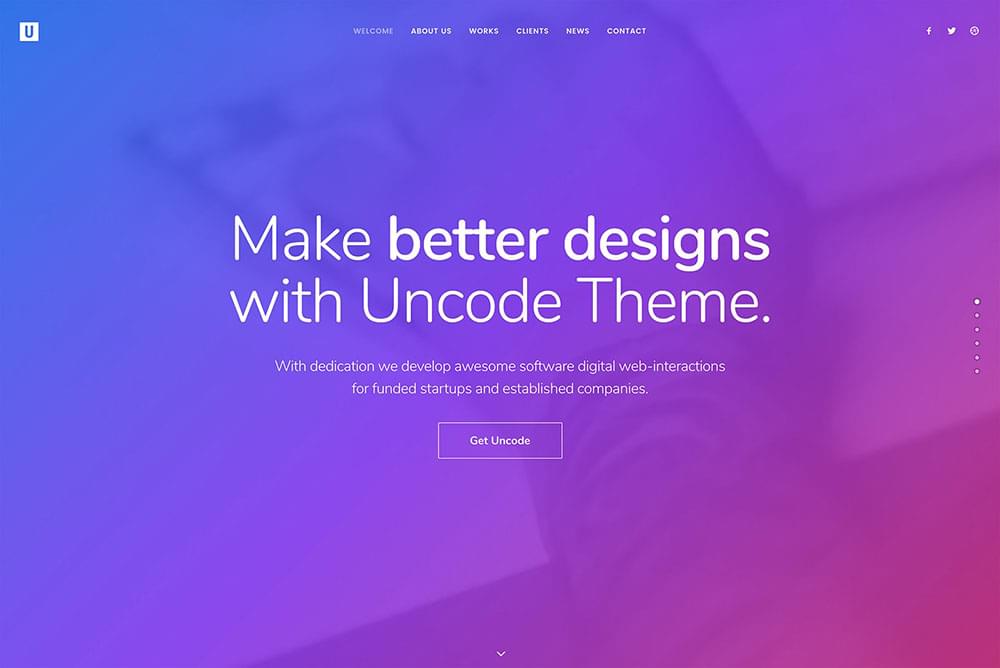
Classic Firm

Classic Firm

Classic Firm

Classic Firm was created with a vision to satisfy the needs of artist collectives. It will also be just right for contemporary art studios.

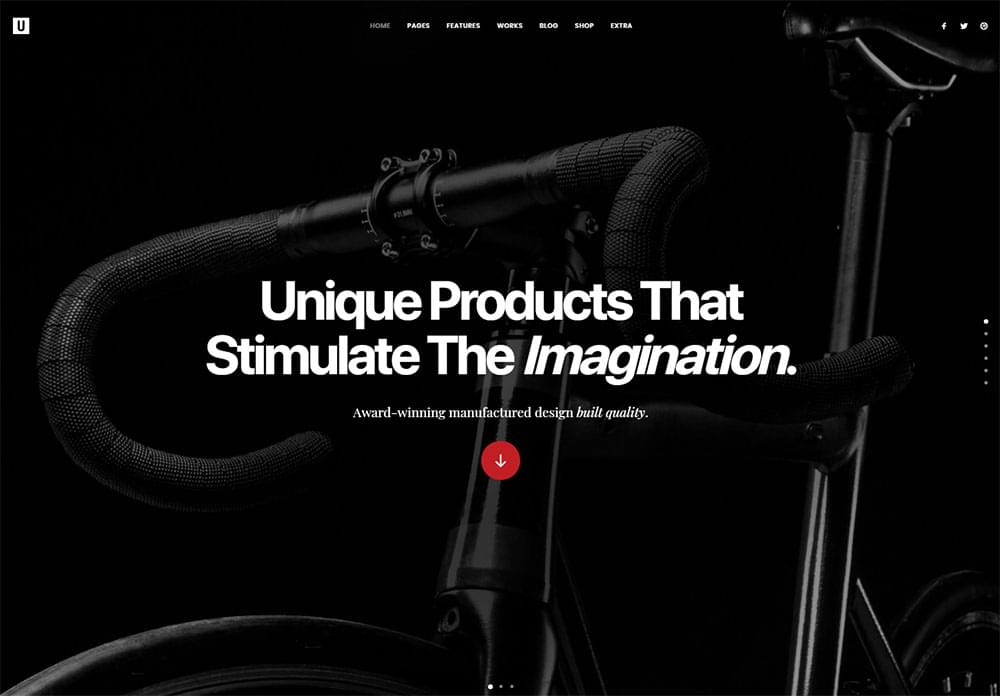
Shop Techie

Shop Techie

This image doesn't tell the whole story. Shop Techie takes full advantage of the Slide Scroll feature. It creates a stunning and exciting eCommerce experience.

Shop Parallax

Shop Parallax

Explore Shop Parallax to experience the hypnotic effect fullscreen slides can have. Users are enjoying this feature as they browse an online shop's offerings.

Portfolio Albums

Portfolio Albums

No surprise here. Portfolio Albums is the ideal starting point for creating stunning photographic portfolios.

Showcase Updates

Uncode users are justifiably proud of their work. This showcase of their website creations offers visual proof of why this is so. Written testimonials are nice. But these hundreds of creative visuals say so much more.

Take time browsing through them. You are sure to come up with inspiration for your future endeavors.

Old Favorites

New features are exciting and always welcome. Especially when they create new opportunities for you. At the same time, Uncode's time-tested and most popular features haven't gone anywhere. Some have been improved upon, and others are untouched.

Visual Composer: Tailored to Better Suit Your Needs

Uncode's tailored version of Visual Composer has always been popular. Working with Uncode's Content Blocks, it makes organizing your content especially easy. The tailored version also removes any limitations on incorporating media into your sites.

Finding What Works Best: 6+ Menu Styles

When you have some good options to select from, it can be hard to come to a decision. On the other hand, it's much easier when you focus on what will work best in your case. Whichever one you end up with will support intuitive, trouble-free navigation.

And the Winner for Most Popular Is: The Adaptive Images Feature

Have you ever experienced a problem with making things fit on mobile device screens? Uncode's Adaptive Images automatic image re-scaling feature will take care of that.

Adaptive Images is but one of the many Uncode "most popular" features.

Professional Looking Layouts for Your Blogs and Portfolios

This is another favorite feature (perhaps with a capital F). These layouts have proven to be extremely popular with creative professionals. As they are easily modified, you can play around with any one of them. Do so until you get precisely what you're looking for.

WooCommerce Single Product Features

Customize your online shop and give it some extra selling power. Uncode's Single Product Features will help you with that. These include custom width layout controls, carousel, and stack layout options. They also have Product Zoom to add some extra pizzazz to your presentations. Plus, you can customize your product pages to the minutest of details.

Wrapping It Up: Why Is Uncode Ideal for Creatives?

  • Uncode's focus is on creating stunning visual experiences. These naturally lead to stunning websites.
  • Everything you need is there to help you showcase your work in ways that will stand out from the crowd.
  • Uncode does so much, so easily. You don't even have to be a web designer to create breathtaking visuals. You don't have to be a programmer either; everything happens with mouse clicks.
  • Create a blog or build an awesome portfolio in only a few hours. Then you can sit back and decide how to spend the rest of your day.

Continue reading %Uncode WordPress Theme: Share Your Creativity with the World%


by SitePoint Team via SitePoint

Build a Preact App with Authentication

This article was originally published on OKTA Blog. Thank you for supporting the partners who make SitePoint possible.

React is a fast, and lightweight library, which has led to fast adoption across the SPA (single-page app) ecosystem. Preact is an even lighter-and-faster alternative to React, weighing in at a measly 3kb! For less complex applications, it can be a great choice.

In this tutorial, you’ll build a basic Preact application with a couple of pages and user authentication using the Okta Sign-In Widget.

Bootstrap Your App With PreactCLI

To get your project started, you’ll install the PreactCLI using NPM.

npm install -g preact-cli

Once you have the CLI installed, run the command to create a base Preact application:

preact create okta-preact-example

This command will chug along for a few minutes scaffolding a basic Preact app and installing all the dependencies. Once it’s done, you should see a bunch of information on the command line informing you of what you can do next.

Change into the application directory.

cd okta-preact-example

Then start the application, just to make sure everything worked as expected.

npm start

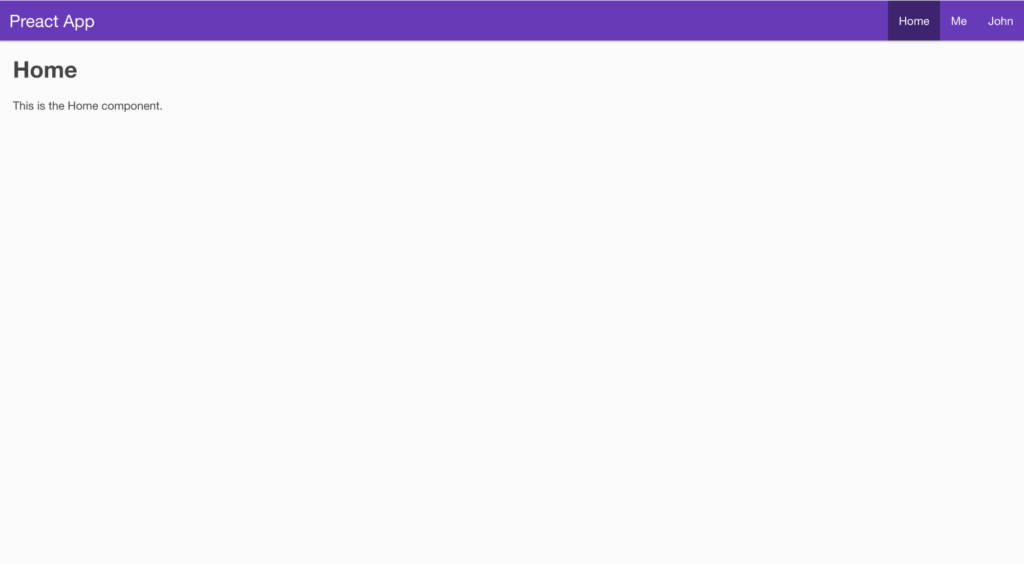
You should see a quick build run and the screen will clear and show you that the application is running at http://localhost:8080. When you open up that URL in your browser, you should see a page like this:

Base Preact Application

Some Things To Note About PreactCLI

Even though the PreactCLI-generated app looks a lot like a React app generated by create-react-app, and you can even use some of the React plugins (like React-Router) in your Preact application, there are some significant differences.

For instance, unlike the ReactCLI, there is no way to eject the Webpack configuration. Instead Preact encourages developers to customize Webpack by creating a file called preact.config.js, using Preact’s Webpack Config Helpers and exporting functions to change the way Webpack behaves.

Even though the PreactCLI says the application is running at http://0.0.0.0:8080, use http://localhost:8080. It’s the same thing and when you set up your application in the Okta dashboard, you’ll set http://localhost:8080 as your base URL and callback URL, so this just makes sure that you can call the Okta APIs.

Create Your Okta Application

Now that you have the basic shell of an application, it’s time to add user authentication. If you don’t already have one, create a free (forever) account at Okta.

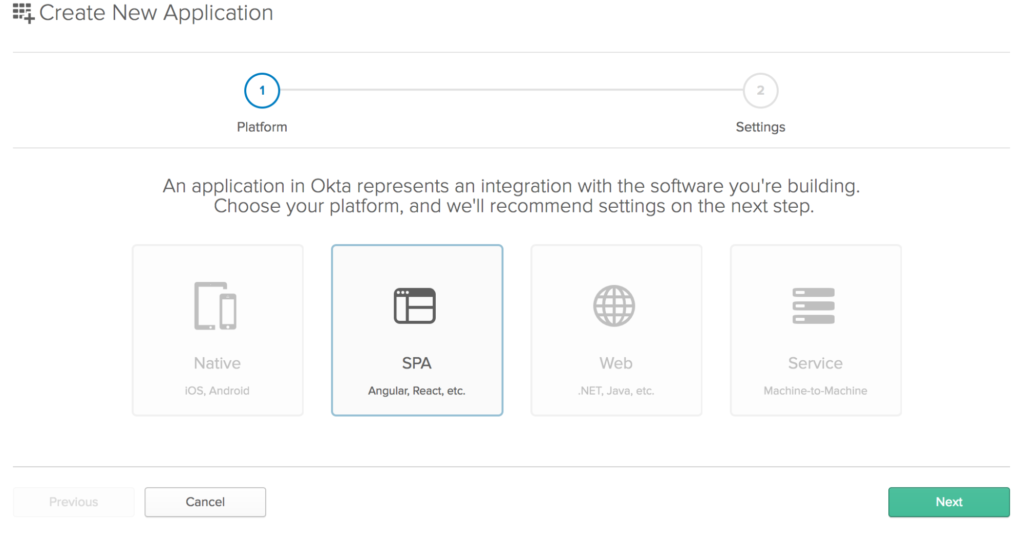
Once you’ve created an account, go to the admin dashboard and click on “Applications” in the page menu. Then click the green “Add Application” button, then the green “Create New App” button, so that you see a modal window like:

Create Application Screen

Choose “SPA” from the Platform buttons. Click the “Next” button to create your application.

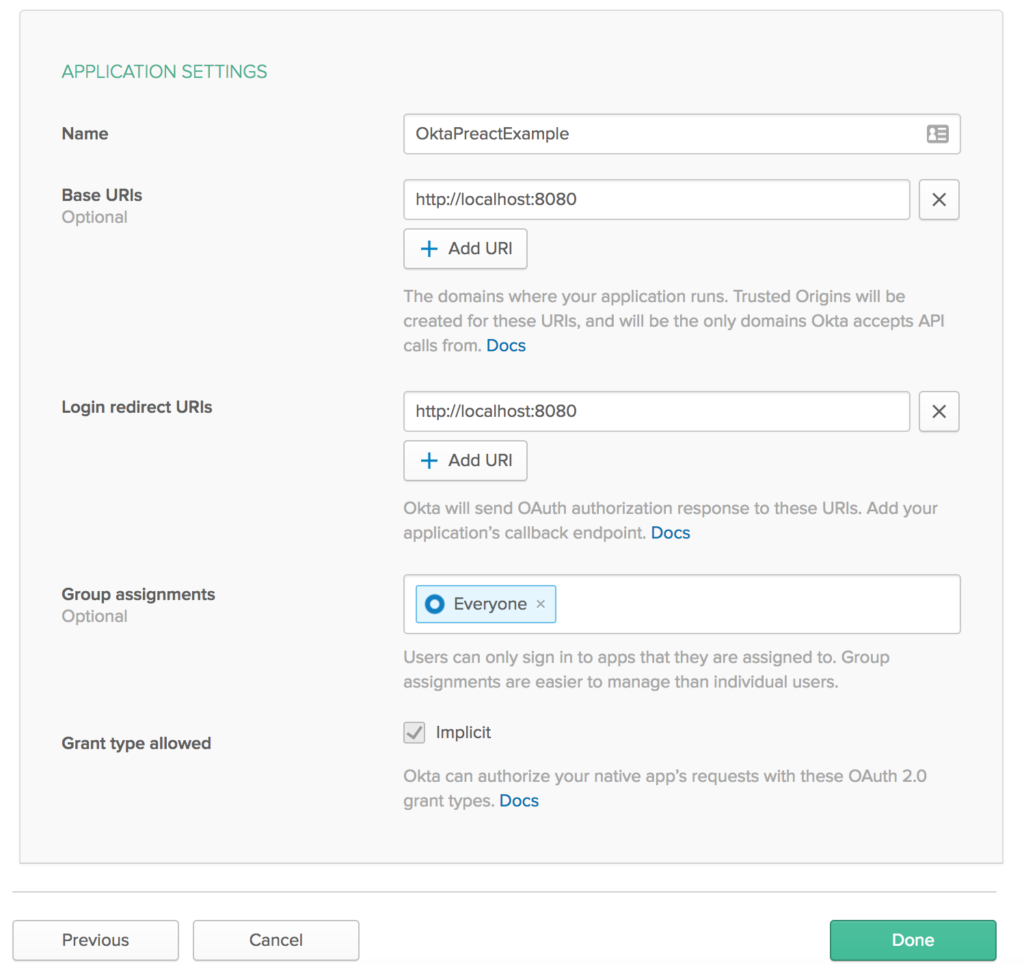
This will take you to a screen to “Application Settings” page of the Create Application wizard. Enter “OktaPreactExample” in the Application name field and add http://localhost:8080 as your base URI and as a login redirect URI. When you’re done, your form should look like this:

Create Integration Screen

You’ll need to create a user (if you don’t already have one) and assign your new application to them as well. Or you can log in with the credentials you use to log in to your Okta account (the admin user).

Install the Okta Sign In Widget

The easiest way to get Okta’s authentication into your new Preact application will be to use Okta’s Sign-In Widget. You’ll install it with npm using:

npm install @okta/okta-signin-widget --save

You’ll also need to install preact-router with:

npm install preact-router --save

Add an Auth Higher-Order Component

With that done, you now need to add some Higher-Order Components to help with authentication.

Add a file called auth.js in the /src/lib folder and add the following code:

import {h} from 'preact';
import { route } from 'preact-router';
import OktaSignIn from '@okta/okta-signin-widget/dist/js/okta-sign-in.min.js';
import '@okta/okta-signin-widget/dist/css/okta-sign-in.min.css';
import '@okta/okta-signin-widget/dist/css/okta-theme.css';

class Auth {
  constructor() {
    this.login = this.login.bind(this);
    this.logout = this.logout.bind(this);
    this.isAuthenticated = this.isAuthenticated.bind(this);
    this.handleAuthentication = this.handleAuthentication.bind(this);

    this.widget = new OktaSignIn({
      baseUrl: 'https://{yourOktaDomain}.com/',
      clientId: '{clientId}',
      redirectUri: 'http://localhost:8080',
      authParams: {
        responseType: ['id_token', 'token'],
        scopes: ['openid', 'email', 'profile']
      }
    });
  }

  isAuthenticated() {
    // Checks if there is a current accessToken in the TokenManger.
    return !!this.widget.tokenManager.get('accessToken');
  }

  getCurrentUser(){
    return this.widget.tokenManager.get('idToken');
  }

  login() {
    // Redirect to the login page
    route('/login/');
  }

  async logout() {
    this.widget.tokenManager.clear();
    await this.widget.signOut();
    location = '/';
  }

  handleAuthentication(tokens) {
    for (let token of tokens) {
      if (token.idToken) {
        this.widget.tokenManager.add('idToken', token);
      } else if (token.accessToken) {
        this.widget.tokenManager.add('accessToken', token);
      }
    }
  }
}

// create a singleton
const auth = new Auth();
export const withAuth = WrappedComponent => props =>
  <WrappedComponent auth={auth} {...props} />;

In the first line of code, you can tell something’s different. The h module in Preact is what turns JSX into DOM elements. Normally, React would use the React library to generate React.createElement statements to make DOM elements from JSX. Preact uses the h library to make something like h('div', {class:'something'}, 'Content') statements to do that.

Next, you imported route from preact-router right below the h import. This is what is used by Preact to do the redirects in the login function. Notice that the Auth class is just a regular function and does not extend Component. In the constructor, the internal functions were bound with the this context from the Auth class.

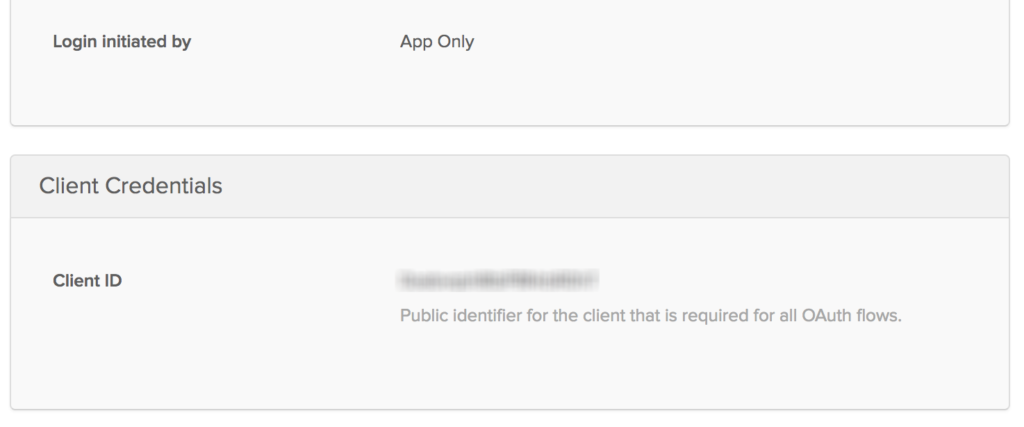
Then enter your Okta organization URL and client ID to the Okta Sign-In Widget configuration. Your Organization URL will be the URL you use when you log into your Okta account (e.g. http://ift.tt/2xubepC) and you can get your client ID from the application’s property page in the administrative dashboard on the “General” tab for your application (obviously, yours won’t be blurred out):

Client ID Screen

You’ll also want to change the redirectUri property to http://localhost:8080 because the Preact uses port 8080 instead of 3000 for normal React apps.

The login function simply routes the user to the login page, while the logout function clears the tokens saved in the widget’s token manager, calls signOut on the widget, and redirects the user to the root of the application.

Finally, a singleton of the Auth class is created to be shared by all the components, and is passed in as a prop called auth to any component that you wrap in withAuth.

Create a Widget Wrapper

Create a file in your /src/lib folder called OktaSignInWidget.js. Enter the code for this component:

Continue reading %Build a Preact App with Authentication%


by Lee Brandt via SitePoint

Cardea

‘Cardea’ is a unique One Page WordPress theme perfect to create a colorful One Page portfolio. The theme loads projects using AJAX allowing the reader to browse your full portfolio without reloading the page. Other features include a sticky header navigation, smooth scroll to sections, marketing copy slider, about section with video overlay, blog feed, pricing table, skills graph, team, unique testimonial slider with alongside client logos and ends strong with an enquiry form. Lovely work once again by CocoBasic 👍

Full Review | Direct Link


by Rob Hope @robhope via One Page Love

JJ Ying

One Page portfolio for UI designer JJ Ying featuring neat animated GIF overlays to bring each project item to life.

Full Review | Direct Link


by Rob Hope @robhope via One Page Love