
by via Awwwards - Sites of the day
This week in Yo! I cover Lunacy – a Sketch editor for Windows, 2018 State of Email by Litmus, Local Overrides in Chrome 65 DevTools, Paste with Frames by FiftyThree, 300 free icons, beautiful websites, remote jobs, beats & more 

A tutorialabout Google’s coding standards for source code in the JavaScript programming language. The best stylistic practices for writing clean, understandable code.

Neat load transitions in this colorful Landing Page for new blogging platform, Caramella. Quick shout-out to the smart use of the .la domain extension 

This article was originally published on Monday.com. Thank you for supporting the partners who make SitePoint possible.
9 out of 10 startups fail. This apocryphal statistic is generally accepted as fact because the simple truth is, building a successful business is hard.
There are many obvious factors that have contributed to monday.com’s success as a product and business—hard work, luck, determination—but much of where we’ve arrived today is thanks to the less obvious lessons that our founders learned the hard way.
When launching a new business and looking for a product/market fit, many people ask questions like:
This is a good start, but it’s not close to enough. In this post, we’ll share some of our co-founders Roy Man and Eran Zinman’s hard-earned insights on how they built a strong business. They’ve both been developing and building products since they were kids and have a lot of successes and failures under their belt.
Roy: “I built two startups that succeeded in some aspects but failed to turn into viable businesses. They were really good looking products with an excellent code base, but that didn’t help. It also didn’t help that people who saw these products were amazed and loved them—something didn’t work and I had no idea what.
So I went to my good friend and mentor Avishai Abrahami, the CEO of Wix, and told him that he had to show me how to get it right. So I joined Wix in 2010 when they were a startup of 80 people.”
Eran: “After I got my degree, I started my own company building a search engine for user reviews, where you could get an aggregated view of all reviews. I rented 15 computers that crawled the web 24/7 and put them on the second floor of my mom’s house. I got a call from our Internet provider who were like, ‘Uh, what are you doing?’
“I made every mistake you can make as an entrepreneur. I thought that you have to build an excellent product before you raise money. We kept improving it and perfecting it for a whole year while I burned through my life’s savings. Finally, my account was frozen, and I had to call it quits.
Working with your intuition is always wrong. You look at other companies and success stories and try to reverse-engineer them. It’s never like that. I thought, ‘I’m going to create the next Google. When I launch, it’s going to be perfect.’ I had no idea that I should have shared it with users and gotten feedback really early on.”
Roy: “When I joined Wix, I couldn’t believe how bad their codebase was. Their product design was pretty childlike, and the UI was horrible. Nothing acted like anything you’d expect. The Head of Product back then was proud of the fact that their ‘color picker’ was designed by a color-blind person.
Continue reading %The Secret Sauce for Creating an Amazing Product%

Nice use of canvas with this one page website for Coldnoir – a Chinese design/UX agency. Love the simplicity and feel of it as you scroll. Nicely built.
Coldnoir is a Web design / UX agency for designers inspire.
The post Coldnoir appeared first on One Page Mania.
In this article, we’ll add authentication to our Angular application and learn how we can protect sections from our application from unauthorized access.
This article is part 5 of the SitePoint Angular 2+ Tutorial on how to create a CRUD App with the Angular CLI.
In part 1 we learned how to get our Todo application up and running and deploy it to GitHub pages. This worked just fine but, unfortunately, the whole app was crammed into a single component.
In part 2 we examined a more modular component architecture and learned how to break this single component into a structured tree of smaller components that are easier to understand, reuse and maintain.
In part 3 we updated our application to communicate with a REST API backend using RxJS and Angular’s HTTP service.
In part 4, we introduced Angular Router and learned how the router updates our application when the browser URL changes and how we can use the router to resolve data from our backend API.
Don’t worry! You don’t need to have followed part 1, 2, 3 or 4 of this tutorial, for five to make sense. You can simply grab a copy of our repo, check out the code from part 4, and use that as a starting point. This is explained in more detail below.
Make sure you have the latest version of the Angular CLI installed. If you don’t, you can install it with the following command:
npm install -g @angular/cli@latest
If you need to remove a previous version of the Angular CLI, you can run this:
npm uninstall -g @angular/cli angular-cli
npm cache clean
npm install -g @angular/cli@latest
After that, you’ll need a copy of the code from part 4. This is available at https://github.com/sitepoint-editors/angular-todo-app. Each article in this series has a corresponding tag in the repository so you can switch back and forth between the different states of the application.
The code that we ended with in part 4 and that we start with in this article is tagged as part-4. The code that we end this article with is tagged as part-5.
You can think of tags like an alias to a specific commit id. You can switch between them using git checkout. You can read more on that here.
So, to get up and running (with the latest version of the Angular CLI installed) we would do this:
git clone git@github.com:sitepoint-editors/angular-todo-app.git
cd angular-todo-app
git checkout part-4
npm install
ng serve
Then visit http://localhost:4200/. If all’s well, you should see the working Todo app.
In this article, we will:
ApiServiceSignInComponent to display a sign-in formBy the end of this article, you’ll understand:
AuthService to implement authentication logicSessionService to store session dataOur application will look like this:
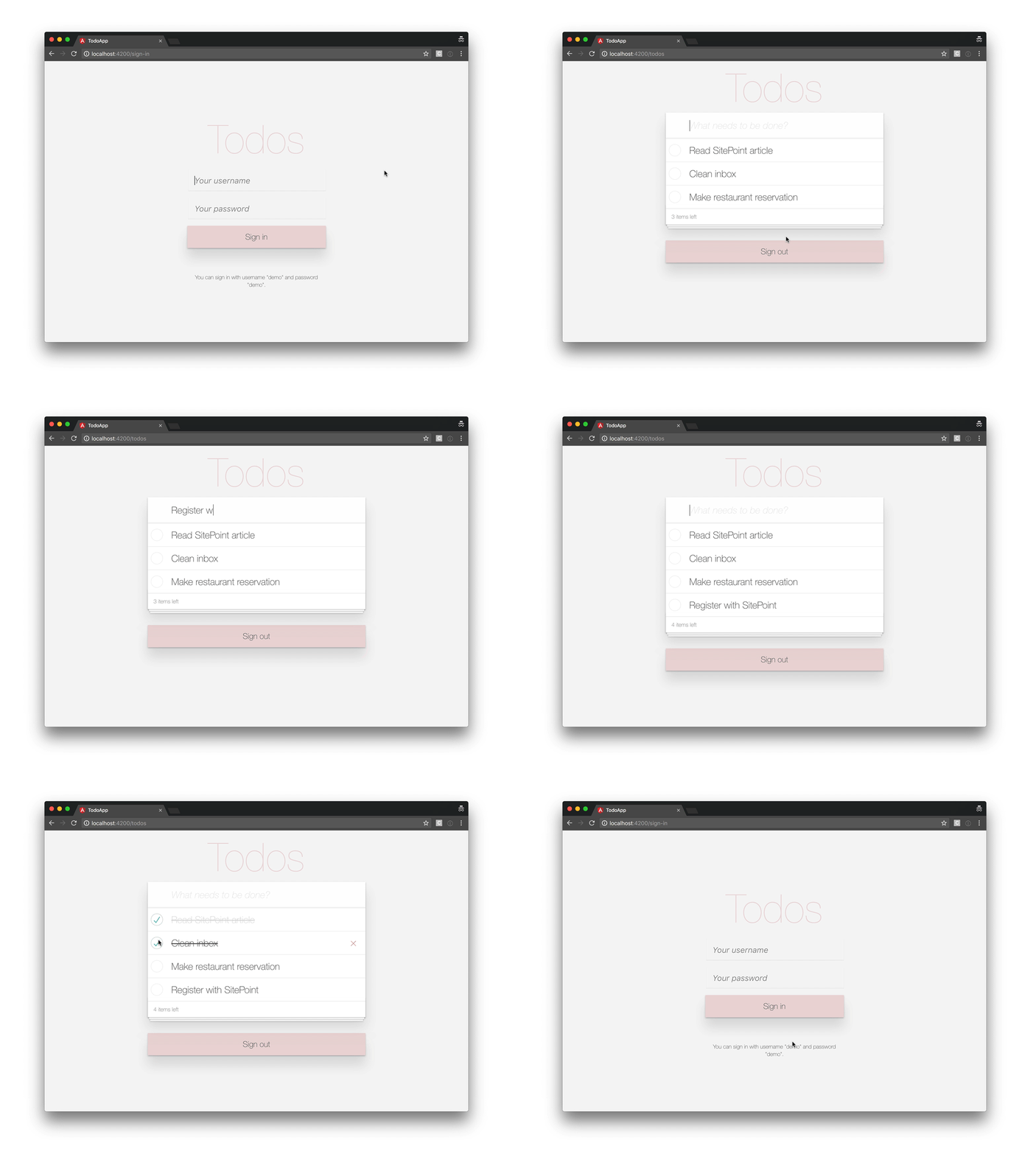
So, let’s get started!
Server-side web applications typically handle user sessions on the server. They store session details on the server and send the session ID to the browser via a cookie. The browser stores the cookie and automatically sends it to the server with every request. The server then grabs the session ID from the cookie and looks up the corresponding session details from its internal storage (memory, database, etc). The session details remain on the server and are not available in the client.
In contrast, client-side web applications, such as Angular applications, typically manage user sessions in the client. The session data is stored in the client and sent to server when needed. A standardized way to store sessions in the client are JSON Web Tokens, also called JWT tokens. If you’re unfamiliar with how tokens work, check out this simple metaphor to easily understand and remember how token-based authentication works and you’ll never forget again.
If you want to get a deeper understanding of cookies and tokens, make sure to check out Philippe De Ryck’s talk on Cookies versus tokens: a paradoxial choice.
Due to the popularity of JSON Web Tokens in today’s ecosystem, we’ll use a JWT-based authentication strategy.
Before we can add authentication to our Angular application, we need a back end to authenticate against.
In the previous parts of this series, we use json-server to serve back end data based on the db.json file in the root of our project.
Luckily, json-server can also be loaded as a node module, allowing us to add custom request handlers.
Let’s start by installing the body-parser npm module, which we’ll need to parse the JSON in our HTTP requests:
$ npm install --save body-parser
Next, we create a new file json-server.js in the root of our project:
const jsonServer = require('json-server');
const server = jsonServer.create();
const router = jsonServer.router('db.json');
const middlewares = jsonServer.defaults();
const bodyParser = require('body-parser');

// Sample JWT token for demo purposes
const jwtToken = 'eyJhbGciOiJIUzI1NiIsInR5cCI6IkpXVCJ9.eyJuYW1lIjoiU2l0ZVBvaW50IFJ' +
  'lYWRlciJ9.sS4aPcmnYfm3PQlTtH14az9CGjWkjnsDyG_1ats4yYg';

// Use default middlewares (CORS, static, etc)
server.use(middlewares);

// Make sure JSON bodies are parsed correctly
server.use(bodyParser.json());

// Handle sign-in requests
server.post('/sign-in', (req, res) => {
  const username = req.body.username;
  const password = req.body.password;
  if(username === 'demo' && password === 'demo') {
    res.json({
      name: 'SitePoint Reader',
      token: jwtToken
    });
  }
  res.send(422, 'Invalid username and password');
});

// Protect other routes
server.use((req, res, next) => {
  if (isAuthorized(req)) {
    console.log('Access granted');
    next();
  } else {
    console.log('Access denied, invalid JWT');
    res.sendStatus(401);
  }
});

// API routes
server.use(router);

// Start server
server.listen(3000, () => {
  console.log('JSON Server is running');
});

// Check whether request is allowed
function isAuthorized(req) {
  let bearer = req.get('Authorization');
  if (bearer === 'Bearer ' + jwtToken) {
    return true;
  }
  return false;
}
This article is not meant to be a tutorial on json-server, but let’s quickly have a look at what’s happening.
First we import all json-server machinery:
const jsonServer = require('json-server');
const server = jsonServer.create();
const router = jsonServer.router('db.json');
const middlewares = jsonServer.defaults();
const bodyParser = require('body-parser');
In a real-world application, we would dynamically generate a JWT token when a user authenticates, but for the purpose of this demo, we define a JWT token statically:
// Sample JWT token for demo purposes
const jwtToken = 'eyJhbGciOiJIUzI1NiIsInR5cCI6IkpXVCJ9.eyJuYW1lIjoiU2l0ZVBvaW50IFJ' +
  'lYWRlciJ9.sS4aPcmnYfm3PQlTtH14az9CGjWkjnsDyG_1ats4yYg';
Next, we configure json-server to run its own default middlewares:
// Use default middlewares (CORS, static, etc)
server.use(middlewares);
and to parse incoming JSON requests properly:
// Make sure JSON bodies are parsed correctly
server.use(bodyParser.json());
Json-server’s default middlewares are request handler functions that deal with static files, CORS, etc. For more detailed information, check out the documentation.
We then define a request handler for sign-in requests:
// Handle sign-in requests
server.post('/sign-in', (req, res) => {
  const username = req.body.username;
  const password = req.body.password;
  if(username === 'demo' && password === 'demo') {
    res.json({
      name: 'SitePoint Reader',
      token: jwtToken
    });
  }
  res.send(422, 'Invalid username and password');
});
We tell json-server to listen for HTTP POST requests on /sign-in. If the request contains a username field with a value of demo and password field with a value of demo, we return an object with the JWT token. If not, we send an HTTP 422 response to indicate that the username and password are invalid.
In addition, we also tell json-server to authorize all other requests:
// Protect other routes
server.use((req, res, next) => {
  if (isAuthorized(req)) {
    console.log('Access granted');
    next();
  } else {
    console.log('Access denied, invalid JWT');
    res.sendStatus(401);
  }
});

// Check whether request is allowed
function isAuthorized(req) {
  let bearer = req.get('Authorization');
  if (bearer === 'Bearer ' + jwtToken) {
    return true;
  }
  return false;
}
If the client’s HTTP request contains an Authorization header with the JWT token, we grant access. If not, we deny access and send an HTTP 401 response.
Finally, we tell json-server to load the API routes from db.json and start the server:
// API routes
server.use(router);

// Start server
server.listen(3000, () => {
  console.log('JSON Server is running');
});
To start our new back end, we run:
$ node json-server.js
For our convenience, let’s update the json-server script in package.json:
"json-server": "node json-server.js"
Now we can run:
$ npm run json-server

> todo-app@0.0.0 json-server /Users/jvandemo/Projects/sitepoint-editors/angular-todo-app
> node json-server.js

JSON Server is running
And voila, we have our own API server with authentication running.
Time to dig into the Angular side.
Now that we have an API endpoint to authenticate against, let’s add a new method to our ApiService to perform an authentication request:
@Injectable()
export class ApiService {

  constructor(
    private http: Http
  ) {
  }

  public signIn(username: string, password: string) {
    return this.http
      .post(API_URL + '/sign-in', {
        username,
        password
      })
      .map(response => response.json())
      .catch(this.handleError);
  }

  // ...

}
When called, the signIn() method performs an HTTP POST request to our new /sign-in API endpoint, including the username and password in the request body.
If you’re not familiar with Angular’s built-in HTTP service, make sure to read Part 3 — Update the Todo service to communicate with a REST API.
Continue reading %Angular 2 Authentication: Protecting Private Content%

