If you’re trying to launch your UX career, you probably already know that having an amazing portfolio is key to landing your dream job in the field.
As an aspiring UX designer, you probably also have tons of great ideas that you want to turn into fully-designed portfolio projects. But how do you learn the right process to follow to turn those high-level ideas into comprehensive and well-researched projects that will impress employers?
Don’t worry – you’re not alone. We’ve spoken with dozens of experienced designers and hiring managers over the past year as we’ve built up our Design Portfolio Starter Kit to try to understand just what makes an impressive junior UX portfolio and how new designers can maximize their chances of creating a portfolio that will help them get a job.

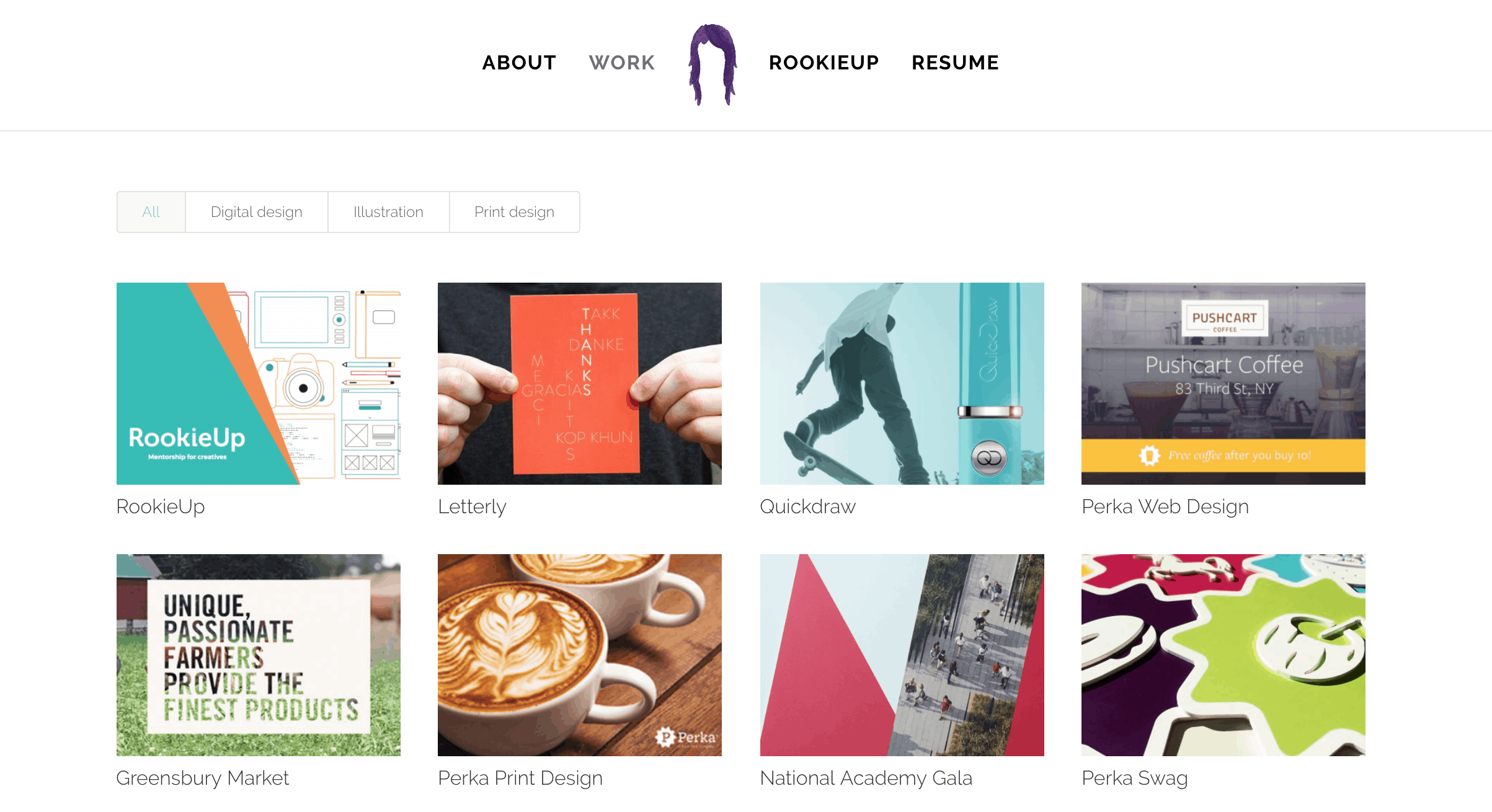
Even when you’re just starting out, you need the right mix of projects in your portfolio.
In this article, I’m sharing a few of those tips to help you build your own amazing UX portfolio.
Figure out what types of UX work interest you and become an expert
First things first: what types of projects should you include in your portfolio?
The simple answer is that you should focus on what interests you most, and develop a deep expertise in that specific area of UX design. Employers want to hire candidates that have a demonstrated interest and expertise in the specific type of work they’ll be spending most of their time doing. So take time to figure out what interests you the most and then dive deep.
If you don’t know what kind of UX work interest you most, do a simple test. Spend a few hours browsing and using a variety of different websites and apps (use a site like Awwwards or CSS Winner for ideas). Take careful notes of what you enjoy most about them, writing down details about the sites and apps you like using most.
After a few hours, take a look at your notes and try to identify any patterns in the things you liked most. Were you most impressed by how easy it was to use certain apps and websites and logically find the information you were seeking? You might be interested in information architecture.
Did you get the most pleasure out of the visual aesthetic of some of the apps you were using? Then a role as a user interface designer might be best for you. Also pay attention to the types of products you enjoy working on, whether that’s mobile apps, ecommerce stores, or startup websites.
Whichever type of UX/UI design you find yourself gravitating towards, start to develop a deep expertise in that field. Simultaneously, employers love well-rounded designers so be sure to supplement your studies with learning about broader design principles as well.
For instance, if you decide to focus on UI design, make sure you fully understand research, user flows, and user testing so that your designs are informed by well-tested UX processes. And if you’re more interested in pure UX or information architecture work, learn about design principles like grids, color theory, and typography, as well as fundamentals like hierarchy and repetition so that you can turn your research and user flows into beautiful final products (or at least work well with designers who can).
Once you’ve decided which subset of the UX field to focus on, it’s time to come up with project ideas.
Come up with projects that solve real problems
Early in your UX career, your portfolio will probably feature a lot of projects that you’ve come up with on your own. While having “real work” in your portfolio is always great, employers understand that you won’t necessarily have real projects to show when you’re just getting started. If your portfolio is going to be comprised of mostly theoretical work, it’s absolutely crucial for those projects to focus on solving real problems.

There are a few different ways to solve real problems with your first few UX projects. The most straightforward way is to think about problems that exist in your daily life or in industries you’re interested in and brainstorm how you could create a UX project to solve those problems.
For instance, if you’re interested in sports but live in a city, you could create a website or mobile app that makes it easy for anyone to find local intramural sports teams they can join. Or if you are passionate about nonprofits but have trouble finding places to buy nonprofit apparel, you could design an ecommerce site where nonprofits can sell their products. It’s really as simple as that. Spend 30 minutes writing down industries you care about, and problems in those industries, and use that as a basis for your project ideas.
Another easy way to solve real problems with your projects is to launch your own side project. There are thousands of great side project ideas you can design and launch in just a few weeks, so do the same exercise of writing down a list of possible side projects you could work on and choose the one that excites you most and can leverage the type of UX work you want to do. This could be creating an ecommerce site where you sell prints of your own artwork, an online course where you teach a specific skill, or anything else you care about!
From here, it’s time to move on to the actual project creation process, the most crucial step.
Follow the correct process – don’t skip steps
One of the biggest pieces of feedback from hiring managers is that many junior design portfolios showcase beautiful single screen designs without any context behind the project.

You’ll really impress employers by highlighting your process in your portfolio.
You can design the most beautiful landing page imaginable but if you don’t have a process behind it and a story explaining how you got to the final design, employers will move on to another candidate. After all, they want to hire someone who can solve problems, iterate on their designs based on research and testing, and ultimately reach the final design only after completing those steps.
If you have a great idea for a project, it can be tempting to jump right into Sketch or InVision to wireframe and prototype the idea right off the bat. We recommend taking a breath and following a few steps before that phase, steps that you’ll need to follow in any client or job setting.
First, do research. Look at similar products to see how they tackled the same problem. What decisions did they make that you like and what about their designs don’t you agree with? After this, create user personas, outlining who is actually going to be using this product and why they’re going to use it. What are their primary goals when interacting with this product?
Next, get your ideas out on paper. Sketch out thumbnails of what the design could potentially look like. These don’t need to be too detailed – get every idea, good or bad, down on paper in 20 minutes. Next, depending on the complexity of the project, you might need to create a user flow to show how the user will move through the full web or app experience. From there, create wireframes and ultimately prototypes.
At this phase, it’s time to test. Get a “sample user” (a friend or peer) to test out the wireframe or prototype. Watch how they use it and ask them to explain what they like and dislike about it. Based on their feedback and how they naturally use the prototype, make adjustments as needed. From there, it’s finally time to create it into a high fidelity design, incorporating colour and typography and ensuring that the designs are consistent across screens.
It’s a pretty straightforward process that so many people choose to ignore, but we’ve been told by many hiring managers that following this process will help you stand apart from so many other UX designers.
Showcase your projects as detailed case studies
Most recruiters only spend around 60 seconds reviewing a portfolio before they decide whether to give the candidate an interview. So it’s absolutely crucial to cleanly and logically showcase your projects on your portfolio site. You should show every project as a case study so employers can understand your thought process and get a feeling for how you’d solve similar problems if you worked for them.

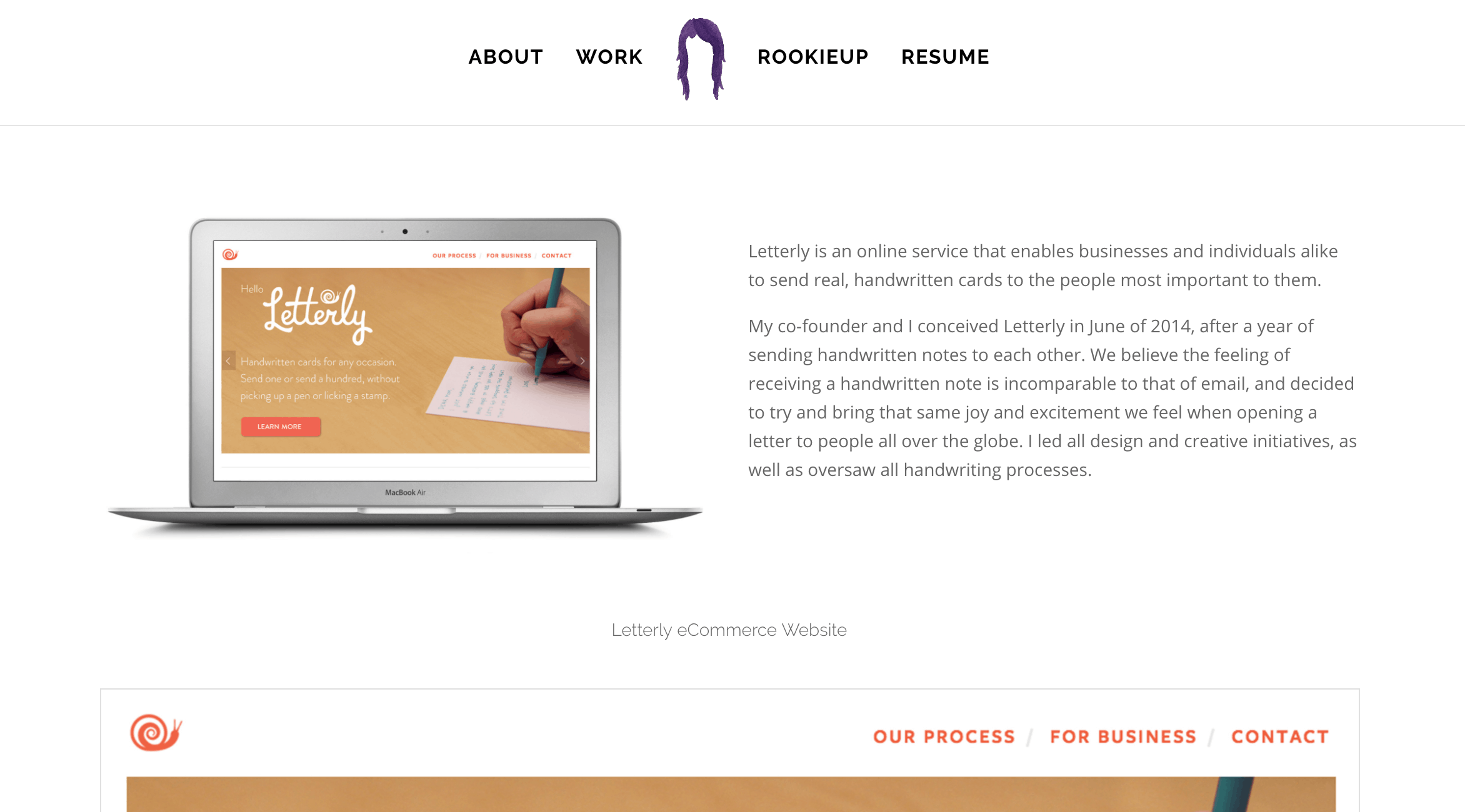
Start by outlining the initial problem, how you approached solving it, and then showing your process as you went. This can include early wireframes and sketches and then slowly show the iteration of the project, including details of when you received feedback (and from whom) as you went. Also be clear about your role on the project if you had any help. Finally, show the beautiful final designs mocked up.
Conclusion
So get out there and come up with ideas for your first UX portfolio projects!
Creating your first UX portfolio is an exciting process. Even though it can feel overwhelming, try to take it one project at a time. Think about problems you really care about solving and don’t be afraid to be ambitious. Employers will respect you more for the complex problems you’re trying to solve than the beautiful visuals you end up creating.
If you ever need help coming up with project ideas for your portfolio or need guidance to actually turn your ideas into full-formed final designs, check out the UX Design Portfolio starter kit we created at RookieUp, which includes tons of projects, resources, and guides to help you craft an amazing portfolio on your own.
How did you create your first UX portfolio? What types of projects did you use for examples? Leave a comment here or share your tips in the forums!
The post How to Develop Project Ideas for Your UX Portfolio appeared first on UX Mastery.

by Alec McGuffey via UX Mastery