Tuesday, June 5, 2018

10 Must-have VS Code Extensions for JavaScript Developers

In this article, I’ll focus on must-have VS Code extensions for JavaScript developers.

Visual Studio Code is undoubtedly the most popular lightweight code editor today. It does borrow heavily from other popular code editors, mostly Sublime Text and Atom. However, its success mainly comes from its ability to provide better performance and stability. In addition, it also provides much needed features like IntelliSense, which were only available in full-sized IDEs like Eclipse or Visual Studio 2017.

The power of VS Code no doubt comes from the marketplace. Thanks to the wonderful open-source community, the editor is now capable of supporting almost every programming language, framework and development technology. Support for a library or framework comes in various ways, which mainly includes snippets, syntax highlighting, Emmet and IntelliSense features for that specific technology.

VS Code Extensions by Category

For this article, I’ll focus on VS Code extensions specifically targeting JavaScript developers. Currently, there are many VS Code extensions that fit this criterion, which of course means I won’t be able to mention all of them. Instead, I’ll highlight VS Code extensions that have gained popularity and those that are indispensable for JavaScript developers. For simplicity, I’ll group them into ten specific categories.

Snippet Extensions

When you first install VS Code, it comes with a several snippets for JavaScript and Typescript. Before you start writing modern JavaScript, you’ll need some additional snippets to help you quickly write repetitive ES6/ES7 code:

  • VS Code JavaScript (ES6) snippets: currently the most popular, with over 1.2 million installs to date. This extension provides ES6 syntax for JavaScript, TypeScript, HTML, React and Vue extensions.

  • JavaScript Snippet Pack: a collection of useful snippets for JavaScript.

  • Atom JavaScript Snippet: JavaScript snippets ported from the atom/language-javascript extension.

  • JavaScript Snippets: a collection of ES6 snippets. This extension has snippets for Mocha, Jasmine and other BDD testing frameworks.

Syntax Extensions

VS Code comes with pretty good syntax highlighting for JavaScript code. You can change the colors by installing themes. However, you need a syntax highlighter extension if you want a certain level of readability. Here are a couple of them:

  • JavaScript Atom Grammar: this extension replaces the JavaScript grammar in Visual Studio Code with the JavaScript grammar from the Atom editor.

  • Babel JavaScript: syntax highlighting for ES201x JavaScript, React, FlowType and GraphQL code.

  • DotENV: syntax highlighting for .env files. Handy if you’re working with Node.

Linter Extensions

Writing JavaScript code efficiently with minimum fuss requires a linter that enforces a specific standard style for all team members. ESLint is the most popular, since it supports many styles including Standard, Google and Airbnb. Here are the most popular linter plugins for Visual Studio Code:

  • ESLint: this extension integrates ESLint into VS Code. It’s the most popular linter extension, with over 6.7 million installs to date. Rules are configured in .eslintrc.json.

  • JSHint: a code checker extension for JSHint. Uses .jshintrcfile at the root of your project for configuration.

  • JavaScript Standard Style: a linter with zero configuration and rigid rules. Enforces the StandardJS Rules.

  • JSLint: linter extension for JSLint.

If you’d like an overview of available linters and their pros and cons, check out our comparison of JavaScript linting tools.

Node Extensions

Every JavaScript project needs to at least one Node package, unless you’re someone who likes doing things the hard way. Here are a few VS Code extensions that will help you work with Node modules more easily.

  • npm: uses package.jsonto validate installed packages. Ensures that the installed packages have the correct version numbers, highlights installed packages missing from package.json, and packages that haven’t been installed.

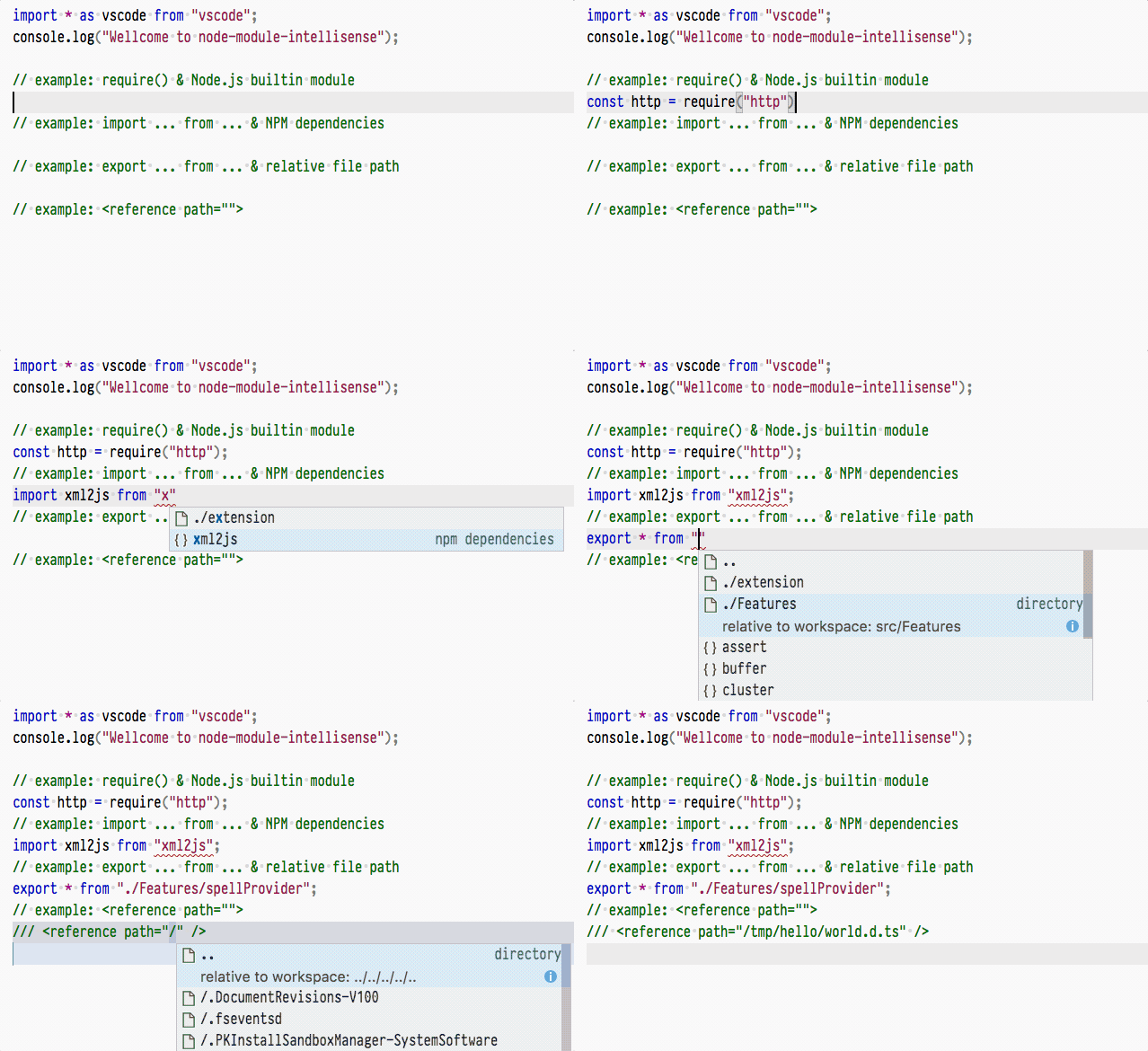
  • Node.js Modules IntelliSense: autocomplete for JavaScript and TypeScript modules in import statements.
    Node IntelliSense demo
    Source: vscode-node-module-intellisense

  • Path IntelliSense: it’s not really Node related, but you definitely need IntelliSense for local files and this extension will autocomplete filenames.

  • Node exec: allows you to execute the current file or your selected code with Node.js.

  • View Node Package: quickly view a Node package source with this extension, which allows you to open a Node package repository/documentation straight from VS Code.

  • Node Readme: quickly open npm package documentation.

  • Search node_modules: this extension allows you to search the node_modules folder, which is usually excluded from standard search.

    Search Node modules
    Source: vscode-search-node-modules

  • Import Cost: displays size of an imported package.
    Import cost demo
    Source: import-cost

The post 10 Must-have VS Code Extensions for JavaScript Developers appeared first on SitePoint.


by Michael Wanyoike via SitePoint

WebAssembly: Solving Performance Problems on the Web

In modern JavaScript, the goal is often to find every way to optimize performance in the browser. There are times when web applications demand high performance and expect browsers to keep up.

Traditional JavaScript has performance limitations because of how the engine treats the language. An interpreted (or even JIT-compiled) language that’s rendered as part of a page can only get so much — even from the most powerful hardware.

WebAssembly is designed from the ground up to solve the performance problem. It can overcome bottleneck issues that traditional JavaScript wasn’t meant to solve. In WebAssembly, there’s no need to parse and interpret code. WebAssembly takes full advantage of its bytecode format to grant you runtime speeds that match native programs.

Think of it another way: imagine traditional JavaScript as a good, all-purpose tool that can get you anywhere. WebAssembly, in contrast, is the high-performance solution capable of achieving near-native speeds. These are two separate programming tools now at your disposal.

The questions for me are these: does WebAssembly replace good old traditional JavaScript? If not, is it worth the investment in learning WebAssembly?

What Is WebAssembly?

WebAssembly is a different type of code that can be sent to the browser. It’s in bytecode, format meaning that it’s shipped in low-level assembly language by the time it reaches the browser. The bytecode is not meant to be written by hand, but can be compiled from any programming language such as C++ or Rust. The browser can then take any WebAssembly code, load it as native code, and achieve high performance.

You can think of this WebAssembly bytecode as a module: the browser can fetch the module, load it, and execute it. Each WebAssembly module has import and export capabilities that behave a lot like a JavaScript object. A WebAssembly module acts a lot like any other JavaScript code, minus the fact that it runs at near-native speeds. From a programmer’s perspective, you can work with WebAssembly modules the same way you work with current JavaScript objects. This means that what you already know about JavaScript and the web transfers into WebAssembly programming as well.

The WebAssembly tooling often consists of a C++ compiler. There are many tools in current development, but one that has reached maturity is Emscripten. This tool compiles C++ code into a WebAssembly module and builds standards-compliant modules that can run anywhere. The compiled output will have a WASM file extension to indicate that it’s a WebAssembly module.

One advantage in WebAssembly is that you have all the same HTTP caching headers when you fetch modules. Plus, you can cache WASM modules using IndexedDB, or you can cache modules using session storage. The caching strategy revolves around caching fetch API requests and avoiding yet another request by keeping a local copy. Since WebAssembly modules are in bytecode format, you can treat the module as a byte array and store it locally.

Now that we know what WebAssembly is, what are some of its limitations?

Known Limitations

JavaScript runs in a different environment from any typical C++ program. Therefore, limitations include what native APIs can do in a browser environment.

Network functions must be asynchronous and non-blocking operations. All the underlying JavaScript networking functions are asynchronous in the browser’s Web API. WebAssembly, however, doesn’t benefit from asynchronous I/O-bound operations. An I/O operation must wait for the network to respond, which makes all near-native performance gains negligible.

Code that runs in a browser, runs in a sandboxed environment and doesn’t have access to the file system. You may create an in-memory virtual file system instead that comes preloaded with data.

The application’s main loop uses co-operative multitasking, and each event has a turn to execute. An event on the web often comes from a mouse click, finger tap, or a drag and drop operation. The event must return control to the browser so that other events can be processed. It’s wise to avoid hijacking the main event loop, as this can turn into a debugging nightmare. DOM events are often tied to UI updates, which are expensive. And this brings us to another limitation.

WebAssembly cannot access the DOM; it leans on JavaScript functions to make any changes. Currently, there’s a proposal to allow interoperability with DOM objects on the web. If you think about it, DOM repaints are slow and expensive. All the gains one gets from near-native performance get thwarted by the DOM. One solution is to abstract the DOM into an in-memory local copy that can be reconciled later by JavaScript.

In WebAssembly, some good advice is to stick to what can perform very fast. Use the tool for the job that yields the most performance gains while avoiding pitfalls. Think of WebAssembly as this super-high-speed system that runs well in isolation without any blockers.

Browser compatibility in WebAssembly is dismal, except in modern browsers. There’s no support in IE. Edge 16+, however, does support WebAssembly. All modern big players like Firefox 52+, Safari 11+, and Chrome 57+ support WebAssembly. One idea is to have feature detection and do feature parity between WebAssembly modules and a fallback to JavaScript. This way you don’t break the web and modern browsers get all the performance gains from WebAssembly.

Can I Use wasm? Data on support for the wasm feature across the major browsers from caniuse.com.

The post WebAssembly: Solving Performance Problems on the Web appeared first on SitePoint.


by Camilo Reyes via SitePoint

Improving Your Website’s UX with Analytics and Hotjar

Once upon a time, collecting website feedback from users was about bringing them into an office and asking them to perform specific tasks, so that we could assess the UX with real users. It was the best thing we had at the time, but there was a deficiency in the methodology.

By setting users up for UX testing, we were introducing an involuntary cognitive bias: users were taken out of their natural context, and consciously or not, there would be a subtle change in their behavior.

People will try to be nice. They won’t reveal the true extent of their thoughts, especially if they’re disappointed with your offering.

Also, this ancient type of usability testing is slower and not very cost effective. So when the concept of heatmaps were introduced, it was revolutionary. We could now (literally) see which aspects of our websites users were interested in via their clicking and scrolling behavior, and best of all, they didn’t even need to know about it.

Hotjar is one of the tools that does exactly this.

Building an MVP with Hotjar

Hotjar can be used in conjunction with Google Analytics, where Google Analytics is useful for identifying where your UX may be falling short, and usability testing with Hotjar can be used to identify why. That being said, we can also use Hotjar to create MVPs (minimum viable products).

The first time I saw Hotjar in action, being one of the early-stage beta testers, it felt like an epiphany. We were testing the MVP of our SaaS software BeeWits back then. We had just conceived the idea and we wanted to gauge interest in the concept. We setup a website, designed a pricing table and email capture form, and we decided that if a certain % of users were interested, then we were onto something.

But rather than just "hoping" for emails and asking for user feedback, we also set up Hotjar user recording on the MVP landing page.

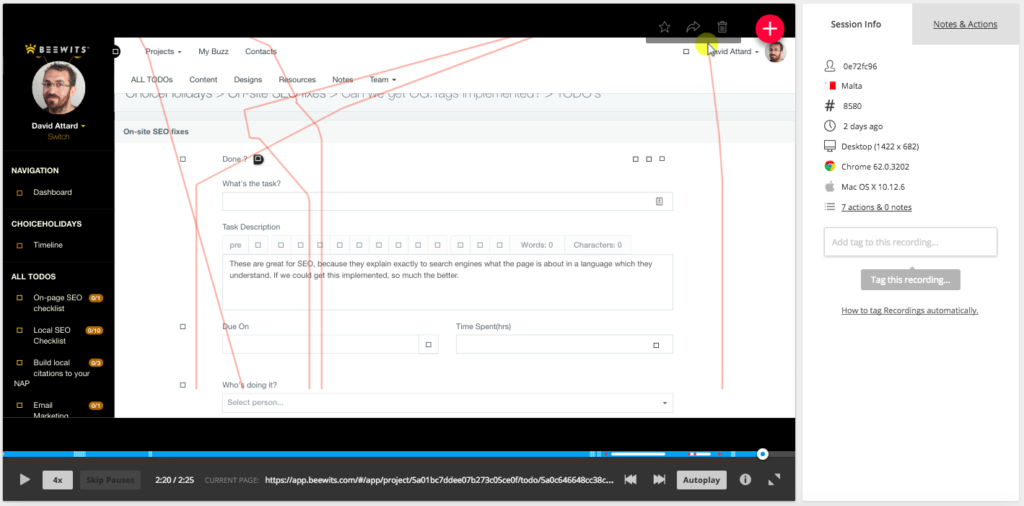
Hotjar recording is a feature that literally records the actions of a user when they visit your website or web application. You can see the cursor trailing, the clicks, and follow their user journey as it happens.

In essence, you’re watching your customer in their most natural state.

Tracking a user's actions

We were thus able to see our users’ interactions with the website, and get a clear sense of the whole user experience. By watching these recordings, we could see the stumbling blocks almost as if we were the user. In our case, we defined our UX (and validated our business idea) with Hotjar.

We could even "see" their reaction to the different price plans, since we could observe the users’ clicks and hovers. We were able to validate our concept from a business angle, as well as improve our UX over time.

Improving the UX with User Recordings

After we MVP’d our idea for a couple of months, we felt there was enough interest in the concept that we decided to develop on the service.

As we launched an early-access version of BeeWits, we wanted to focus on a customer journey where the user finds that "aha!" moment — the moment when they realize how the product will make their life better.

Our "aha!" moment typically happens when a user creates a project using one of our task templates: it's the realization that they don’t need to create a project from scratch every single time.

Optimizing the customer journey

Your users are busy. (You should know, because you’re a user too, right?) They’ll abandon your app if they don’t get it right away, never to return.

When we first launched, the user had a blank slate. After watching user recordings, we realized that our users were getting lost because they had nothing to interact with. When a user starts a free trial and finds emptiness, it’s like they’ve walked into a deserted landscape. Users were stumbling around and then vanishing, but at least we sort of knew why.

We used Google Analytics to identify where users were dropping off. Otherwise, we’d have spent countless hours looking through user recordings to figure that out first, which is no fun.

So, on our next iteration, we let the user start off with an "Example Project". Suddenly, our users had something to work with, and our Google Analytics data told us that we were experiencing more engagement.

Boosting engagement with more user recordings

The beauty of Hotjar recordings is that you can keep discovering stumbling blocks. It’s not a "wham bam, we’re done, let’s move on from usability testing" type of situation. We encountered another issue.

According to the session time of the Hotjar recordings, users that weren’t creating a project to completion were spending much less time than the ones who actually created a project.

Session times of users who didn’t create a project were typically less than two minutes, whilst those who did create a project were spending five minutes or more. However, the users who created a project were coming back to the trial and getting in touch with their feedback when prompted. So, our next goal was to ensure that the user finished creating their project, as they were more likely to return if they did.

After some brainstorming, we decided to turn the example project into a series of smaller tasks instead. We renamed it "Get to know BeeWits". This project now contained a number of tasks which the user had to complete in order to learn how to use BeeWits, including the creation of a project. After a hundred (or so) more user recordings, we saw that both the session time and return rate had increased significantly!

Return rate is an important metric for free trials, because it’s really important for the user to see that they’re getting a lot of use out of the product if they’re to convert to a paying customer later.

The post Improving Your Website’s UX with Analytics and Hotjar appeared first on SitePoint.


by David Attard via SitePoint

An Introduction to MyEtherWallet

In this article, we’ll go through the process of generating your first Ethereum wallet and sending and receiving ether through the MyEtherWallet interface.


This introduction to MyEtherWallet was originally published at Bruno’s Bitfalls website, and is reproduced here with permission.

For a better understanding of the information which follows, it’s recommended you read the following first:


There are many ways to interact with the Ethereum blockchain. In this piece, we’ll be using MyEtherWallet (MEW).

Note: After opening the site, please bookmark it so you never have to paste it into your browser again. There are many bad people who want your ether, and they’ve bought domains similar to the domain of this site hoping you’ll fall into that trap by mistyping!

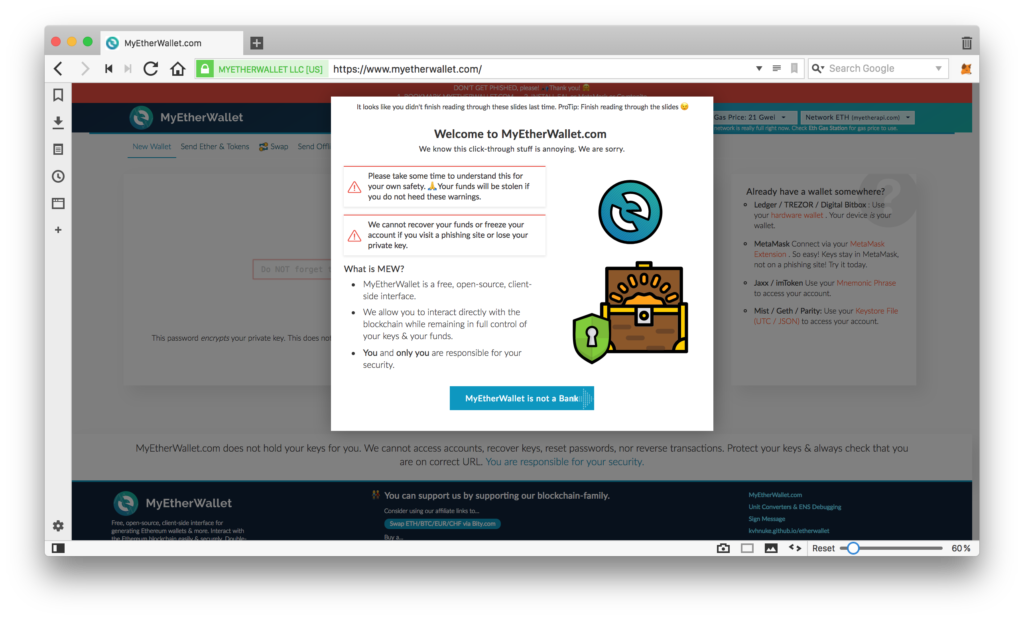
Immediately after loading, the page will display some warnings about them not being a bank and basically not being able to help you if you lose your funds because they don’t have access to them. The gist of it is that you’re responsible for your own funds.

MEW initial screen

Creating and Reading an Address

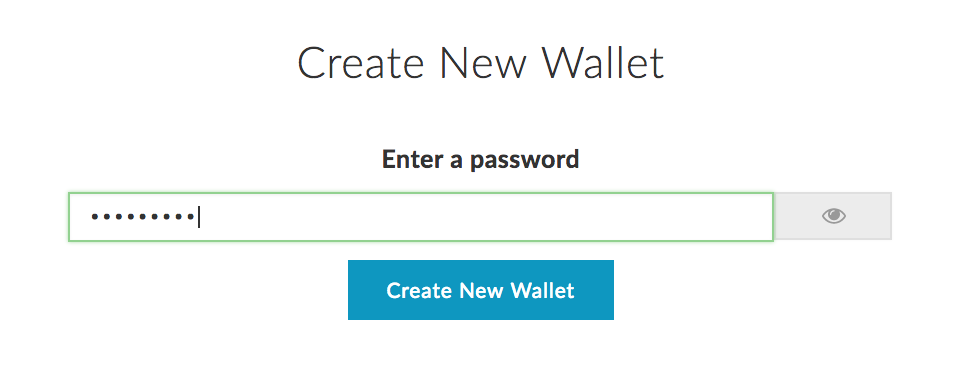
The first screen of MEW is the “input password” screen. Input a password for a new wallet. (Make it something complex but easy to remember or use a password generator like LastPass.)

Password input

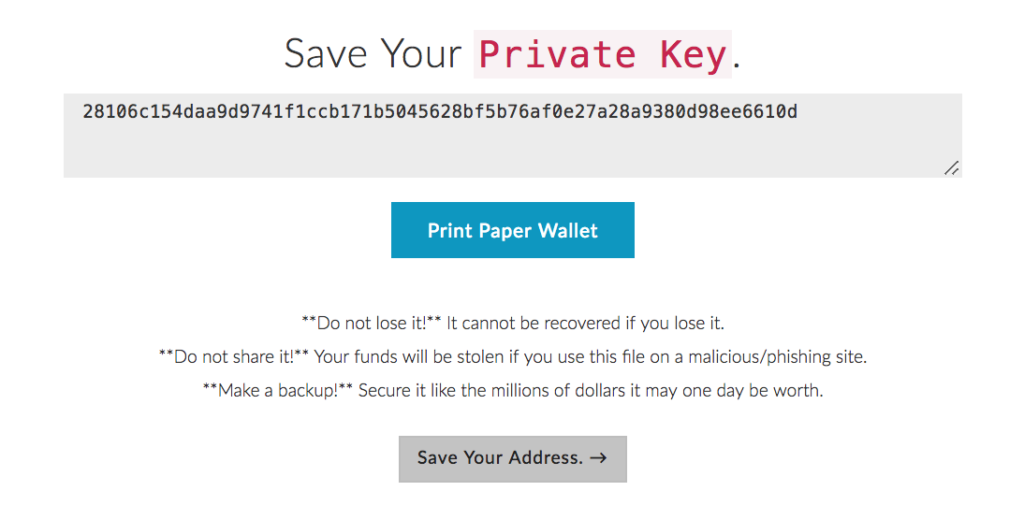
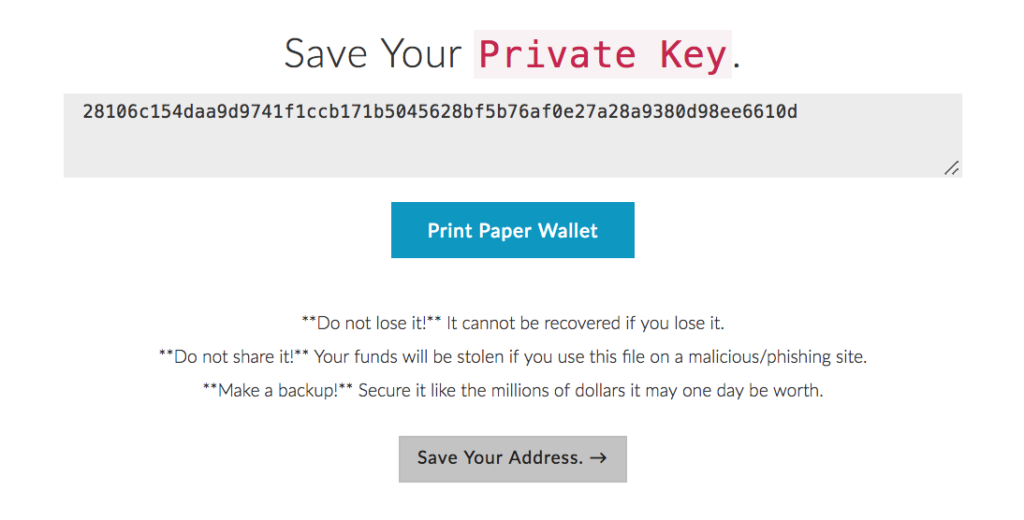
The address is immediately generated in the background, but MEW won’t let you see it yet. For as long as you haven’t saved the Keystore file somewhere safe, you cannot proceed. Click Download Keystore File (UTC / JSON) and store it on a USB drive, then hide it from curious family members. The file will be called something like UTC--2018-01-26T10-39-56.592Z--d877263725d9247352661e44c444b21dc5a28581. The first part is the date of creation, the second is the address itself. After you’ve stored it safely, the next screen will display the private key.

Private key

Very imporant!!: the private key is equivalent in access level to the file you downloaded previously. Both can be imported into wallet software and used to unlock an address to spend money on it. But there is an important difference: the private key does not require a password! If you enter a private key into another tool like MetaMask, the address will immediately become unlocked without a password and can be used for sending Ether and tokens. If you import the previously downloaded file into any wallet software, it will require a password before letting you access it fully. Therefore, it’s safer to only keep one method around: either store the file and remember the password, or store only the private key in a very secure location. Destroy the other method. The fewer ways to access your wallet there are, the safer the money is.

You can generate a Paper Wallet on the same screen. This will open a new tab with a neatly generated printable layout of two QR codes. One is the public key — the address to which you can send funds and tokens — and the other is the private key mentioned above.

Paper Wallet

If you’re planning to use this address for long-term holding of ether, it’s smart to print it and store it in a safe as if you had a bond or a big wad of cash.

After these steps have been completed, MEW lets us unlock the wallet and view its info. This can be done in two ways:

  • Picking the Keystore/JSON file will provide you with a form through which you upload the file you downloaded previously. You’ll then be asked for a password.
  • Picking a private key lets you paste the private key directly into the field, unlocking the address for use.

Unlock your wallet and you should see something like the image below:

Unlocked wallet info UI

This interface lets you print the wallet again if you lost or destroyed the previous one, or to re-download the JSON file if you lost it and accessed the wallet with the private key. The QR code for the private key can be read by clicking the eye icon under the black rectangle in the bottom of the screen.

Revealing the private key

On the right, you can see your account’s balance: 0 Eth. A little lower you can see the Token Balances frame, which shows you how many of which tokens you have. Because of a large number of available tokens out there, you first need to click Show all tokens to load them.

This screen is visible because you’re on the View Wallet Info option, to which MEW automatically redirects you after creation. When sending tokens or ether, the option to use is Send Ether & Tokens.

MEW UI options

The post An Introduction to MyEtherWallet appeared first on SitePoint.


by Bruno Skvorc via SitePoint

A Beginner’s Guide to Babel

This article introduces Babel, a JavaScript compiler that allows developers to use next-generation JavaScript today.

It can be frustrating to write JavaScript when building web applications. We have to think about the features available in the browsers we’re targeting and what happens when a feature isn’t implemented. Some people would recommend simply not using it, which is a painful experience most of the time if we’re building something complicated.

Thankfully, some tools allow us to stop worrying about what’s supported and just write the best code we can. They’re called transpilers. A transpiler is a tool that takes source code as input and produces new source code as output, with a different syntax but semantically as close as possible — or ideally equivalent — to the original.

Babel is pretty much the standard transpiler to translate modern JavaScript (ES2015+) into compatible implementations that run in old browsers. It’s the perfect solution if you just want to concentrate on writing JavaScript.

And although the main goal of Babel is to translate the latest standards of ECMAScript (ES) for old — or sometimes current — browsers, it can do more. There’s an ecosystem of presets and plugins that make possible the addition of non-standard features as well. Each plugin makes a new feature/transformation available for your code, and presets are just a collection of plugins.

Getting Started

There are different ways to set up Babel depending on your project and the tools you use. In this article, we’re going to explain how to set up Babel using the CLI, although if you’re using a build system or framework, you can check out specific instructions on the official site. Most of the time the CLI is the fastest and easiest way to get started, so if you’re a first-time user, feel free to continue.

The first step to set up Babel in a project is to install the package using npm and add it as a dev dependency. Assuming you have a working Node.js environment already in place, it’s just a matter of running the following in your terminal:

mkdir babel-test
cd babel-test
npm init -y
npm install --save-dev babel-cli

This will create a directory (babel-test) change into the directory, initialize an npm project (thus creating a package.json file) and then install the babel-cli as a dev dependency.

If you need any help with the above, please consult our tutorials on installing Node and working with npm.

Next, we can open package.json and add a build command to our npm scripts:

"scripts": {
  "build": "babel src -d dist"
}

This will take the source files from the src directory and output the result in a dist directory. Then we can execute it as:

npm run build

But wait! Before running Babel we must install and set up the plugins that will transform our code. The easiest and quickest way to do this is to add the Env preset, which selects the appropriate plugins depending on the target browsers that you indicate. It can be installed using:

npm install babel-preset-env --save-dev

Then create a .babelrc file in the root of your project and add the preset:

{
  "presets": ["env"]
}

The .babelrc file is the place where you put all your settings for Babel. You’ll be using this primarily for setting up presets and plugins, but a lot more options are available. You can check the complete list in the Babel API page.

Please note that, depending on your operating system, files beginning with a dot will be hidden by default. If this is problematic for you (or if you just prefer fewer files), you can put your Babel settings in the package.json file, under a babel key, like so:

{
  "name": "babel-test",
  "version": "1.0.0",
  "babel": {
    // config
  }
}

Finally, let’s create the directories and files Babel is expecting to find:

mkdir src dist

And give it something to transform:

let a = 1;
let b = 2;
[a, b] = [b, a];
console.log(a);
console.log(b);

This example uses destructuring assignment to swap the values of two variables.

The post A Beginner’s Guide to Babel appeared first on SitePoint.


by James Kolce via SitePoint

Envato Elements Now Offers Video!

10 Most Popular Websites Every B2B Marketer Should Follow [infographic]

How to make an impact online? How do you become a B2B marketer? Simple, by reading and learning from expert marketers. Here are top 10 B2B marketing blogs that aspiring rock stars are reading - and why you need to start following them, too. List provided by dnnsoftware.

[ This is a content summary only. Visit our website https://ift.tt/1b4YgHQ for full links, other content, and more! ]

by Irfan Ahmad via Digital Information World