Monday, June 18, 2018

Optimizing CSS: ID Selectors and Other Myths

In today’s typical scenario, where the average website ships 500KB of gzipped JavaScript and 1.5MB of images, running on a midrange Android device via 3G with a 400ms round trip time, CSS selector performance is the least of our problems.

Still, there’s something to be said about the topic, especially to weed out some of the myths and legends surrounding them. So let’s dive right in.

The Basics of CSS Parsing

First, to get on the same page --- this article isn’t about the performance of CSS properties and values. What we’re covering here is the performance cost of the selectors themselves. I'll be focusing on the Blink rendering engine, specifically Chrome 62.

The selectors can be split into a few groups and (roughly) sorted from the least to most expensive:

rank type example
1. ID #classID
2. Class .class
3. Tag div
4. General and adjacent sibling div ~ a, div + a
5. Child and descendant div > a, div a
6. Universal *
7. Attribute [type="text"]
8. Pseudo-classes and elements a:first-of-type, a:hover

Does this mean that you should only use IDs and classes? Well … not really. It depends. First, let’s cover how browsers interpret CSS selectors.

Browsers read CSS from right to left. The rightmost selector in a compound selector is known as the key selector. So, for instance, in #id .class > ul a, the key selector is a. The browser first matches all key selectors. In this case, it finds all elements on the page that match the a selector. It then finds all ul elements on the page and filters the as down to just those elements that are descendants of uls --- and so on until it reaches the leftmost selector.

Therefore, the shorter the selector, the better. If possible, make sure that the key selector is a class or an ID to keep it fast and specific.

Measuring the Performance

Ben Frain created a series of tests to measure selector performance back in 2014. The test consisted of an enormous DOM comprising 1000 identical elements, and measuring the speed it took to parse various selectors, ranging from IDs to some seriously complicated and long compound selectors. What he found was that the delta between the slowest and fastest selector was ~15ms.

However, that was back in 2014. Things have changed a lot since then, and memorizing rules is all but useless in the ever-changing browser landscape. Always remember to do your own tests, especially when performance is concerned.

I went to do my own tests, and for that I used Paul Lewis' test mentioned in Paul Irish's comment expressing concern over the useful, yet convoluted "quantity selectors":

These selectors are among the slowest possible. ~500 slower than something wild like “div.box:not(:empty):last-of-type .title”. Test page https://ift.tt/2K1qHDp

The test was bumped up a bit, to 50000 elements, and you can test it out yourself. I did an average of 10 runs on my 2014 MacBook Pro, and what I got was the following:

Selector Query Time (ms)
div 4.8740
.box 3.625
.box > .title 4.4587
.box .title 4.5161
.box ~ .box 4.7082
.box + .box 4.6611
.box:last-of-type 3.944
.box:nth-of-type(2n - 1) 16.8491
.box:not(:last-of-type) 5.8947
.box:not(:empty):last-of-type .title 8.0202
.box:nth-last-child(n+6) ~ div 20.8710

The results will of course vary depending on whether you use querySelector or querySelectorAll, and the number of matching nodes on the page, but querySelectorAll comes closer to the real use case of CSS, which is targeting all matching elements.

Even in such an extreme case, with 50000 elements to match, and using some really insane selectors like the last one, we find that the slowest one is ~20ms, while the fastest is the simple class at ~3.5ms. Not really that much of a difference. In a realistic, more "tame" DOM, with around 1000–5000 nodes, you can expect those results to drop by a factor of 10, bringing them to sub-millisecond parsing speeds.

What we can see from this test is that it's not really worth it to worry over CSS selector performance. Just don't overdo it with pseudo selectors and really long selectors. We can also see how Blink improved in the last two years. Instead of the stated ~500x slowdown for a "quantity selector" (.box:nth-last-child(n+6) ~ div) compared to an "insanity selector" (.box:not(:empty):last-of-type .title), we only see a ~1.5x slowdown. That's an amazing improvement, and we can only expect browsers to get better, making CSS selector performance even less impactful.

You should, however, stick to using classes whenever possible, and adopt some sort of namespacing convention like BEM, SMACSS or OOCSS, since it will not only help your website's performance but vastly help with code maintainability. Overqualified compound selectors, especially when used with tag and universal selectors --- such as .header nav ul > li a > .inner --- are extremely brittle and a source of many unforeseen errors. They are also a nightmare to maintain, especially if you inherit the code from someone else.

Quality over Quantity

A bigger problem of simply having expensive selectors is having a lot of them. This is know as "style bloat", and you've probably seen the problem a lot. Typical examples are sites which import entire CSS frameworks like Bootstrap or Foundation, while using less than 10% of the transferred CSS. Another example is seen in old, never-refactored projects whose CSS has devolved into, as I like to call them, "Chronological Style Sheets" --- CSS with a ton of appended classes to the end of the file as the project has changed and grown, now looking more like an overgrown garden full of weeds.

Not only does a large CSS file take longer to transfer, (and network is the biggest bottleneck in website performance), they also take longer to parse. As well as constructing the DOM from your HTML, the browser needs to construct a CSSOM (CSS Object Model) to compare it with the DOM and match the selectors.

So, keep your styles lean and DRY, don't include everything and the kitchen sink, load what you need and when you need it, and use UNCSS if you need to.

If you want to dig more into how the browsers parse CSS, check out Nicole Sullivan's post on Webkit, Ilya Grigorik's article on how Blink does it, or Lin Clark's article on Mozilla's new Stylo CSS engine.

The post Optimizing CSS: ID Selectors and Other Myths appeared first on SitePoint.


by Ivan Čurić via SitePoint

Building an Image Gallery Blog with Symfony Flex: the Setup

This post begins our journey into Performance Month's zero-to-hero project. In this part, we'll set our project up so we can fine tune it throughout the next few posts, and bring it to a speedy perfection.


Now and then you have to create a new project repository, run that git init command locally and kick off a new awesome project. I have to admit I like the feeling of starting something new; it's like going on an adventure!

Lao Tzu said:

The journey of a thousand miles begins with one step

We can think about the project setup as the very first step of our thousand miles (users!) journey. We aren't sure where exactly we are going to end up, but it will be fun!

We also should keep in mind the advice from prof. Donald Knuth:

Premature optimization is the root of all evil (or at least most of it) in programming.

Our journey towards a stable, robust, high-performance web app will start with the simple but functional application --- the so-called minimum viable product (MVP). We'll populate the database with random content, do some benchmarks and improve performance incrementally. Every article in this series will be a checkpoint on our journey!

This article will cover the basics of setting up the project and organizing files for our Symfony Flex project. I'll also show you some tips, tricks and helper scripts I'm using for speeding up the development.

What Are We Building?

Before starting any project, you should have a clear vision of the final destination. Where are you headed? Who will be using your app and how? What are the main features you're building? Once you have that knowledge, you can prepare your environment, third-party libraries, and dive into developing the next big thing.

In this series of articles, we'll be building a simple image gallery blog where users can register or log in, upload images, and create simple public image galleries with descriptions written in Markdown format.

We'll be using the new Symfony Flex and Homestead (make sure you've read tutorials on them, as we're not going to cover them here). We picked Flex because Symfony 4 is just about to come out (if it hasn't already, by the time you're reading this), because it's infinitely lighter than the older version and lends itself perfectly to step-by-step optimization, and it's also the natural step in the evolution of the most popular enterprise PHP framework out there.

All the code referenced in this article is available at the GitHub repo.

We're going to use the Twig templating engine, Symfony forms, and Doctrine ORM with UUIDs as primary keys.

Entities and routes will use annotations; we'll have simple email/password based authentication, and we'll prepare data fixtures to populate the database.

Getting Started with the app

To try out the example we've prepared, do the following:

  • Set up an empty database called "blog".
  • Clone the project repository from GitHub.
  • Run composer install.
  • If you now open the app in your browser, you should see an exception regarding missing database tables. That's fine, since we haven't created any tables so far.
  • Update the .env file in your project root directory with valid database connection string (i.e., update credentials).
  • Run the database init script ./bin/refreshDb.sh and wait until it generates some nice image galleries.
  • Open the app in your browser and enjoy!

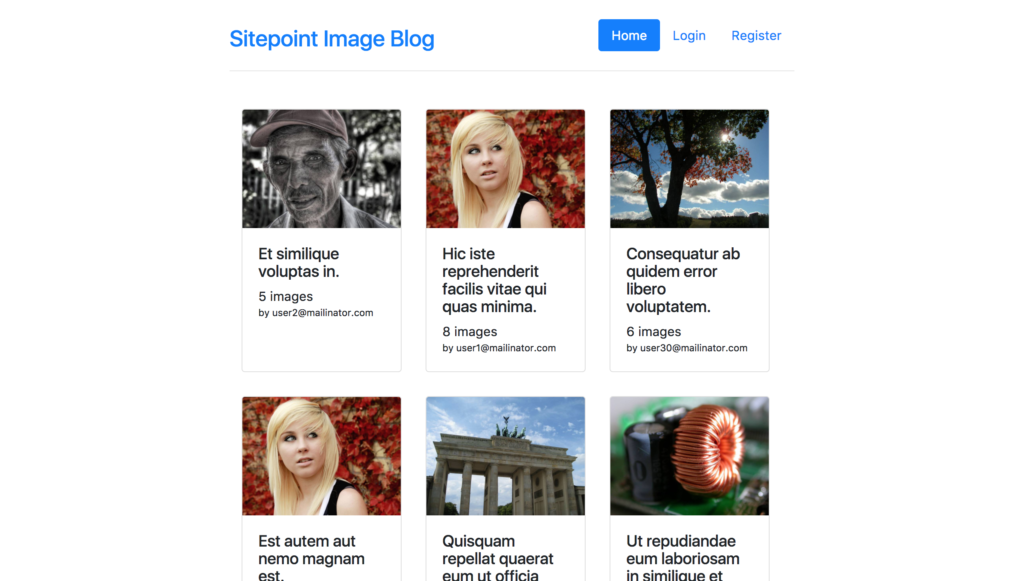
After executing bin/refreshDb.sh you should be able to see the home page of our site:

Project homepage

You can log in to the app with credentials user1@mailinator.com and password 123456. See LoadUserData fixture class for more details regarding generated users.

Starting from scratch

In this section, we'll describe how to set up a new project from scratch. Feel free to take a look at the sample app codebase and see the details.

After creating a new project based on symfony/skeleton by executing the command

composer create-project "symfony/skeleton:^3.3" multi-user-gallery-blog

… we can first set minimum stability to "dev" because of some cutting edge packages:

composer config minimum-stability dev

… and then require additional packages (some of them are referenced by their aliases, the new feature brought by Flex):

composer req annotations security orm template asset validator ramsey/uuid-doctrine

Dependencies used only in the dev environment are required with the --dev flag:

 composer req --dev fzaninotto/faker doctrine/Doctrine-Fixtures-Bundle

Flex is doing some serious work for us behind the scenes, and most of the libraries (or bundles) are already registered and configured with good-enough defaults! Check the config directory. You can check all the dependencies used in this project in the composer.json file.

Routes are defined by annotations, so the following will be automatically added into config/routes.yaml:

controllers:
  resource: ../src/Controller/
  type: annotation

Database, Scripts and Fixtures

Configure the DATABASE_URL environment variable (for example, by editing the .env file) to set up a working DB connection. If you're using our own Homestead Improved (recommended), you've got a database set up called homestead with the user / pass homestead / secret. A DB schema can be generated from existing entities by executing:

./bin/console doctrine:schema:create

If this doesn't run, try executing the console by invoking the PHP binary, like so:

php bin/console doctrine:schema:create

If this step executed fine in the "Getting Started with the app" section above, you should be able to see newly created tables in the database (for Gallery, Image and User entities).

If you want to drop the database schema, you can run:

./bin/console doctrine:schema:drop --full-database --force

Fake it 'til you make it!

I can't imagine developing an app today without having data fixtures (i.e., scripts for seeding the DB). With a few simple scripts, you can populate your database with realistic content, which is useful when it comes to rapid app development and testing, but it's also a requirement for a healthy CI pipeline.

I find the Doctrine Fixtures Bundle to be an excellent tool for handling data fixtures as it supports ordered fixtures (i.e., you can control the order of execution), sharing objects (via references) between scripts, and accessing the service container.

Default Symfony services configuration doesn't allow public access to services, as best practice is to inject all dependencies. We'll need some services in our fixtures, so I'm going to make all services in App\Services publicly available by adding the following to config/services.yaml:

App\Service\:
  resource: '../src/Service/*'
  public: true

I'm also using Faker to get random but realistic data (names, sentences, texts, images, addresses, …).

Take a look at the script for seeding galleries with random images to get a feeling of how cool this combination is.

Usually, I combine commands for dropping the existing DB schema, creating the new DB schema, loading data fixtures, and other repetitive tasks into a single shell script --- for example, bin/refreshDb.sh --- so I can easily regenerate the schema and load dummy data:

# Drop schema
./bin/console doctrine:schema:drop --full-database --force

# Create schema
./bin/console doctrine:schema:create

# Load fixtures
./bin/console doctrine:fixtures:load -n --fixtures src/DataFixtures/ORM

# Install assets
./bin/console assets:install --symlink

# Clear cache
./bin/console cache:clear

Make sure you restrict execution of this script on production, or you're going to have some serious fun at one point.

One can argue that randomly generated data can't reproduce different edge cases, so your CI can sometimes fail or pass depending on the data generation. It's true, and you should make sure all edge cases are covered with your fixtures.

Every time you find an edge case causing a bug, make sure you add it to data fixtures. This will help you build a more robust system and prevent similar errors in the future.

The post Building an Image Gallery Blog with Symfony Flex: the Setup appeared first on SitePoint.


by Zoran Antolovic via SitePoint

Showcase your best photography with a Squarespace portfolio

Squarespace Logo

Social media platforms have become great tools to network as a photographer.

Unfortunately in 2018 we now battle algorithms to get exposure. This has forced us into a quantity over quality game, often resulting in a pieced-together (miss)representation of our work.

With online portfolios still being as important as ever to get work, I’ve handpicked 5 Squarespace templates that do justice to great photography.

Each portfolio is perfect to link to from your social media profiles and will help showcase your best work – on your own website.

Advertisement


One Page Love Exclusive Coupon

OPL10

Yay! Squarespace has been kind enough to give One Page Love readers the exclusive coupon OPL10 for 10% Off your first website or domain purchase. (There is a free 14-day trial with no credit card needed, so you can try risk free.)


Template Index:

  • Wexley – Mood board style with optional single image slider
  • Wells – Portrait photography with optional single image slider
  • Forte – Full canvas slideshow with project sliders
  • Ishimoto – Minimal, horizontal image slider
  • Momentum – Unique, horizontal project slider

Wexley (Mood Board Style)

Wexley is a photography portfolio template with a mood board style image grid. The template automatically arranges the grid according to the orientations of your photos. When you click an item it opens up that image at a bigger resolution with slider functionality to continue browsing the full portfolio.

Who is this template for? Artists, creative professionals and photographers who need a dynamic way to showcase everything.

Wexley - Home Page Grid View

Wexley – Home Page Mood Board View

Wexley - Single Image Slider View

Wexley – Single Image Slider View


Wells (Portrait Photography)

Wells is a photography portfolio template with a masonry-style (mixed grid of long images) layout perfectly accommodating portrait orientation images in multiple columns. When an image is clicked, it opens up that photograph in a bigger resolution with functionality to click to see the next photo in the portfolio sequence.

What is the difference to Wexley? Wells has more focus on portrait orientation photography and features a fixed left navigation area.

Wells - Home Column View

Wells – Home Column View

Wells - Single Image Slider View

Wells – Single Image Slider View


Forte (Full canvas slideshow with project sliders)

Forte is a photography portfolio template with full canvas slideshow home page. When a project slide is clicked, the potential client is taken to a horizontal scrolling slider of that project. There is also a bonus view (when clicking the + icon top right on an image) to see the image on it’s own at a bigger resolutions.

Who is this template suited for? Anyone wanting to showcase a range of projects in a beautiful high-resolution but also allowing optional image views per project.

Forte - Home Slideshow View

Forte – Home Slideshow View

Forte - Project Horizontal Slider View

Forte – Project Horizontal Slider View


Ishimoto (Minimal, horizontal image slider)

Ishimoto is a minimal photography portfolio template featuring a horizontal image slider. When a client clicks the arrows (on webpage edge) the images slide along, focusing the next image in the middle of the browser frame. Ishimoto accommodates landscape and portrait-orientation images exceptionally well as they fit perfectly within the strip of images. The minimal approach is for Ishimoto to simply showcase your best images in one view. However, if you want to showcase multiple projects you can easily create more and link to them from the top-right navigation.

Who is this template suited for? Photographers needing to showcase portrait photography. Anyone wanting to maintain a hassle-free portfolio while traveling.

Ishimoto

Ishimoto Template – Home page is a horizontal slider portfolio

Ishimoto

Ishimoto Template – Example accommodating Portrait-orientation images


Momentum (Unique, horizontal project slider)

Momentum is a unique photography portfolio template with two browsing options – big image with text or big image only. This means a client can simply slide between your gorgeous big imagery that fills 90% of the browser window or choose to browse images (reduced in size) with alongside text for context.

Who is this template suited for? Anyone wanting to showcase their interests with one big image per project. Momentum can be particularly useful for photographers who want to link out to external client websites.

Momentum

Momentum Template – Home Page showcases your latest project

Momentum

Momentum Template – Project information view when client clicks info icon (top right)


FAQ: What are the benefits of using Squarespace?

Squarespace is a leading online website builder. What sets them apart from the rest is their superior level of design and customer support. They have a huge support team and are available 24/7. Other main benefits are:

  • No Website Hosting Needed - their platform is fast and secure
  • Online Content Management - all edits are done within your browser, no software needed
  • Easily Drag & Drop Images in unlimited galleries with unlimited bandwidth
  • Free Domain Name when registering for your first website, if you pay annually (renews at standard rate)
  • Beautifully Responsive - all templates work for all devices, so you only have to design your website once. Test and preview how your website will appear on a range of screen sizes.
  • Blog Sections can easily be added to start sharing your journey
  • eCommerce Solutions are an upgrade away if you want to start selling products

That’s a wrap! Don’t forget your 10% Off coupon: OPL10

OPL10

I hope this round-up of photography portfolio templates saves you time when building your next portfolio. Props to Squarespace for creating a platform where we can create beautiful portfolio websites, easily. If you missed it I wrote a tutorial last month on the New 2018 Templates released from Squarespace.

Full Review | Direct Link


by Rob Hope @robhope via One Page Love

Get Started With Pusher: Introducing Channels

WordPress Gutenberg Block API: Extending Blocks

Hover Effect Style 198

The post Hover Effect Style 198 appeared first on Best jQuery.


by Admin via Best jQuery

Pricing Table Style 85

The post Pricing Table Style 85 appeared first on Best jQuery.


by Admin via Best jQuery