Monday, June 25, 2018

Using Background Processing to Speed Up Page Load Times

This article is part of a series on building a sample application --- a multi-image gallery blog --- for performance benchmarking and optimizations. (View the repo here.)


In a previous article, we've added on-demand image resizing. Images are resized on the first request and cached for later use. By doing this, we've added some overhead to the first load; the system has to render thumbnails on the fly and is "blocking" the first user's page render until image rendering is done.

The optimized approach would be to render thumbnails after a gallery is created. You may be thinking, "Okay, but we'll then block the user who is creating the gallery?" Not only would it be a bad user experience, but it also isn't a scalable solution. The user would get confused about long loading times or, even worse, encounter timeouts and/or errors if images are too heavy to be processed. The best solution is to move these heavy tasks into the background.

Background Jobs

Background jobs are the best way of doing any heavy processing. We can immediately notify our user that we've received their request and scheduled it for processing. The same way as YouTube does with uploaded videos: they aren't accessible after the upload. The user needs to wait until the video is processed completely to preview or share it.

Processing or generating files, sending emails or any other non-critical tasks should be done in the background.

How Does Background Processing Work?

There are two key components in the background processing approach: job queue and worker(s). The application creates jobs that should be handled while workers are waiting and taking from the queue one job at a time.
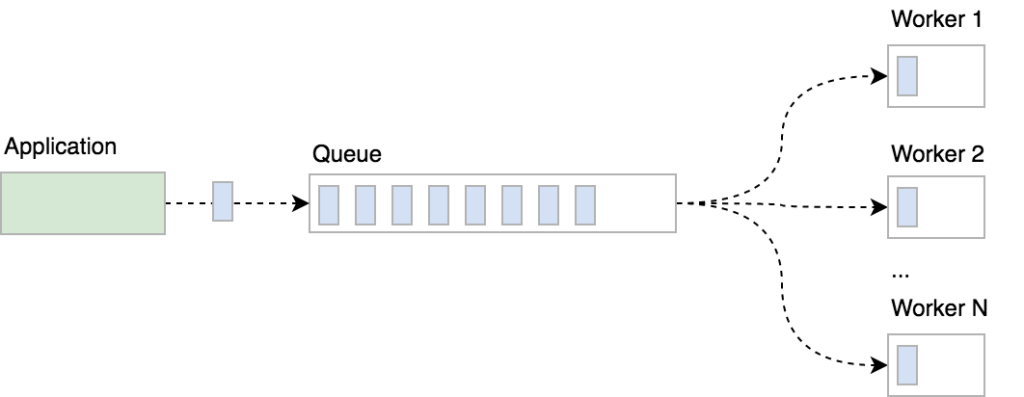
Background jobs

You can create multiple worker instances (processes) to speed up processing, chop a big job up into smaller chunks and process them simultaneously. It's up to you how you want to organize and manage background processing, but note that parallel processing isn't a trivial task: you should take care of potential race conditions and handle failed tasks gracefully.

Our tech stack

We're using the Beanstalkd job queue to store jobs, the Symfony Console component to implement workers as console commands and Supervisor to take care of worker processes.

If you're using Homestead Improved, Beanstalkd and Supervisor are already installed so you can skip the installation instructions below.

Installing Beanstalkd

Beanstalkd is

a fast work queue with a generic interface originally designed for reducing the latency of page views in high-volume web applications by running time-consuming tasks asynchronously.

There are many client libraries available that you can use. In our project, we're using Pheanstalk.

To install Beanstalkd on your Ubuntu or Debian server, simply run sudo apt-get install beanstalkd. Take a look at the official download page to learn how to install Beanstalkd on other OSes.

Once installed, Beanstalkd is started as a daemon, waiting for clients to connect and create (or process) jobs:

/etc/init.d/beanstalkd
Usage: /etc/init.d/beanstalkd {start|stop|force-stop|restart|force-reload|status}

Install Pheanstalk as a dependency by running composer require pda/pheanstalk.

The queue will be used for both creating and fetching jobs, so we'll centralize queue creation in a factory service JobQueueFactory:

<?php

namespace App\Service;

use Pheanstalk\Pheanstalk;

class JobQueueFactory
{
    private $host = 'localhost';
    private $port = '11300';

    const QUEUE_IMAGE_RESIZE = 'resize';

    public function createQueue(): Pheanstalk
    {
        return new Pheanstalk($this->host, $this->port);
    }
}

Now we can inject the factory service wherever we need to interact with Beanstalkd queues. We are defining the queue name as a constant and referring to it when putting the job into the queue or watching the queue in workers.

Installing Supervisor

According to the official page, Supervisor is a

client/server system that allows its users to monitor and control a number of processes on UNIX-like operating systems.

We'll be using it to start, restart, scale and monitor worker processes.

Install Supervisor on your Ubuntu/Debian server by running
sudo apt-get install supervisor. Once installed, Supervisor will be running in the background as a daemon. Use supervisorctl to control supervisor processes:

$ sudo supervisorctl help

default commands (type help <topic>):
=====================================
add    exit      open  reload  restart   start   tail
avail  fg        pid   remove  shutdown  status  update
clear  maintail  quit  reread  signal    stop    version

To control processes with Supervisor, we first have to write a configuration file and describe how we want our processes to be controlled. Configurations are stored in /etc/supervisor/conf.d/. A simple Supervisor configuration for resize workers would look like this:

[program:resize-worker]
process_name=%(program_name)s_%(process_num)02d
command=php PATH-TO-YOUR-APP/bin/console app:resize-image-worker
autostart=true
autorestart=true
numprocs=5
stderr_logfile = PATH-TO-YOUR-APP/var/log/resize-worker-stderr.log
stdout_logfile = PATH-TO-YOUR-APP/var/log/resize-worker-stdout.log

We're telling Supervisor how to name spawned processes, the path to the command that should be run, to automatically start and restart the processes, how many processes we want to have and where to log output. Learn more about Supervisor configurations here.

Resizing images in the background

Once we have our infrastructure set up (i.e., Beanstalkd and Supervisor installed), we can modify our app to resize images in the background after the gallery is created. To do so, we need to:

  • update image serving logic in the ImageController
  • implement resize workers as console commands
  • create Supervisor configuration for our workers
  • update fixtures and resize images in the fixture class.

The post Using Background Processing to Speed Up Page Load Times appeared first on SitePoint.


by Zoran Antolovic via SitePoint

Optimizely A/B Testing Tools: Knowing Which is Right for You

Optimizely has grown to be one of the major A/B testing tools. It’s suitable for companies of all sizes — from startups and small businesses to major corporations. Optimizely’s tools and integrations allow anyone to quickly learn more about their audience and experiment with design and content changes non-destructively through A/B testing. With A/B tests you can confirm, for example, which CTA (call to action) leads to the most clicks, or which version of a checkout leads to the most online sales.

Optimizely also integrates with mobile apps and TV apps, meaning that you can analyze metrics and improve conversions on virtually any platform.

It sounds ambitious (and maybe even a little complex), but you can start out small with their simple visual editor, which lets you experiment with fairly simple A/B tests (no code necessary). When you feel you’re getting the hang of Optimizely (it’s actually really easy to use), you can integrate Optimizely more natively using their many SDKs. In this article, I’ll summarize the tools Optimizely offers and identify a suitable scenario for when they could be used.

Since it’s an ambitious tool with a huge offering, let’s break down the features.

What You Need Before Using Optimizely

While there are no official requirements for using Optimizely, you should already have your KPIs established beforehand. A KPI (key performance indicator) is a metric that you’re tracking to measure success — such as the number of user registrations, sales, newsletter signups and so on. In short, what are your website’s goals? Have them noted down.

(If you need some background to website goals, analytics and more, check out our recent articles on using analytics to improve UX, such as our introduction to Google Analytics.)

Your website (or app) should also have a reasonable amount of traffic, so that the data collected is informative enough. I would also recommend a minimum of 1000 visitors over 1–2 days on the page you’d like to optimize, to justify the costs of Optimizely services. If you’re not quite at these levels yet, consider using Google Optimize as a free alternative.

Optimizely offers a standard 30-day free trial for all of their services, so that you can experience the benefits for yourself and learn how to use it like a pro before investing any money. Like I said, to make the most of the 30-day trial, have your KPIs established and experiments thought out beforehand, to make the most of each free day.

Okay, so let’s dive into the features now.

Web Experimentation

Web Experimentation is essentially a visual editor for creating A/B tests on your website. With the editor, you can make content, color and layout ordering changes to create one or more variations of a web page.

Then, using the audience builder, you can target specific segments of your audience based on geolocation, time, gender and more. With these powerful targeting features, you can then test your variations on a very specific audience. The results are fed into a live reporting system, which gives you detailed feedback on all of your variations, to help you identify the one with the highest conversions, which you can then implement permanently.

Changes to code are not required, and your original version is not disturbed.

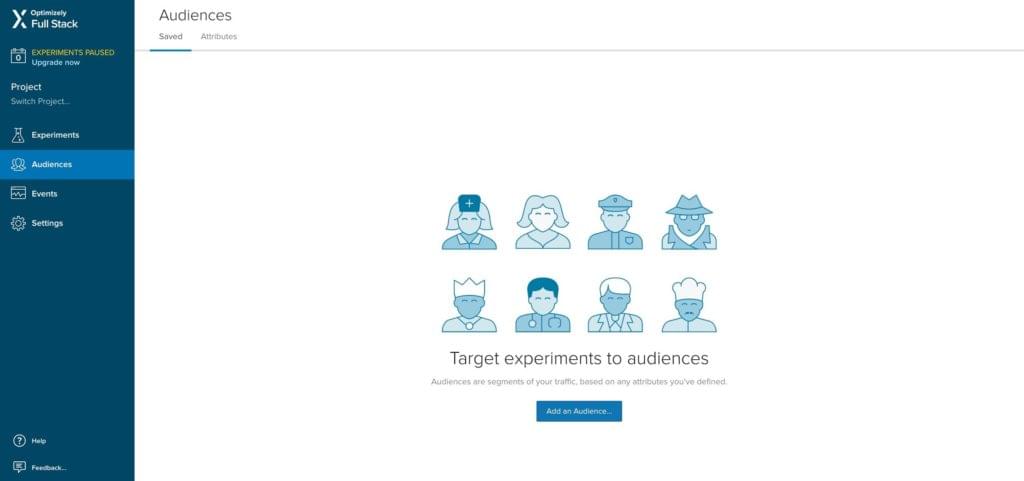
Adding an Audience in Optimizely

Web Personalization

Optimizely’s Web Personalization tool is similar to its Web Experimentation tool, but with a focus on A/B testing content rather than visuals, where the aim is to display content that’s relevant and interesting to the audience.

For example, consider the home page of a sportswear store. Visitors with a user persona matching that of a hiker could be shown a mountain-view background with the latest hiking shoes. To take this a step further, you could show hikers in colder locations thermal clothing and a snowy scene. With Optimizely’s exceptional targeting features, the options are endless.

By tailoring content to audiences based on their location, current weather conditions and more, your business can maximize sales and stand out from the competition by giving users exactly what they’re looking for.

The post Optimizely A/B Testing Tools: Knowing Which is Right for You appeared first on SitePoint.


by Jamie Murphy via SitePoint

How to Use Free 3D Models From Google Poly in Android Apps

The Morning Routines Of The Worlds Most Successful Individuals - infographic

Many of us leave the house in the morning in a rush, looking slightly disheveled with our stomachs groaning, but some of the world’s biggest success stories have a very different image of what the beginning of the day should look like. So many successful people having quirky morning routines has...

[ This is a content summary only. Visit our website https://ift.tt/1b4YgHQ for full links, other content, and more! ]

by Web Desk via Digital Information World

The Reality Behind The Enigma That's the Internet

Seemingly an omnipresent existence, the internet hosts millions of searches, clicks, and emails via World Wide Web. The fluidity of its actions deceives us into believing that the internet traffic takes an aerial route, after all, we don’t see our mobiles being wired to anything. The truth,...

[ This is a content summary only. Visit our website https://ift.tt/1b4YgHQ for full links, other content, and more! ]

by Mehwish Mehmood via Digital Information World

JACQUEMUS

JACQUEMUS | Official website
by via Awwwards - Sites of the day

How to Use Facebook Automated Rules to Manage Facebook Ad Costs

Need to manage your Facebook ad spend more effectively? Wondering how Facebook’s Automated Rules feature can help? In this article, you’ll learn how to set up automated rules to better manage the costs of your Facebook advertising campaigns. Why Use Automated Rules for Facebook Ad Campaigns? As your number of Facebook campaigns grows, optimizing them [...]

The post How to Use Facebook Automated Rules to Manage Facebook Ad Costs appeared first on .


by Abhishek Suneri via