Wednesday, August 29, 2018

The Front-End Performance Checklist

#355 — August 29, 2018

Read on the Web

Frontend Focus

The Front-End Performance Checklist — An extensive list of things you should check or at least be aware of as a front-end developer trying to make your sites work as fast as possible.

David Dias

Using Feature Detection to Write CSS with Cross-Browser Support — If you’ve been subscribed for a while, you’ll have seen all manner of CSS modules - both established and experimental - mentioned here. Here’s how to use the modules you want in a progressively enhanced way across browsers by using feature detection.

Schalk Venter

monday.com - Collaborate, Plan, Track & Manage All in One Tool — What’s it all about? Well, monday.com is about managing your workload professionally, planning ahead visually and communicating with the team. Once these points are set, have your champagne to celebrate the success of your team brand.

monday.com sponsor

Best Practices for Mobile Form Design — A key goal as a Web developer is to make the process of filling out a form as easy as possible. This article shares a lot of practical techniques for designing effective mobile forms.

Smashing Magazine

▶  Solving Container Queries Today — Media queries let you define CSS to take effect upon certain viewport conditions, but container queries that work at the level of containing elements would also be useful. Official support isn’t there yet but there are workarounds offering similar functionality.

Greg Whitworth

Babel 7 Released: The JavaScript Transpiler — We’re going to focus on this more in this week’s JavaScript Weekly on Friday.

Henry Zhu

Super-Powered Grid Components with CSS Custom Properties — A walkthrough of building a text and image component that uses CSS Grid along with CSS variables for placement.

Michelle Barker

💻 Jobs

Senior Front End Engineer at External Data Systems, Netflix — Help build a world class user interface for the platform that collects data to drive business insights for our teams.

Netflix

Find A FrontEnd Job Through Vettery — Create a profile to connect with inspiring companies seeking FrontEnd devs.

Vettery

📘 Tutorials

Using CSS Clip Path to Create Interactive Effects, Part II — A follow up to a January article on creating collage-style Web effects with CSS which leans on SVG to make things work in current browsers.

Mikael Ainalem

Create a Serverless Powered API in 10 Minutes — Use Cloudflare Workers to create and deploy a serverless API to 150+ data centers.

Cloudflare sponsor

Getting Started with Service Workers — A basic introduction to using Service Workers in the context of a Progressive Web App.

Flavio Copes

Inspect and Style an Element in DevTools that Normally Disappears when Inactive

Elijah Manor

A Native Lazy Load for the Web Platform — A new Chrome feature, ‘Blink LazyLoad’, was designed to dramatically improve performance by deferring the load of below-the-fold images and third-party IFRAMEs.

Ben Schwarz

Service Worker Caching Strategies Based on Request Types

Thomas Steiner

::before vs :before — Pseudo elements vs pseudo selectors.

Chris Coyier

Extending the Browser with WebAssembly — WebAssembly opens up more options to extend the browser with new features. This article shows how to port the AV1 video decoder and play AV1 video in any modern browser.

Alex Danilo (Google Developers)

Don't Miss SIGNAL: Twilio Customer & Developer Conference - Oct 17 & 18

twilio sponsor

🔧 Code and Tools

SVG Icon Transition Generator Tool — Upload two SVG icons of the same size and get a new SVG which transitions between them on click or hover.

Nucleo

Puppeteer Recorder: A Chrome Extension That Turns Browser Interactions into Puppeteer Scripts

Checkly

F2: A Flexible Charting Library Aimed at Mobile Devices — An HTML5 canvas-based charting library aimed specifically at mobile use cases.

Sima

size-plugin: Track Compressed Webpack Asset Sizes Over Time

Google Chrome Labs

Ghost 2.0: The JavaScript Blogging Platform — A popular Node.js and JavaScript-based blogging platform - a good alternative to WordPress.

John O'Nolan

goodshare.js: A Vue.js Component for Social Sharing ButtonsFull example here.

Vic Shóstak

LazyestLoad.js: Load Images Only When In (and Remain In) the Viewport

Paul Browne

Developer Tools for Every Customer Session – New in FullStory

Fullstory sponsor

The 'Carlton Dance' in Pure CSS — If you remember The Fresh Prince of Bel Air you won’t have forgotten this.

CodePen


by via Frontend Focus

Progressively Enhanced CSS Layouts: Floats to Flexbox & Grid

It can be difficult to achieve complex yet flexible and responsive grid layouts. Various techniques have evolved over the years but most, such as faux columns, were hacks rather than robust design options.

Most of these hacks were built on top of the CSS float property. When the flexbox layout module was introduced to the list of display property options, a new world of options became possible. Now you can not only define the direction the container is going to stack the items but also wrap, align (items and lines), order, shrink, etc. them in a container.

With all that power in their hands, developers started to create their own combinations of rules for all sorts of layouts. Flexibility reigned. However, flexbox was designed to deal with one-dimensional layouts: either a row or a column. CSS Grid Layout, in contrast, permitted two-dimensional row and column layouts.

Progressive Enhancement vs Graceful Degradation

It’s difficult to create a website that supports every user’s browser. Two options are commonly used — “graceful degradation” and “progressive enhancement”.

Graceful degradation ensures a website continues to function even when something breaks. For example, float: right may fail if an element is too big for the screen but it wraps to the next empty space so the block remains usable.

Progressive enhancement takes the opposite approach. The page starts with minimum functionality and features are added when they’re supported. The example above could use a CSS media query to verify the screen is a minimum width before allowing an element to float.

When it comes to grid layouts, each browser determines the appearance of its components. In this article, you’re going to understand with some real samples how to evolve some web contents from an old strategy to a new one. More specifically, how to progressively enhance the model from a float-based layout to flexbox, and then CSS Grid, respectively.

Your Old Float Layout for a Page

Take a look at the following HTML page:

<main>
  <article>
    article content
  </article>

  <aside>
    aside content
  </aside>
</main>

It’s a small, common example of grid disposition you can have in a webpage: two divs sharing the same container (body).

A float example

The following CSS can be used in all the examples we’ll create to set the body style:

body {
  font-family: Segoe UI;
  font-style: normal;
  font-weight: 400;
  font-size: 1rem;
}

Plus, the CSS snippet for each of our divs, enabling the floating effect:

main {
  width: 100%;
}

main, article, aside {
  border: 1px solid #fcddd1;
  padding: 5px;
  float: left;
}

article {
  background-color: #fff4dd;
  width: 74%;
}

aside {
  width: 24%;
}

You can see the example in action here:

See the Pen Float Layout Example by SitePoint (@SitePoint) on CodePen.

You can float as many elements as you want, one after another, in a way all of them suit the whole available width. However, this strategy has some downsides:

  • it’s hard to manage the heights of the container elements
  • Vertical centering, if needed, can be painfully hard to manage
  • depending on the content you have inside the elements (along with each inner container’s CSS properties), the browser may wrap elements to the next free line and break the layout.

One solution is the display: table layout:

main {
  display: table;
}

main, article, aside {
  display: table-cell;
}

However, using display: table becomes less convenient as your layouts get more complex, and it can get messy to work with in responsive layouts. display: table works best with small sections of a page, rather than major layout sections.

Flexbox Approach

The flexible box module, known by the name of flexbox, is a more recent layout model capable of distributing space and powerfully aligning items of a container (the box) in a one-dimensional way. Its one dimensional nature, though, does not impede you to design multidimensional layouts (rows and columns), but flexbox may not result in reliable row stacking.

Besides the float approach being very popular and broadly adopted by popular grid frameworks, flexbox presents a series of benefits over float:

  • vertical alignment and height equality for the container’s items on each wrapped row
  • the container (box) can increase/decrease based on the available space, and you determine whether it is a column or a row
  • source independence — meaning that the order of the items doesn’t matter, they just need to be inside the box.

To initiate a flexbox formatting strategy, all you need to do is set the CSS display property with a flex value:

main {
  width: 100%;
  display: flex;
}

main, article, aside {
  border: 1px solid #fcddd1;
  padding: 5px;
  float: left;
}

article {
  background-color: #fff4dd;
  width: 74%;
}

aside {
  width: 24%;
}

The following image shows the result:

A flexbox example

Here’s a live example:

See the Pen Flexbox Layout Example by SitePoint (@SitePoint) on CodePen.

Progressing to CSS Grid Layout

The CSS Grid layout follows up closely the flexbox one, the big difference being that it works in two dimensions. That is, if you need to design a layout that deals with both rows and columns, the grid layout will most likely suit better. It has the same aligning and space distribution factors of flexbox, but now acting directly to the two dimensions of your container (box). In comparison to the float property, it has even more advantages: easy elements disposition, alignment, row/column/cell control, etc.

Working with CSS Grid is as simple as changing the display property of your container element to grid. Inside the container, you can also create columns and rows with divs, for example. Let’s consider an example of an HTML page with four inner container divs.

Regarding the CSS definitions, let’s start with the grid container div:

div.container {
  display: grid;
  grid-template-columns: 24% 75%;
  grid-template-rows: 200px 300px;
  grid-column-gap: 15px;
  grid-row-gap: 15px;
}

The property grid-template-columns defines the same configuration you had before: two grid columns occupying 24% and 75% of the whole container width, respectively. The grid-template-rows do the same, applying 200px and 300px as height for the first and second rows, respectively.

Use the properties grid-column-gap and grid-row-gap to allocate space around the grid elements.

In regards to applying grid alignment properties to specific cells, let’s take a look:

.div1 {
  background-color: #fff4dd;
  align-self: end;
  justify-self: end;
}

.div4 {
  align-self: center;
}

For the div of class div1, you’re aligning and justifying it at the end of the grid cell. The properties align-self and justify-self are valid for all flex items you have in the layout, including, in this case, the grid cells. div4 was set only the centered alignment, for you to check the difference between both.

Here’s how the elements are positioned now:
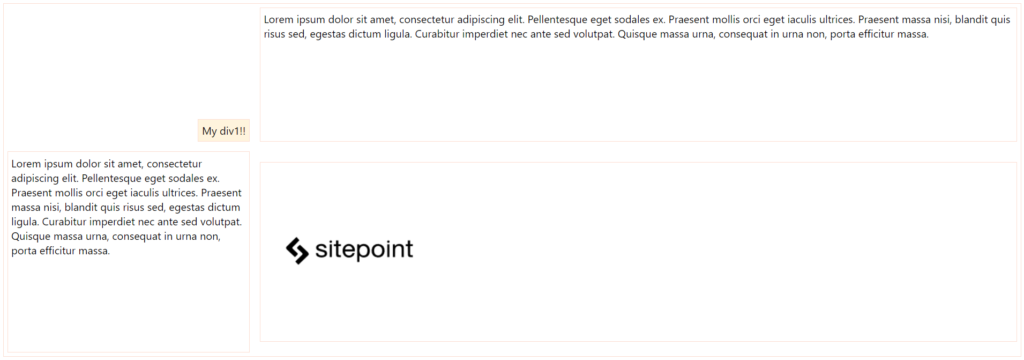
Grid divs

You can check out the final grid layout example here:

See the Pen Grid Layout Example by SitePoint (@SitePoint) on CodePen.

Most browsers also offer native support for grid layout inspections, which is great for seeing how it handles the grid mechanism internally. Let’s try our grid example on Firefox with its Grid Inspector, available via Firefox DevTools. In order to open it, right-click the container element and, at the CSS pane’s Rules view, find and click the grid icon right after the display: grid:
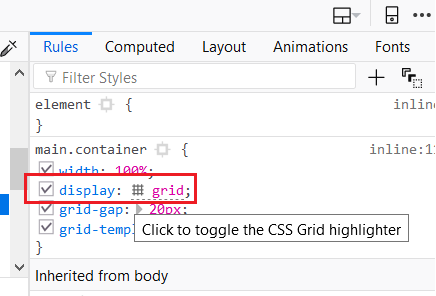
The grid property seen through Firefox's developer console

This will toggle the Grid highlighter. You can also control more display settings at the CSS pane’s Layout view like the line numbers or the area names exhibition:
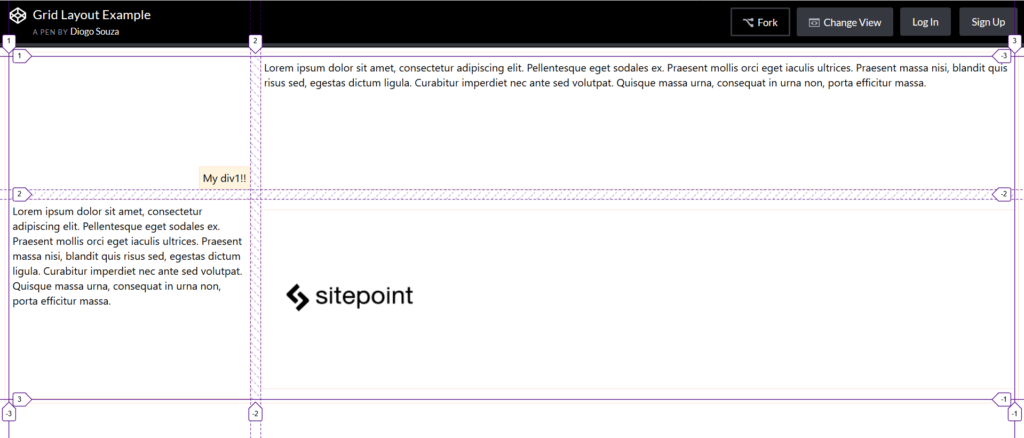
Grid sections highlighted in Firefox

The post Progressively Enhanced CSS Layouts: Floats to Flexbox & Grid appeared first on SitePoint.


by Diogo Souza via SitePoint

How to Use the Symfony Filesystem Component

In this article, we're going to explore the Symfony Filesystem component, which provides useful methods to interact with a file system. After installation and configuration, we'll create a few real-world examples of how to use it.

The Symfony Filesystem Component

More often than not, you'll need to interact with a file system if you're dealing with PHP applications. In most cases, you either end up using the core PHP functions or create your own custom wrapper class to achieve the desired functionality. Either way, it's difficult to maintain over a longer period of time. So what you need is a library which is well maintained and easy to use. That's where the Symfony Filesystem component comes in.

The Symfony Filesystem component provides useful wrapper methods that make the file system interaction a breeze and a fun experience. Let's quickly look at what it's capable of:

  • creating a directory
  • creating a file
  • editing file contents
  • changing the owner and group of a file or directory
  • creating a symlink
  • copying a file or directory
  • removing a file or directory
  • and more

In this article, I'll show you how to unleash the power of the Symfony Filesystem component. As usual, we'll start with installation and configuration instructions, and then we'll implement a few real-world examples to demonstrate the key concepts.

Installation and Configuration

In this section, we're going to install the Symfony Filesystem component. I assume that you've already installed Composer in your system as we'll need it to install the Filesystem component available at Packagist.

So go ahead and install the Filesystem component using the following command.

That should have created a composer.json file, which should look like this:

So that's the installation part, but how are you supposed to use it? In fact, it's just a matter of including the autoload.php file created by Composer in your application, as shown in the following snippet.

A Real-World Example

In this section, we'll create an example which demonstrates how you could use the Filesystem component in your applications to perform various filesystem operations.

To start with, let's go ahead and create the index.php file with the following contents.

Here, we've initialized the Filesystem object to $fsObject and saved the current directory to $current_dir_path. In the upcoming sections, we'll use $fsObject to perform different operations.

Make a New Directory

First, we'll create a new directory.

Here, we've used the exists method to check if the foo directory already exists before creating it.

Next, we used the mkdir method to create the foo directory with the 0775 permissions, which means readable and executable by all, but only writable by the file owner and their group. (This is the octal notation for filesystem permissions—to learn more, check out this breakdown of octal notation.) Further, we've used the chown and chgrp methods to change the owner and group of the foo directory.

Create a New File and Add Contents

In this section, we'll create a new file and add contents to that file.

Here, we've used the touch method to create a new file and then used chmod to set its permissions to 0777—globally readable, writable, and executable.

Once the file is created, you can use the dumpFile method to add contents in that file. On the other hand, if you want to add contents to the already existing file, you can use the appendToFile method, as shown in the above example.

Copy a Directory

So far, we've created the foo directory and the bar.txt file using the $fsObject object. In this section, we'll see how to copy a directory along with the contents.

As you can see, first we built the path names with string concatenation. Then, once we made sure the directory didn't already exist using the exists method, we used the mirror method to copy the foo directory into the foo_copy directory.

Remove a Directory

Finally, let's see how to remove a directory.

Again, it's pretty straightforward—to delete a directory, you just use the remove method.

You can find the complete code to index.php in our GitHub repo.

Conclusion

So that's a brief introduction to the Symfony Filesystem component. The Symfony Filesystem component provides methods that make interaction with a file system a breeze. We looked at how to install the component, and we created a handful of examples to demonstrate various aspects of the component.

I hope that you've enjoyed this article, and feel free to post your thoughts using the feed below!


by Sajal Soni via Envato Tuts+ Code

How Video Content Impacts Marketing (infographic)

When it comes to marketing, content is king. The type of content you create has an enormous impact on how viral your marketing campaign can be. Video based content is always the most successful simply because it requires more engagement, allowing more information to get across to your target...

[ This is a content summary only. Visit our website https://ift.tt/1b4YgHQ for full links, other content, and more! ]

by Irfan Ahmad via Digital Information World

The Lowdown on Cybercrime: The Evil Internet Minute (infographic)

The internet has made a lot of things exceedingly easy, but it has also opened up the world to an entirely new threat: cybercrime. In the modern world, untold amounts of money are transferred via the internet every single hour. In fact, corporations spent a whopping 171,000 dollars every single...

[ This is a content summary only. Visit our website https://ift.tt/1b4YgHQ for full links, other content, and more! ]

by Irfan Ahmad via Digital Information World

Navigation Menu Style 47

The post Navigation Menu Style 47 appeared first on Best jQuery.


by Admin via Best jQuery

Link Hover Style 35

The post Link Hover Style 35 appeared first on Best jQuery.


by Admin via Best jQuery