It’s common for WordPress users to pick a ready-made theme. But you can also create a theme of your own. This article covers various ways to go about this.
Options range from making edits to an existing theme, to creating your own WordPress theme completely from scratch. In between these extremes are various other options that include duplicating and modifying themes, and using a range of tools to help you build your own theme.
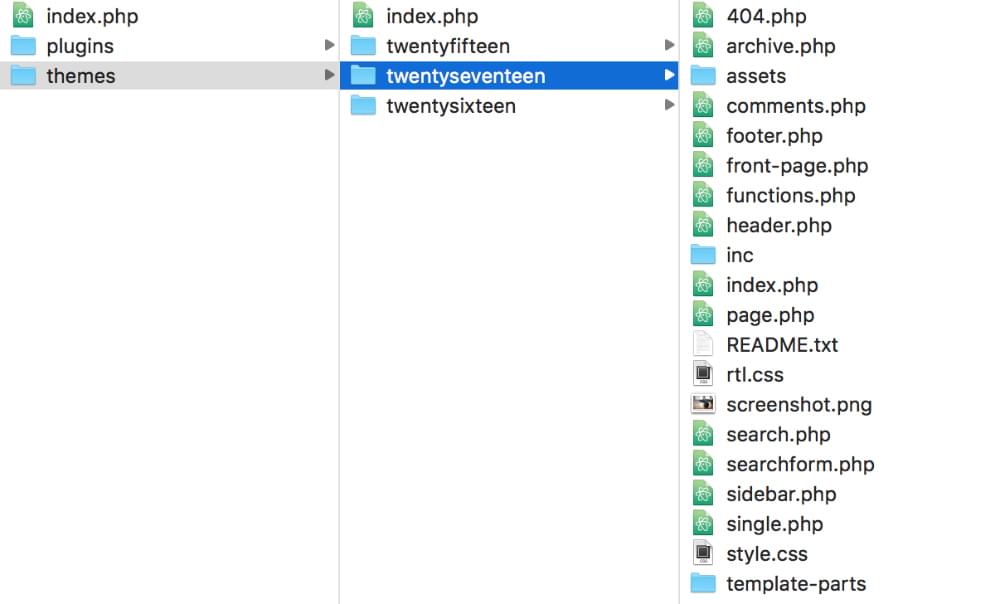
WordPress themes are made up of a collection of files, all contained within a single folder that lives within the /themes/ folder: wp-content/themes/.
Option 1: Modify an Existing Theme
Modifying an existing theme is perhaps the easiest option. You may just want to make some minor changes, like colors, font sizes, or simple layout changes.
In this case your best option is to create a child theme. A child theme references an existing theme, just modifying the bits you want to change. Using a child theme has the advantage that, if the parent theme is updated when you update WordPress, your changes won’t be wiped away.
To create a child theme, create a new folder inside your /themes/ folder. A handy tip is to use the name of the parent theme with -child appended, as this makes it clear what the child theme is. So, if you’re creating a child theme of the Twenty Seventeen theme, your child theme folder might be called /twentyseventeen-child/.

In this child folder, you need at a minimum a style.css file and a functions.php file. In these files you need to add certain code to tell WordPress which is the parent theme, where the stylesheets are, and any other new functionality you want in your child theme.
The last step for getting your child theme up and running is to enter the WordPress admin panel and go to Appearance > Themes to activate your child theme.
For a complete guide to this process, visit the WordPress Codex. For help with setting up a child theme, you can also use the WordPress Child Theme Configurator utility.
Option 2: Adapt an Existing Theme
If you’re keen to dig into WordPress code a bit more, you can duplicate an existing theme and bend it to your will.
That might involve things like deleting all of the current styles and creating your own. You can also dig into the other theme files and remove elements you don’t need and add others. For example, you might want to alter the HTML structure of the theme. To do so, you’ll need to open various files such as header.php, index.php and footer.php and update the HTML parts with your own template elements.
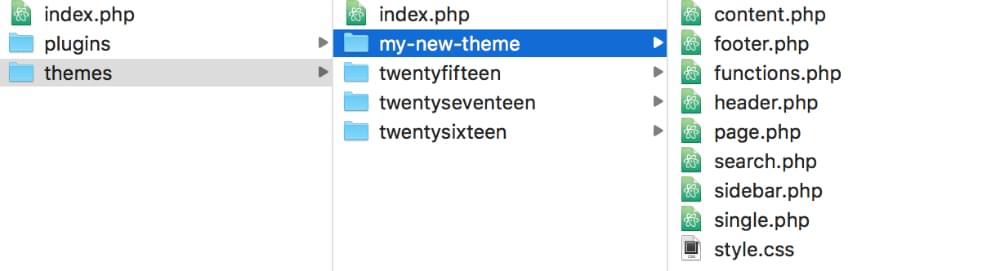
Along the way, you might decide there are lots of features in the copied theme you no longer need, such as post comments and various sidebar elements such as categories and bookmarks. You’ll find PHP snippets for these elements in the various theme files, and you can simply delete them or move them around to other locations.
It can take a bit of searching around to work out which files contain the elements you want to delete or move, but it’s a good way to get familiar with your WordPress theme to dig in to the files like this.
Another option here, rather than duplicating an existing theme, is to start with a “starter theme”, which we look at below.
Option 3: Building a Theme from Scratch
A more daunting option — but more fun, too! — is to create your own theme completely from scratch. This is actually simpler than it sounds, because at a minimum you only need two files — style.css and index.php.

That, however, would result in a pretty limited theme! At a minimum, you’d probably want a functions.php file for custom functions, and perhaps several other template files for the various sections of the site, such as a 404.php template file for showing 404 pages.
In this example, we’ve created a folder in our themes directory called /scratch-theme/. (You’ll want to choose a spiffier name than that, of course.) The style.css file will serve as the main stylesheet of our WordPress theme. In that CSS file, we first need to add some header text. This is a basic example:
/*
Theme Name: My Scratch Theme
Theme URI: https://sitepoint.com
Author: Sufyan bin Uzayr
Author URI: http://sufyanism.com
Description: Just a fancy starter theme for SitePoint
Version: 1
License: GNU General Public License v2 or later
License URI: http://www.gnu.org/licenses/gpl-2.0.html
Tags: clean, starter
*/
You can now head to the WordPress admin Themes section, where we’ll see our now theme listed.
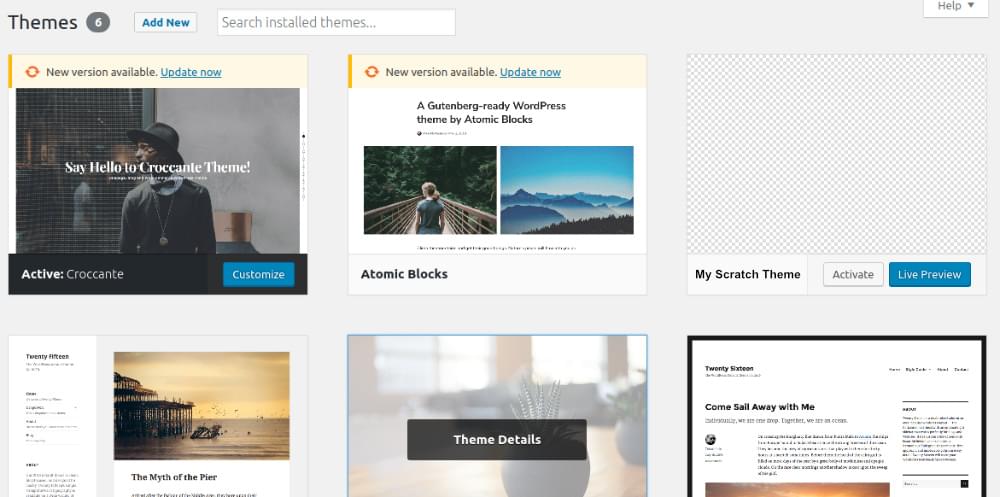
At this point, it doesn’t offer any custom styles and layouts, but can still be activated and used nonetheless. (You can add a thumbnail image for the theme by uploading an image file named “screenshot” to the theme’s root folder, preferably 880 x 660px.)
For more in-depth guidance of WordPress theme development, check out the WordPress Codex theme development guide.
It’s fairly straightforward to create a very basic WordPress theme from scratch, but going beyond that is more challenging. Before deciding this is a bit outside your wheelhouse, let’s check out some of the tools that are available to help you along.
The post Three Ways to Create Your Own WordPress Theme appeared first on SitePoint.
by Sufyan bin Uzayr via SitePoint


