This article provides an introductory guide to WP-CLI, a command-line tool that was created to make developers’ lives easier, allowing them to manage a WordPress site through the command line rather than through the usual admin interface.
WP-CLI was created by Daniel Bachhuber over a decade ago. Since then, it’s become an indispensable tool in every advanced WordPress developer’s arsenal — “deployed and relied upon by almost every major user of WordPress”, according to Matt Mullenweg. Since 2016, WP-CLI has been an official WordPress CLI tool.
WP-CLI is used for installing and setting up a WordPress website, changing its options, administering users, and a host of other things. It can be leveraged to significantly speed up developers’ workflows.
WP-CLI comes as a phar file — short for PHP Archive. It’s a standard for packaging multiple PHP files and other resources as a single application — for simpler distribution and installation.
Installation
WP-CLI presumes, obviously, that we have access to the system shell. This will be pretty straightforward on Linux and macOS systems — particularly on servers — as WordPress is served almost universally from Linux machines. If we have dedicated server hosting, or cloud hosting like AWS, Alibaba Cloud, etc., or if we’re using a VPS from Digital Ocean, Vultr, Linode and the like, SSH comes as a default access option, but these days many shared hosts offer SSH access options. (Some might even come with WP-CLI preinstalled.)
For Windows users, WP-CLI can be installed via Composer, but we recommend readers get themselves acquainted with Windows Subsystem for Linux, because it makes it possible to have a native Linux environment available, along with Bash, package manager like APT, etc. WordPress is a PHP app, and PHP’s native environment is Linux.
Further code samples presume we’re using Linux or a Unix-type system.
To fetch the WP-CLI phar archive, we usecurl or wget:
curl -O https://raw.githubusercontent.com/wp-cli/builds/gh-pages/phar/wp-cli.phar
This downloads our archive to the current directory. Then we make it executable:
chmod +x wp-cli.phar
We them move it so it’s available as a wp command:
sudo mv wp-cli.phar /usr/local/bin/wp
Now we have a wp command available:
[video width="600" height="" mp4="https://dab1nmslvvntp.cloudfront.net/wp-content/uploads/2018/11/1541465872wp.mp4"][/video]
Now, upon typing the wp command, it displays all the options for us, and possible parameters. One caveat: if we’re running as the root user, we need to add --allow-root to our commands:
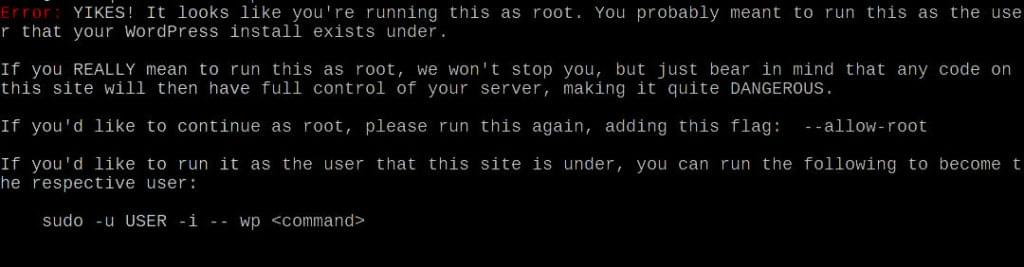
Now that we have it set up, we can explore the commands, and possible usage scenarios.
WP-CLI Commands
WP-CLI aims to offer a fast alternative to the WordPress web admin interface. There are chunks of code or functionality that offer simple, precise interfaces for performing complex tasks. Beside the bundled commands, WP-CLI defines an API for integrating third-party commands — WP_CLI::add_command(). These can be distributed either as standalone packages, or as part of WordPress plugins or themes.
In this guide, we’ll review bundled commands — those that come with the default WP-CLI installation — and some more notable third-party commands.
Commands can come as basic, one-argument commands like wp somecommand, or as subcommands under the base command namespace, such as wp somecommand subcommand.
wp core
The wp core subcommand is a command/namespace that consists of sucommands that deal with WordPress core — so we can download, install, update, convert to multisite and get information about our WordPress core version:
wp core downloadwill download the latest version of WordPress into the current directorywp core installruns the standard WordPress installation process, with options like--url=somewebsite.com,--title=SomeWebsite,--admin_user=someusername,--admin_password=somepasswordand--admin_email=some@email.comwp core multisite-installinstalls a new multisite WordPress installation, andwp core multisite-convertconverts a regular installation into multisite.wp core updatewill update WordPress to a newer version, andwp core update-dbwill update the database.
More details on wp core can be found in the documentation.
WP-CLI really shines when we combine its commands in Bash scripts, so we can combine, for example, wp core download and wp core install into a single Bash command and streamline the installation.
Worth noting here is that before we run the installation, we need to create a wp-config.php file, with database credentials and other details needed for the installation.
WP-CLI provides a wp config create command for this.
The post An Introductory Guide to Managing WordPress with WP-CLI appeared first on SitePoint.
by Tonino Jankov via SitePoint