[ This is a content summary only. Visit our website https://ift.tt/1b4YgHQ for full links, other content, and more! ]


by Amjad Khan via Digital Information World

After your strategic marketing campaigns and social media efforts, one of the tried-and-tested methods to capture those potential leads is through a quality website Landing Page.
This Landing Page can act as your Home Page promoting your only service or you could have multiple website Landing Pages, each offering a different service.
In this tutorial we are going to create a Landing Page for a Wedding Photography business focused on a conversion (ie. a potential client contacting you).
To help construct this Landing Page, we ultimately need to answer these 5 common questions a potential client could ask:
Let’s now visualize what sections would answer those client questions:

Yay! Squarespace has been kind enough to give One Page Love readers the exclusive coupon OPL10 for 10% Off your first website or domain purchase. (There is a free 14-day trial with no credit card needed, so you can try risk free.)
To achieve a long-scrolling Landing Page layout we need to utilize Squarespace’s Index Blocks (a stacked content area with sections below each other). In this tutorial I am adapting the Sofia Template into a long-scrolling Landing Page for our service. The template comes baked with an Index Block – so an easy starting point. Sofia also features a clean long-scrolling layout with great whitespace.
There are tons of Squarespace templates with Index Blocks set as the home page (see list) but if yours does not, insert a new one using the main navigation:

Then simply continue inserting your sections below each other within your Index Block:

Each section within an Index Block is essentially a blank area for content, where a template would have pre-designed these area with placeholder content. You can edit content by:

Earlier we visualized 5 sections for introduction, information, portfolio/gallery, testimonials and contact. With conversions in mind, lets relook each question, what content we need and why:
When a user arrives at your Landing Page we want the introduction copy to identify with their problem.
Someone wanting a photographer for a wedding is probably stressed about finding the right photographer. The day is precious and needs to be captured properly. I’ve answered all immediate concerns with the intro copy followed with an overview covering experience:

Don’t get too wordy here, a simple overview will do and they can request more information. Beneath the overview is a clear day-rate and also information on expedited delivery (probably a FAQ).

Here we want to showcase our talents with quality, Retina-optimized images. A grid of your 6 best photos is a lot more effective than your last 4 years of work (probably including a few average quality images). Squarespace have a convenient Gallery section block with several layout options. Demo’d here is the simple 3 column-grid:

The importance of testimonials is so underrated in Landing Pages and heavily affects conversions. This is your team cheering for you while answering doubts a client could have.
A good testimonial commends your service, a great testimonial highlights parts of your service while answering doubts the client could have.
Note how I answered if the photography would be intrusive and if you capture the fine details:

If possible, try include a clear image of yourself (no sunglasses). I’ve added the image to the introduction that show’s transparency, looks professional and builds trust:

By this point in the scrolling-journey the user should be impressed and convinced you are the right person to hire for their wedding. We end with a clear contact form to capture their details and lock in that successful conversion.

Squarespace is a leading online website builder. What sets them apart from the rest is their superior level of design and customer support. They have a huge support team and are available 24/7. Other main benefits are:
I hope you enjoyed this overview and tutorial on how to building a converting Landing Page for your service. Props to Squarespace for creating a platform where we can create beautiful Commerce websites, easily. If you missed it I wrote a tutorial last month on how to Strengthen your next job application with a Squarespace Cover Page.


Do you advertise on Instagram and Facebook? Wondering how much to budget for each platform placement? In this article, you’ll learn how to use Facebook’s split test feature to reveal how best to distribute your ad spend on Facebook and Instagram. Is Allocating Ad Spend via Automatic Placement in Your Best Interest? When you advertise [...]
The post How to Optimize Your Ad Budget Between Facebook and Instagram appeared first on Social Media Examiner.
This article was originally published on Alibaba Cloud. Thank you for supporting the partners who make SitePoint possible.
Joomla! is a free and open source content management system (CMS), and is one of the most popular among them. According to the official website, Joomla! is built on a model-view-controller web application framework that can be used independently of the CMS, allowing you to build powerful online applications.
One of my personal favorite features of Joomla! is the multi-language support with its large library of language packs. You can also translate the website admin backend with language extensions, helping you to easily localize your website.
This step-by-step guide will walk you through setting up and deploying a Joomla! website on an Alibaba Cloud Elastic Compute Service (ECS) instance with Ubuntu 16.04.
Before we deploy our Joomla! instance, we need to fulfill the following requirements. We need to set up an Alibaba Cloud Elastic Compute Service (ECS) Linux server (Ubuntu 16.04) with basic configurations. You should also allocate administrator (sudo) privileges to a non-root user.
You can refer to this guide for setting up your Alibaba Cloud ECS instance. If you don't have an Alibaba Cloud account, you can sign up for free and enjoy $300 of Free Trial credit.
To install Joomla on our server, we need to first install a LAMP (Linux, Apache, MySQL, PHP) stack.
There are many ways to connect to your server, but I will be using the Alibaba Cloud console for simplicity. To do this, go to your instance section and click connect from your created instance. You will be redirected to the Terminal.
Enter username as Root and the password you created. If you didn't create a password, just continue by hitting enter. You are logged in to your server as system administrator.
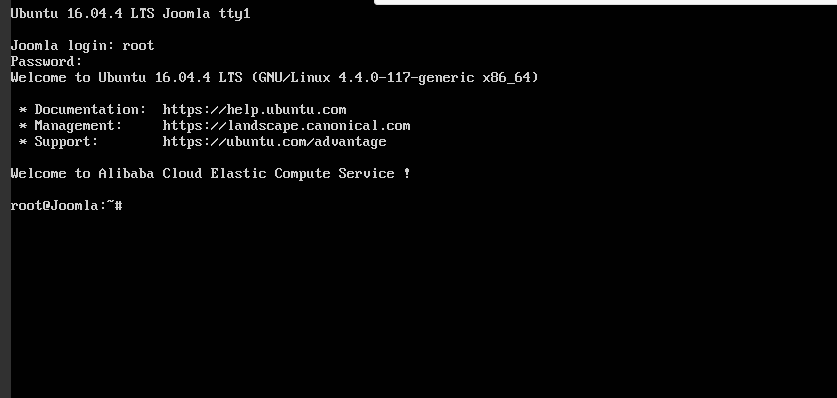
All the commands in the following sections should be typed in this terminal.
To install Apache, update your server repository list by typing command below.
sudo apt-get update
Then install the Apache web server.
sudo apt-get install apache2
Joomla, like most other content management systems, requires MySQL for its backend. So we need to install MySQL and link it to PHP.
To do this, add the following command.
sudo apt-get install mysql-server php7.0-mysql
You'll be asked to enter a MySQL password. Keep the password secure because you will need it later.
Complete the installation process of MySQL with the command below.
/usr/bin/mysql_secure_installation
You'll be asked to enter the MySQL password you just created. Continue with the installation process by making the following selections.
Would you like to setup VALIDATE password plugin ? [Y/N] N
Change the root password ? [ Y/N ] N
Remove anonymous users ? [Y/N] Y
Disallow root login remotely ? [Y/N] Y
Remove test database and access to it ? [Y/N] Y
Reload privilege tables now ? [Y/N] Y
Joomla! requires PHP to be installed. Execute the following command to install PHP 7.0 and other required PHP modules.
sudo apt-get install php7.0 libapache2-mod-php7.0 php7.0-mcrypt php7.0-xml php7.0-curl php7.0-json php7.0-cgi
To confirm LAMP stack has been installed on your Ubuntu 16.04 server, follow the procedures below.
Open the web browser and navigate to your server's IP address. You'll see the Apache2 Ubuntu Default page.
Note: To check your server's public IP address, check your ECS Instance dashboard. You'll see both private and public IP addresses. Use the public IP address to access your website. If you don't see the public IP address consider setting up an Elastic IP address.
In order to confirm the PHP installation on your server, remove the default page and replace it with the PHP code below. To do this use the commands below.
rm /var/www/html/index.html
Replace with a new file:
touch /var/www/html/index.php
nano /var/www/html/index.php
Enter a sample PHP code below:
<?php
phpinfo();
?>
To check your page, navigate to your web browser and enter the public IP address. You should see information about PHP installation if the LAMP stack is correctly installed on your server.
The post How to Deploy and Host a Joomla Website on Alibaba Cloud ECS appeared first on SitePoint.
Grapick is a easy configurable gradient picker, with no dependencies.
The post Grapick : Easy configurable Gradient Picker appeared first on Best jQuery.

GrapesJS is a free and open source Web Builder Framework which helps building HTML templates, faster and easily, to be delivered in sites, newsletters or mobile apps. Mainly, GrapesJS was designed to be used inside a CMS to speed up the creation of dynamic templates.
The post GrapesJS : Open-source Web Builder Framework appeared first on Best jQuery.


