Thursday, April 5, 2018

A Practical Guide to Angular Directives

This article focuses on Angular directives — what are they, how to use them, and to build our own.

Directives are perhaps the most important bit of an Angular application, and if we think about it, the most-used Angular unit, the component, is actually a directive.

An Angular component isn't more than a directive with a template. When we say that components are the building blocks of Angular applications, we’re actually saying that directives are the building blocks of Angular applications.

Basic overview

At the core, a directive is a function that executes whenever the Angular compiler finds it in the DOM. Angular directives are used to extend the power of the HTML by giving it new syntax. Each directive has a name — either one from the Angular predefined like ng-repeat, or a custom one which can be called anything. And each directive determines where it can be used: in an element, attribute, class or comment.

By default, from Angular versions 2 and onward, Angular directives are separated into three different types:

Components

As we saw earlier, components are just directives with templates. Under the hood, they use the directive API and give us a cleaner way to define them.

The other two directive types don't have templates. Instead, they’re specifically tailored to DOM manipulation.

Attribute directives

Attribute directives manipulate the DOM by changing its behavior and appearance.

We use attribute directives to apply conditional style to elements, show or hide elements or dynamically change the behavior of a component according to a changing property.

Structural directives

These are specifically tailored to create and destroy DOM elements.

Some attribute directives — like hidden, which shows or hides an element — basically maintain the DOM as it is. But the structural Angular directives are much less DOM friendly, as they add or completely remove elements from the DOM. So, when using these, we have to be extra careful, since we’re actually changing the HTML structure.

Using the Existing Angular Directives

Using the existing directives in Angular is fairly easy, and if you've written an Angular application in the past, I'm pretty sure you've used them. The ngClass directive is a good example of an existing Angular attribute directive:

<p [ngClass]="{'blue'=true, 'yellow'=false}">
    Angular Directives Are Cool!
</p>

<style>
    .blue{color: blue}
    .yellow{color: yellow}
</style>

So, by using the ngClass directive on the example below, we’re actually adding the blue class to our paragraph, and explicitly not adding the yellow one. Since we’re changing the appearance of a class, and not changing the actual HTML structure, this is clearly an attribute directive. But Angular also offers out-of-the-box structural directives, like the ngIf:

@Component({
  selector: 'ng-if-simple',
  template: `
    <button (click)="show = !show"></button>
    show = 
    <br>
    <div *ngIf="show">Text to show</div>
`
})

class NgIfSimple {
  show: boolean = true;
}

In this example, we use the ngIf directive to add or remove the text using a button. In this case, the HTML structure itself is affected, so it's clearly a structural directive.

For a complete list of available Angular directives, we can check the official documentation.

As we saw, using Angular directives is quite simple. The real power of Angular directives comes with the ability to create our own. Angular provides a clean and simple API for creating custom directives, and that's what we’ll be looking at in the following sections.

Continue reading %A Practical Guide to Angular Directives%


by Claudio Ribeiro via SitePoint

TheMads

New website of the digital—agency from Russia.Design, animation, soul.
by via Awwwards - Sites of the day

Chat and Messenger Bots: New Research for Marketers

Wondering why chatbots are gaining popularity? Interested in how savvy businesses are using bots to improve communications with their customers? In this article, you’ll discover insights from research that show how bots are evolving and affecting customer service experiences across many industries. #1: Bot Technology Is Changing How Businesses Communicate Many companies in a variety [...]

This post Chat and Messenger Bots: New Research for Marketers first appeared on Social Media Examiner.


by Lisa Clark via

Mark Zuckerberg Says That Most Of The Facebook’s User Data Has Been Compromised

In a latest revelation, the founder of Facebook Mark Zuckerberg has said that most of the 2.2 billion Facebook users should assume that their data has been scraped by third-party compromisers. During his statement to the reporters, he said: “We've seen some scraping and I would assume if you had...

[ This is a content summary only. Visit our website https://ift.tt/1b4YgHQ for full links, other content, and more! ]

by Zubair Ahmed via Digital Information World

Wednesday, April 4, 2018

16 Good Luck Charms from Around the World

This visual from Invaluable on good luck charms shares the different charms people use for good fortune all over the world! For example, in Guatemala, a common talisman for sleep anxieties is the worry dolls. Sleepers will tell the doll their worries, then place it under their pillow. They...

[ This is a content summary only. Visit our website https://ift.tt/1b4YgHQ for full links, other content, and more! ]

by Irfan Ahmad via Digital Information World

ES6 in Action: New String Methods — String.prototype.*

In my previous article on ES6 array methods, I introduced the new methods available in ECMAScript 6 that work with the Array type. In this tutorial, you'll learn about new ES6 methods that work with strings: String.prototype.*

We'll develop several examples, and mention the polyfills available for them. Remember that if you want to polyfill them all using a single library, you can employ es6-shim by Paul Miller.

String.prototype.startsWith()

One of the most-used functions in every modern programming language is the one to verify if a string starts with a given substring. Before ES6, JavaScript had no such function, meaning you had to write it yourself. The following code shows how developers usually polyfilled it:

if (typeof String.prototype.startsWith !== 'function') {
  String.prototype.startsWith = function (str){
    return this.indexOf(str) === 0;
  };
}

Or, alternatively:

if (typeof String.prototype.startsWith !== 'function') {
  String.prototype.startsWith = function (str){
    return this.substring(0, str.length) === str;
  };
}

These snippets are still valid, but they don't reproduce exactly what the newly available String.prototype.startsWith() method does. The new method has the following syntax:

String.prototype.startsWith(searchString[, position]);

You can see that, in addition to a substring, it accepts a second argument. The searchString parameter specifies the substring you want to verify is the start of the string. position indicates the position at which to start the search. The default value of position is 0. The methods returns true if the string starts with the provided substring, and false otherwise. Remember that the method is case sensitive, so “Hello” is different from “hello”.

An example use of this method is shown below:

const str = 'hello!';
let result = str.startsWith('he');

// prints "true"
console.log(result);

// verify starting from the third character
result = str.startsWith('ll', 2);

// prints "true"
console.log(result);

A live demo of the previous code is shown below and also available at JSBin.

ES6 in Action: New String Methods on jsbin.com

The method is supported in Node and all modern browsers, with the exception of Internet Explorer. If you need to support older browsers, a polyfill for this method can be found in the method's page on MDN. Another polyfill has also been developed by Mathias Bynens.

String.prototype.endsWith()

In addition to String.prototype.startsWith(), ECMAScript 6 introduces the String.prototype.endsWith() method. It verifies that a string terminates with a given substring. The syntax of this method, shown below, is very similar to String.prototype.startsWith():

String.prototype.endsWith(searchString[, position]);

As you can see, this method accepts the same parameters as String.prototype.startsWith(), and also returns the same type of values.

A difference is that the position parameter lets you search within the string as if the string were only this long. In other words, if we have the string house and we call the method with 'house'.endsWith('us', 4), we obtain true, because it's like we actually had the string hous (note the missing “e”).

An example use of this method is shown below:

const str = 'hello!';
const result = str.endsWith('lo!');

// prints "true"
console.log(result);

// verify as if the string was "hell"
result = str.endsWith('lo!', 5);

// prints "false"
console.log(result);

A live demo of the previous snippet is shown below and is also available at JSBin.

ES6 in Action: New String Methods on jsbin.com

The method is supported in Node and all modern browsers, with the exception of Internet Explorer. If you need to support older browsers, a polyfill for this method can be found in the method's page on MDN. Another polyfill has been developed by Mathias Bynens.

Continue reading %ES6 in Action: New String Methods — String.prototype.*%


by Aurelio De Rosa via SitePoint
How to Build an Interactive History Map with WRLD

There’s nothing new about using maps in education—they engage students and help them visualize location-based information. With the rise of digital e-learning platforms, they remain an important resource. Today’s educators need a mapping tool that is attractive and intuitive, easy to customize, can be accessed online and on mobile devices, and makes sharing with students simple. And if the maps are 3D, so much the better.

WRLD 3D Maps

I’ve just described WRLD. And while it’s great for developers, the company’s online Map Design tools (“a mapping tool for everyone”) open the door for those with absolutely no coding skills to create powerful custom maps.

WRLD invites anyone to design and manage custom 3D maps through our cloud-based mapping tool without extensive coding, optimized for both modern web and mobile applications.

Unlike Google Maps, WRLD is completely 3D. That will make anyone familiar with modern gaming feel completely at home. WRLD also prioritizes privacy, control and developer extensibility. It’s a product that ticks all the boxes. How would a teacher go about using it?

Create Custom 3D Maps with WRLD

Here’s the idea: WRLD provides you with a complete 3D map of the planet. You select the location you’re teaching about, select a suitable theme, add points of interest, and create cards that communicate your location-based content. You can then share a link of your map that opens a web browser or mobile app, embed it on a web page, or even include it in your own e-learning software.

Our goal is to build the most intelligent representation of the world in 3D.

WRLD is a work in progress. Rendering the entire world in 3D is a huge task, and it doesn’t yet offer maps of every country (although users can vote for new areas to be included in WRLD). Features are still being added, and documentation is still being created. But despite those limitations, it’s a compelling mapping product that will already meet many of your needs.

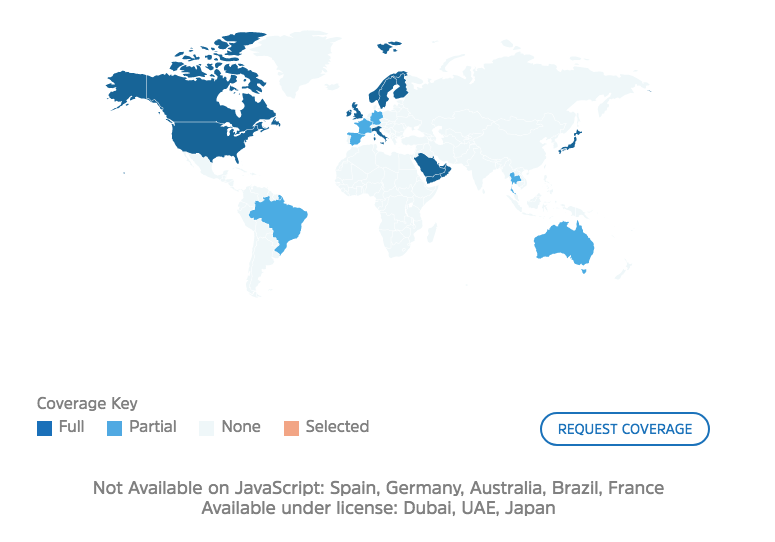
Currently over 300 million square meters of maps are available. There is full coverage of the US, Canada, UK, Ireland, Scandinavia, the Arab Peninsula, Italy and more, as well as partial coverage of Spain, Australia and Thailand. That should cover a lot of your syllabus!

Coverage

The cost should be quite attractive to most educators. WRLD is completely free if you have 1,000 monthly users or less, which will be most teachers and small training organizations. Larger educational institutions and e-learning platforms may need to pay a modest fee, as indicated in the screenshot below.

Pricing

So how do you go about creating a 3D map for education? We’ll show you by creating a map about The Great Fire of London. You can view it in your web browser here, or explore the embed below.

Map Designer: Create a 3D Map Without Coding

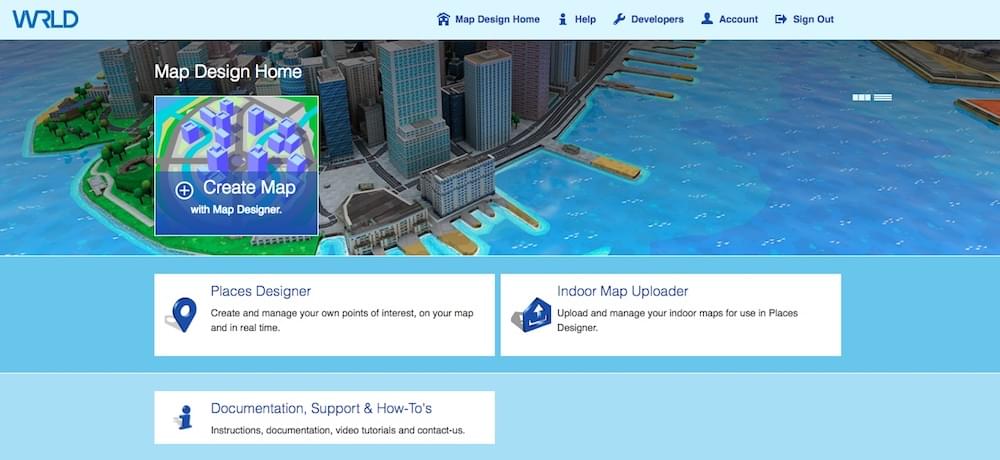
Non-developers will use WRLD’s Map Designer, an online tool that is designed for both pros and beginners. Create and manage your own 3D maps, selecting simple or sophisticated styles.

Map Designer Home

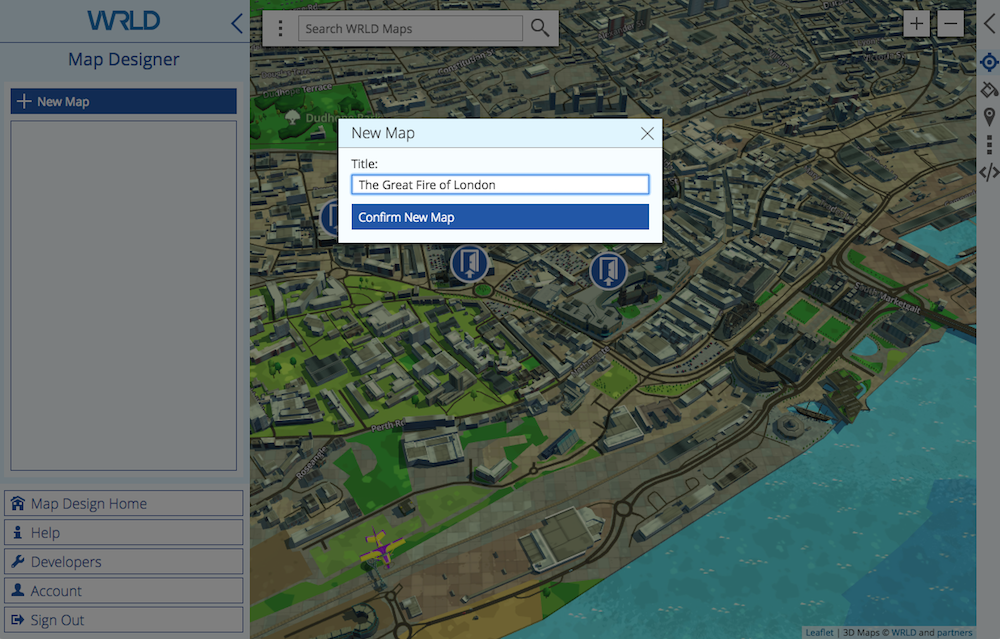
Once you create an account, you can create your first map. Give the map a name, and you’ll be given a URL. You may like to paste the address into a different browser tab so you can monitor your progress from your students’ point of view.

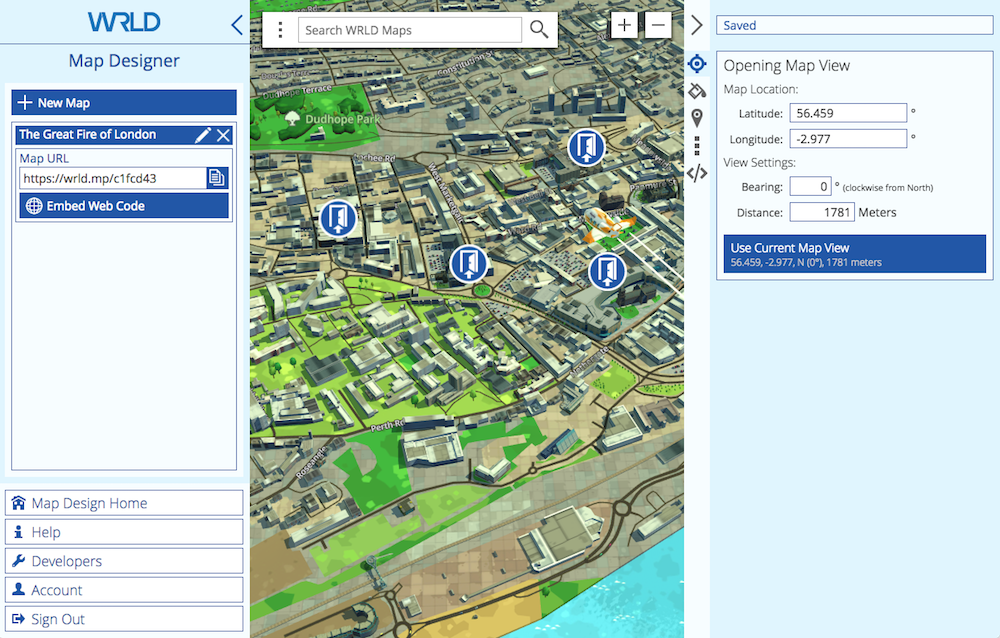
Navigating the map is intuitive. Left click and drag to move the map around, scroll to zoom in and out, and right click and drag to rotate. As you zoom in the display changes from 2D to 3D automatically.

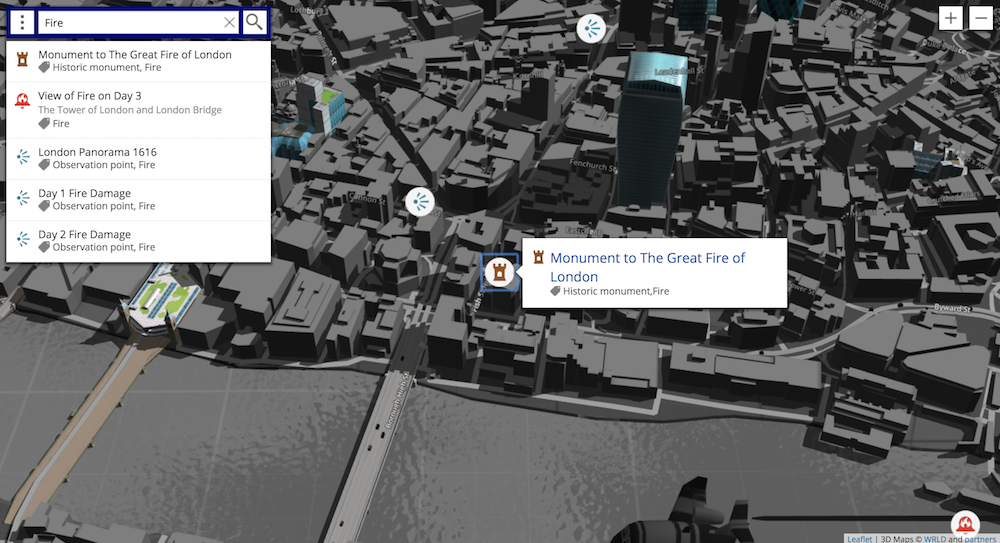
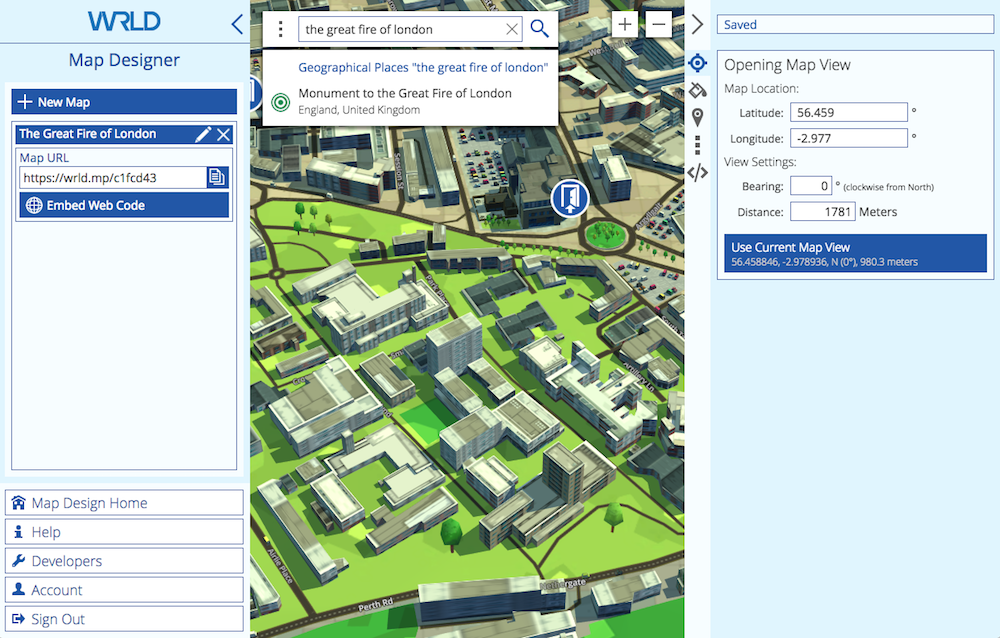
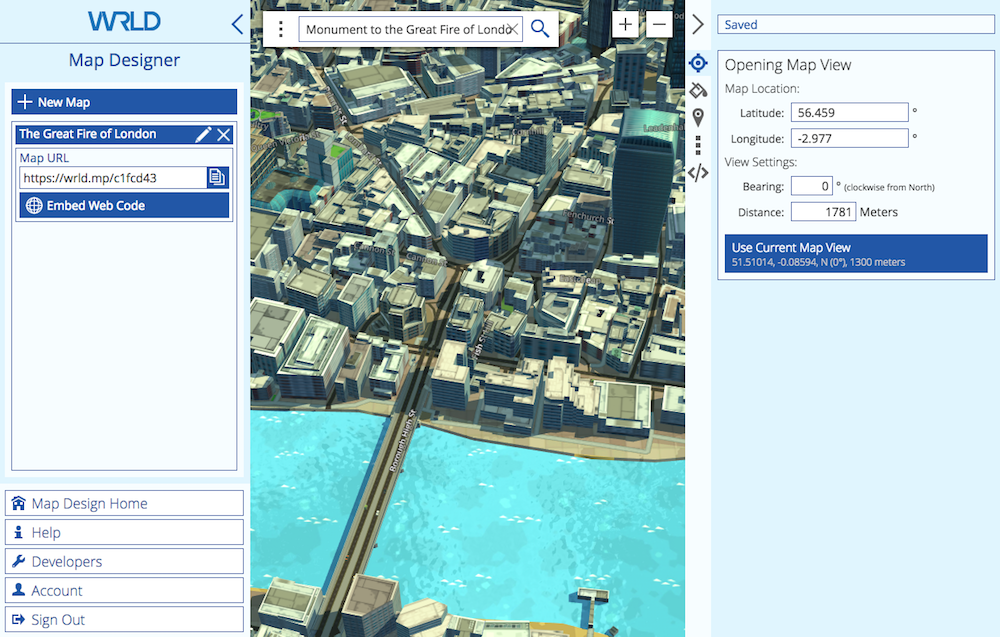
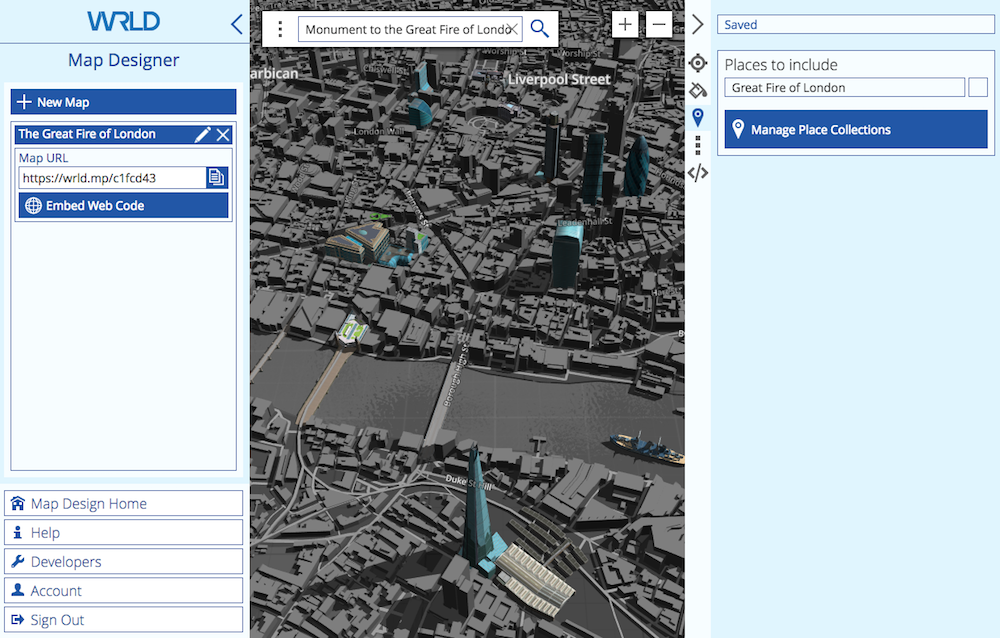
Our first job is to define the initial view that your students will see when they open the map. The Great Fire of London happened north of the Thames, adjacent to London Bridge. I start with a search for “the great fire of london” and discover that there is a monument at the site. That should get me close.

Search

Search

That’s perfect, and I’d like this to be what the map displays when it is opened. I click Use Current Map View in the right pane.

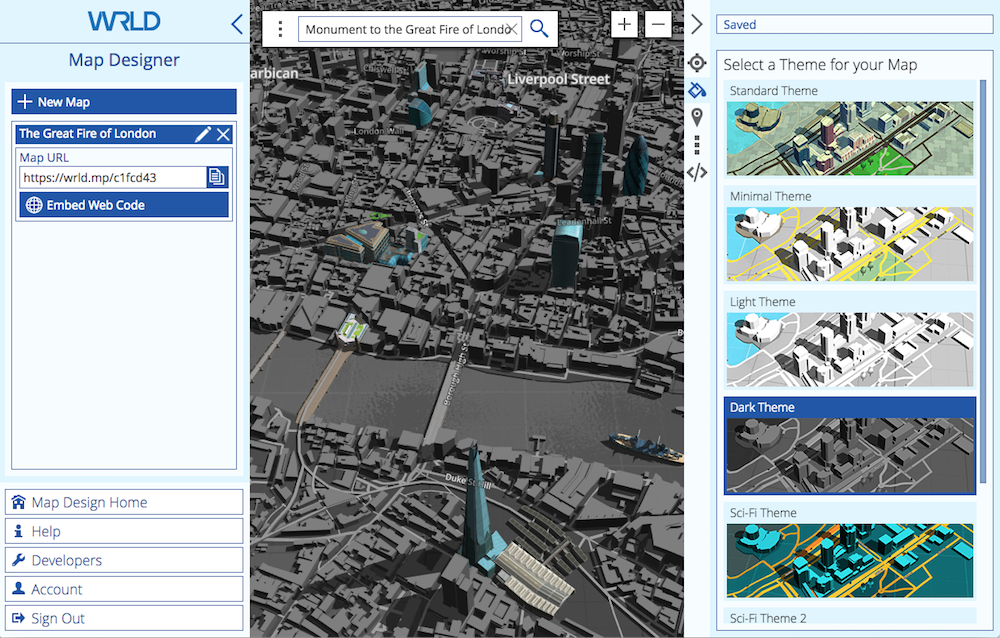
We now need to select a theme, so I click the paint can icon in the right pane. I like the look of the dark theme.

Dark Theme

Now it’s time to add some places of interest. We do that from the Places Designer, which I can open (in a new browser tab) by clicking on the Places icon, then clicking Manage Place Collections.

Places

Places Designer: Add Places of Interest and Location-Based Content

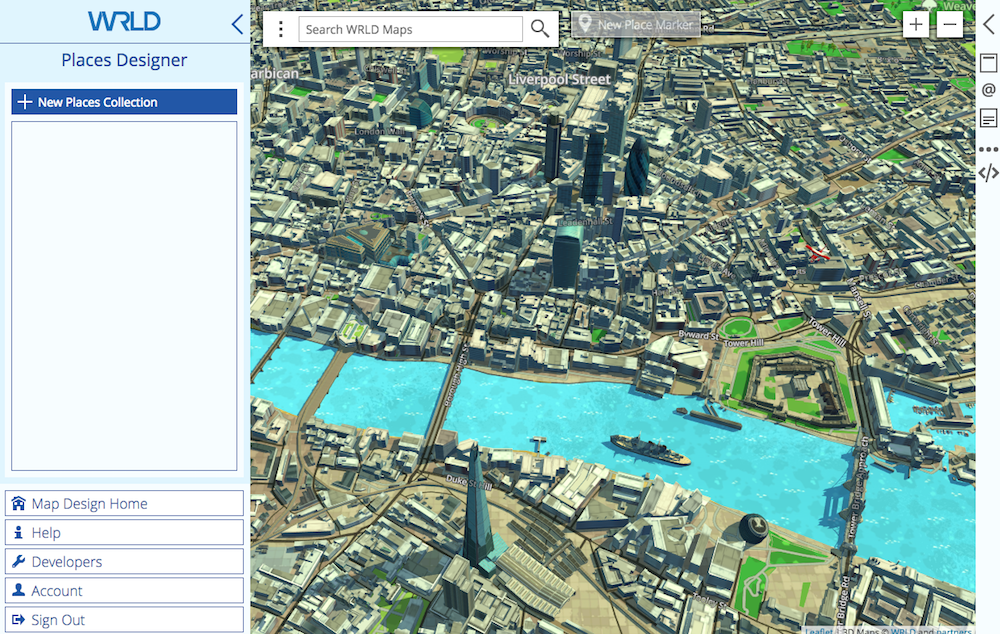
The Places Designer is now open. I can switch between it and the Map Designer simply by switching tabs in my browser.

Place Designer

Before I add some places of interest to the map, I first need to create some Places Collections. These are containers for our places, and help us keep things organized.

I first need to have an idea about the content I’d like to add to the map. There’s a lot of interesting material about The Great Fire of London available online. Because the tragedy happened in 1666, there are obviously no photographs, but there are a surprising number of paintings available. To keep things simple for the purpose of this article, I’ll just use Wikipedia as a source.

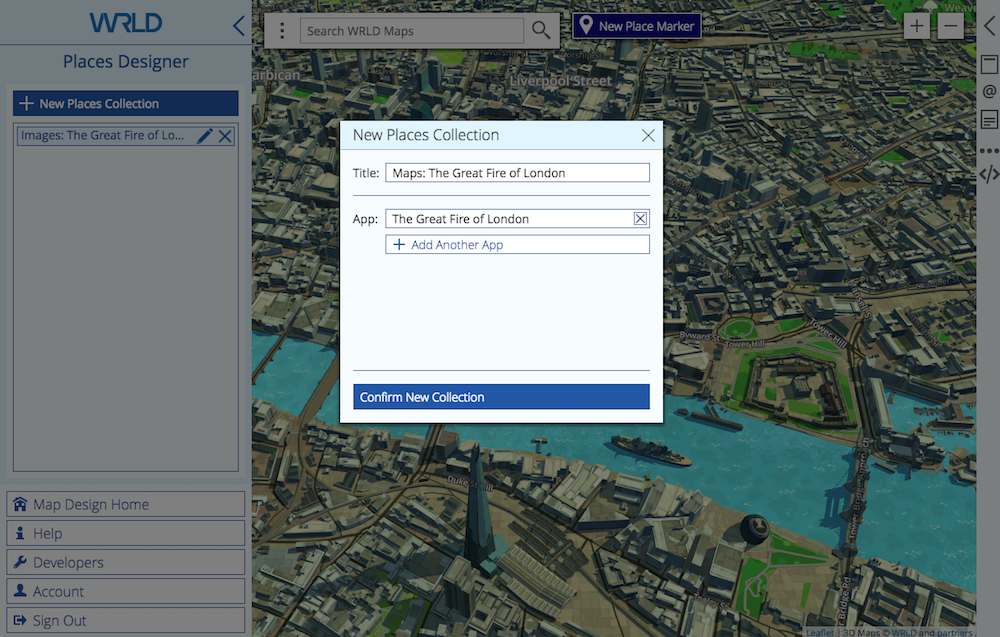
The article includes a few maps of the spread of the fire over the four days, some contemporary paintings of the fire, and more. I decide to create just two collections, and make them available for my map by choosing “The Great Fire of London” under “app”:

  • Images: The Great Fire of London
  • Maps: The Great Fire of London

New Places Collection

Now we’ll add some places of interest to each collection. Each place will add a pin to the map, and selecting the pin will display a card with additional content, including text and an image.

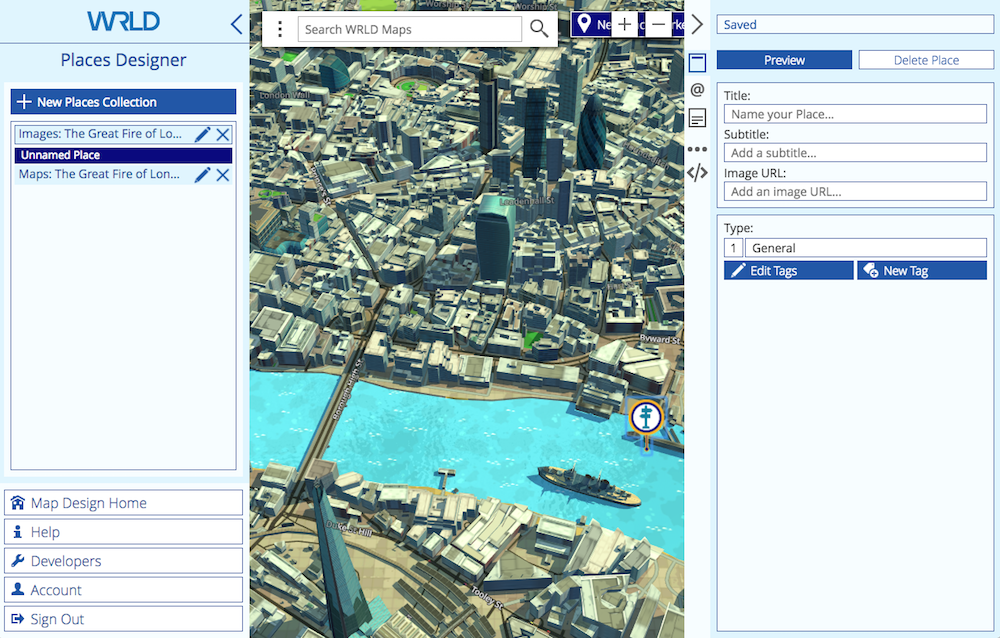
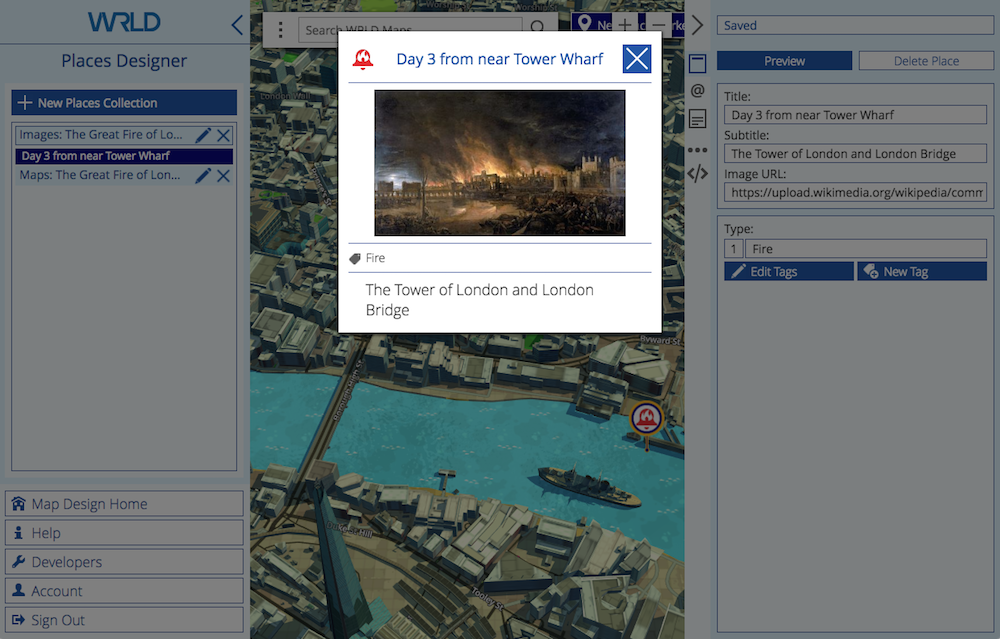
I’ll start with the first painting found in the Wikipedia article, which shows how the fire looked on the third day from near Tower Wharf on the Thames, just to the east of the fire. I want this to be in the “Images” collection, so I click on it, then New Place Marker. A pin is placed at the centre of the map, and I drag it to the vicinity of the wharf.

New Place Marker

Now I fill in the form in the right pane, including a title, subtitle and URL to the image. I change the tag to “Fire”, which modifies the image on the pin. I preview the card, and it appears as in the screenshot below.

New Place Title Tags

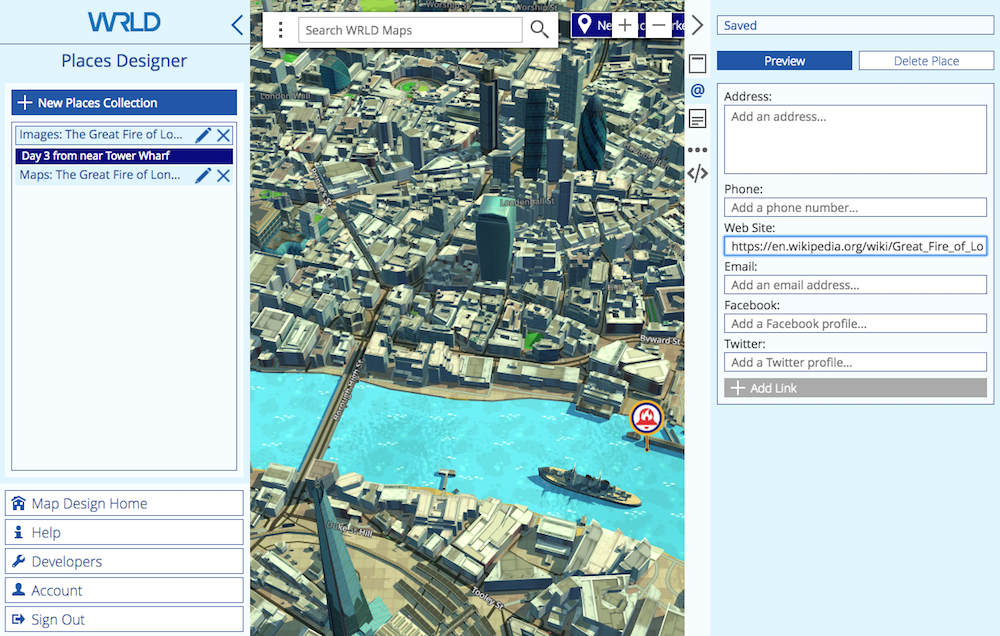
The next form in the right panel is for contact information. That’s not really needed for our use, but I did add a link to the Wikipedia article.

Contact

Next we can enter a description, which is a single paragraph of text content. I add the image description from Wikipedia, and preview the card.

Continue reading %How to Build an Interactive History Map with WRLD%


by Adrian Try via SitePoint