Friday, April 6, 2018

ES6 in Action: New Array.* and Array.prototype.* Methods

In this article, we’ll discuss most of the new methods available in ES6 that work with the Array type, using Array.* and Array.prototype.*.

When discussing them, I’ll write Array.method() when I describe a “class” method and Array.prototype.method() when I outline an “instance” method.

We’ll also see some example uses and mention several polyfills for them. If you need a polyfill-them-all library, you can use es6-shim by Paul Miller.

Array.from()

The first method I want to mention is Array.from(). It creates a new Array instance from an array-like or an iterable object. This method can be used to solve an old problem with array-like objects that most developers solve using this code:

// typically arrayLike is arguments
var arr = [].slice.call(arrayLike);

The syntax of Array.from() is shown below:

Array.from(arrayLike[, mapFn[, thisArg]])

The meaning of its parameters are:

  • arrayLike: an array-like or an iterable object
  • mapFn: a function to call on every element contained
  • thisArg: a value to use as the context (this) of the mapFn function.

Now that we know its syntax and its parameters, let’s see this method in action. In the code below we’re going to create a function that accepts a variable number of arguments, and returns an array containing these elements doubled:

function double(arr) {
  return Array.from(arguments, function(elem) {
    return elem * 2;
  });
}

const result = double(1, 2, 3, 4);

// prints [2, 4, 6, 8]
console.log(result);

A live demo of the previous code is shown below and also available at JSBin.

ES6 in Action: New Array Methods on jsbin.com

This method is supported in Node and all modern browsers, with the exception of Internet Explorer. If you need to support older browsers, there are a couple of polyfills to choose from: one is available on the method’s page on MDN, while the other has been written by Mathias Bynens and is called Array.from.

Array.prototype.find()

Another of the methods introduced is Array.prototype.find(). The syntax of this method is:

Array.prototype.find(callback[, thisArg])

As you can see, it accepts a callback function used to test the elements of the array and an optional argument to set the context (this value) of the callback function. The callback function receives three parameters:

  • element: the current element
  • index: the index of the current element
  • array: the array you used to invoke the method.

This method returns a value in the array if it satisfies the provided callback function, or undefined otherwise. The callback is executed once for each element in the array until it finds one where a truthy value is returned. If there’s more than one element in the array, that will return a truthy value, and only the first is returned.

An example usage is shown below:

const arr = [1, 2, 3, 4];
const result = arr.find(function(elem) { return elem > 2; });

// prints "3" because it’s the first
// element greater than 2
console.log(result);

A live demo of the previous code is shown below and also available at JSBin.

ES6 in Action: New Array Methods on jsbin.com

The method is supported in Node and all modern browsers, with the exception of Internet Explorer. If you need a polyfill, one is provided on the method’s page on MDN.

Array.prototype.findIndex()

A method that is very similar to the previous one is Array.prototype.findIndex(). It accepts the same arguments but instead of returning the first element that satisfies the callback function, it returns its index. If none of the elements return a truthy value, -1 is returned. An example usage of this method is shown below:

const arr = [1, 2, 3, 4];
const result = arr.findIndex(function(elem) {return elem > 2;});

// prints "2" because is the index of the
// first element greater than 2
console.log(result);

A live demo of the previous code is shown below and also available at JSBin.

ES6 in Action: New Array Methods on jsbin.com

The method is supported in Node and all modern browsers, with the exception of Internet Explorer. If you need a polyfill, one can be found on the method’s page on MDN.

Array.prototype.keys()

Yet another method introduced in this new version of JavaScript is Array.prototype.keys(). This method returns a new Array Iterator (not an array) containing the keys of the array’s values. We’ll cover array iterators in an upcoming article, but if you want to learn more about them now, you can refer to the specifications or the MDN page.

The syntax of Array.prototype.keys() is shown below:

Array.prototype.keys()

An example of use is the following:

const arr = [1, 2, 3, 4];
const iterator = arr.keys();

// prints "0, 1, 2, 3", one at a time, because the
// array contains four elements and these are their indexes
let index = iterator.next();
while(!index.done) {
  console.log(index.value);
  index = iterator.next();
}

A live demo is shown below and also available at JSBin.

ES6 in Action: New Array Methods on jsbin.com

Array.prototype.keys() in Node and all modern browsers, with the exception of Internet Explorer.

Continue reading %ES6 in Action: New Array.* and Array.prototype.* Methods%


by Aurelio De Rosa via SitePoint

Momkai

For every team, it’s vital to take the occasional step back to move forward. After writing down our design philosophy and redefining our profile, we have now built a matching portfolio.
by via Awwwards - Sites of the day

Thursday, April 5, 2018

2018 Email Marketing Goals - Infographic

Developing effective strategies for email engagement is more important than ever. But sometimes staying attuned to your audience’s preferences and behaviors is easier said than done. In the past year there has been a major shift in consumer behavior towards e-commerce and mobile commerce. Many...

[ This is a content summary only. Visit our website https://ift.tt/1b4YgHQ for full links, other content, and more! ]

by Irfan Ahmad via Digital Information World

Lazy Loading Images and Video Techniques

Lazy loading is technique that defers loading of non-critical resources at page load time. These non-critical resources are loaded at the moment of need. 

When we lazy load images and video, we reduce initial page load time, initial page weight, and system resource usage, all of which have positive impacts on performance. 


by via jQuery-Plugins.net RSS Feed

Social Media Plan: 3 Challenges + Templates to Solve Them

This article was originally published on monday.com. Thank you for supporting the partners who make SitePoint possible.

If you’re responsible for managing a day-to-day social media plan, you know how hard it can be to juggle everything. Chances are at some point you’ve found yourself in this scenario:

You’ve built a strategy you’re so proud of, it can’t fail. You’ve found the perfect publishing tool and have all your posts scheduled for just the right time. Your community management is on point and engagement is through the roof. You’re tracking every metric and measuring the success of your strategy.

Yet no matter how organized you are, your day-to-day life is still more chaotic than anyone else’s in your company. You’re missing an image for tomorrow’s social post. Your team doesn’t understand the tone of voice or visual unity you’re trying to maintain on Instagram. You’re going back and forth with your client to get their approval on your editorial calendar. You need an edit on a graphic that was supposed to go live an hour ago.

Sound familiar? Trust me, we’ve been there. The good news is there’s a solution. Here are the three biggest challenges we’ve encountered managing the social plan here at monday.com and the templates we use to solve them.

Challenge #1: Keeping Designers Synced with Your Schedule

After you’ve finished planning your social media schedule for the week or month, the next step is to connect with your team of designers and copywriters. Your goal is to create beautiful images, infographics, and content to distribute across your social channels.

The problem is, keeping everyone up-to-date and getting your assets ready to schedule in your favorite publishing tool (Buffer, Hootsuite, or Coschedule) can quickly get out of hand. The asset you assigned isn’t ready. The designer doesn’t know what’s going live when. No one has access to nor understands how your scheduling tool works.

Moreover, a tool like Buffer or Coschedule doesn’t help your team sync on your editorial calendar. They’re perfect for scheduling and posting, but they lack the essential function of helping your team plan, collaborate, and execute together. Just like that, your perfect social media plan is collapsing.

The solution? Create a monthly schedule and share it with everyone.

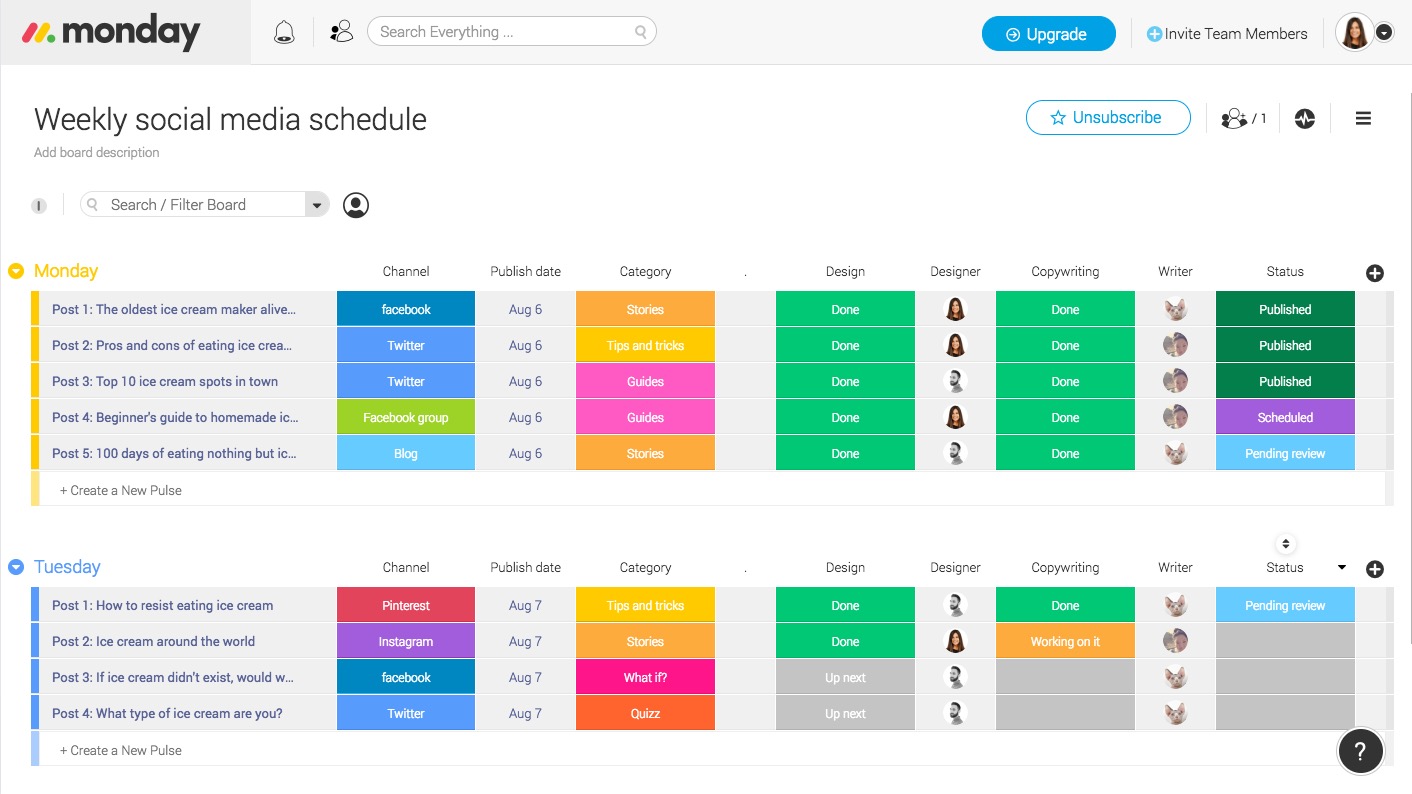
social media plan weekly schedule

Take a look above. In this template, we’ve outlined a weekly workflow that clearly defines the handshakes between different departments or stakeholders. It syncs everyone on where things stand and helps you plan a consistent weekly content schedule. See the number of posts, the titles, the publishing date, and the category. Your day-to-day job of social media planning just became way less painful. 🙂

Continue reading %Social Media Plan: 3 Challenges + Templates to Solve Them%


by SitePoint Team via SitePoint

A Practical Guide to Angular Directives

This article focuses on Angular directives — what are they, how to use them, and to build our own.

Directives are perhaps the most important bit of an Angular application, and if we think about it, the most-used Angular unit, the component, is actually a directive.

An Angular component isn't more than a directive with a template. When we say that components are the building blocks of Angular applications, we’re actually saying that directives are the building blocks of Angular applications.

Basic overview

At the core, a directive is a function that executes whenever the Angular compiler finds it in the DOM. Angular directives are used to extend the power of the HTML by giving it new syntax. Each directive has a name — either one from the Angular predefined like ng-repeat, or a custom one which can be called anything. And each directive determines where it can be used: in an element, attribute, class or comment.

By default, from Angular versions 2 and onward, Angular directives are separated into three different types:

Components

As we saw earlier, components are just directives with templates. Under the hood, they use the directive API and give us a cleaner way to define them.

The other two directive types don't have templates. Instead, they’re specifically tailored to DOM manipulation.

Attribute directives

Attribute directives manipulate the DOM by changing its behavior and appearance.

We use attribute directives to apply conditional style to elements, show or hide elements or dynamically change the behavior of a component according to a changing property.

Structural directives

These are specifically tailored to create and destroy DOM elements.

Some attribute directives — like hidden, which shows or hides an element — basically maintain the DOM as it is. But the structural Angular directives are much less DOM friendly, as they add or completely remove elements from the DOM. So, when using these, we have to be extra careful, since we’re actually changing the HTML structure.

Using the Existing Angular Directives

Using the existing directives in Angular is fairly easy, and if you've written an Angular application in the past, I'm pretty sure you've used them. The ngClass directive is a good example of an existing Angular attribute directive:

<p [ngClass]="{'blue'=true, 'yellow'=false}">
    Angular Directives Are Cool!
</p>

<style>
    .blue{color: blue}
    .yellow{color: yellow}
</style>

So, by using the ngClass directive on the example below, we’re actually adding the blue class to our paragraph, and explicitly not adding the yellow one. Since we’re changing the appearance of a class, and not changing the actual HTML structure, this is clearly an attribute directive. But Angular also offers out-of-the-box structural directives, like the ngIf:

@Component({
  selector: 'ng-if-simple',
  template: `
    <button (click)="show = !show"></button>
    show = 
    <br>
    <div *ngIf="show">Text to show</div>
`
})

class NgIfSimple {
  show: boolean = true;
}

In this example, we use the ngIf directive to add or remove the text using a button. In this case, the HTML structure itself is affected, so it's clearly a structural directive.

For a complete list of available Angular directives, we can check the official documentation.

As we saw, using Angular directives is quite simple. The real power of Angular directives comes with the ability to create our own. Angular provides a clean and simple API for creating custom directives, and that's what we’ll be looking at in the following sections.

Continue reading %A Practical Guide to Angular Directives%


by Claudio Ribeiro via SitePoint

TheMads

New website of the digital—agency from Russia.Design, animation, soul.
by via Awwwards - Sites of the day