
Wednesday, May 29, 2019

How to Build a Chrome Extension with Vue

How to Build a Chrome Extension with Vue

Browser extensions are small programs that can modify and enhance the functionality of a web browser. They can be used for a variety of tasks, such as blocking ads, managing passwords, organizing tabs, altering the look and behavior of web pages, and much more.

The good news is that browser extensions aren’t difficult to write. They can be created using the web technologies you’re already familiar with — HTML, CSS and JavaScript — just like a regular web page. However, unlike regular web pages, extensions have access to a number of browser-specific APIs, and this is where the fun begins.

In this tutorial, I’m going to show you how to build a simple extension for Chrome, which alters the behavior of the new tab page. For the JavaScript part of the extension, I’ll be using the Vue.js framework, as it will allow us to get up and running quickly and is a lot of fun to work with.

The code for this tutorial can be found on GitHub.

The Basics of a Chrome Extension

The core part of any Chrome extension is a manifest file and a background script. The manifest file is in a JSON format and provides important information about an extension, such as its version, resources, or the permissions it requires. A background script allows the extension to react to specific browser events, such as the creation of a new tab.

To demonstrate these concepts, let’s start by writing a “Hello, World!” Chrome extension.

Make a new folder called hello-world-chrome and two files: manifest.json and background.js:

mkdir hello-world-chrome
cd hello-world-chrome
touch manifest.json background.js

Open up manifest.json and add the following code:

{
  "name": "Hello World Extension",
  "version": "0.0.1",
  "manifest_version": 2,
  "background": {
    "scripts": ["background.js"],
    "persistent": false
  }
}

The name, version and manifest_version are all required fields. The name and version fields can be whatever you want; the manifest version should be set to 2 (as of Chrome 18).

The background key allows us to register a background script, listed in an array after the scripts key. The persistent key should be set to false unless the extension uses chrome.webRequest API to block or modify network requests.

Now let’s add the following code to background.js to make the browser say hello when the extension is installed:

chrome.runtime.onInstalled.addListener(() => {
  alert('Hello, World!');
});

Finally, let’s install the extension. Open Chrome and enter chrome://extensions/ in the address bar. You should see a page displaying the extensions you’ve installed.

As we want to install our extension from a file (and not the Chrome Web Store) we need to activate Developer mode using the toggle in the top right-hand corner of the page. This should add an extra menu bar with the option Load unpacked. Click this button and select the hello-world-chrome folder you created previously. Click Open and you should see the extension installed and a “Hello, World!” popup appear.

Hello World Extension

Congratulations! You just made a Chrome extension.

Overriding Chrome’s New Tab Page

The next step will to have our extension greet us when we open up a new tab. We can do this by making use of the Override Pages API.

Note: before you progress, please make sure to disable any other extensions which override Chrome’s new tab page. Only one extension at a time may alter this behavior.

We’ll start off by creating a page to display instead of the new tab page. Let’s call it tab.html. This should reside in the same folder as your manifest file and background script:

<!DOCTYPE html>
<html lang="en">
<head>
  <meta charset="UTF-8">
  <title>My New Tab Page!</title>
</head>
<body>
  <h1>My New Tab Page!</h1>
  <p>You can put any content here you like</p>
</body>
</html>

Next we need to tell the extension about this page. We can do so by specifying a chrome_url_overrides key in our manifest file, like so:

"chrome_url_overrides": {
  "newtab": "tab.html"
}

Finally, you need to reload the extension for the changes to take effect. You can do this by clicking the reload icon for the Hello World extension on Chrome’s extensions page.
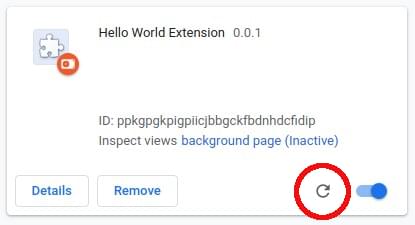
Reload the extension

Now, when you open a new tab, you should be greeted by your custom message.

Adding Vue to the Extension

Now we have a very basic implementation of our extension up and running, the time has come to think about what the rest of the desired functionality will look like. When a user opens a new tab, I would like the extension to:

  • Fetch a joke from the wonderful icanhazdadjoke.com.
  • Display that joke in a nicely formatted manner to the user.
  • Display a button for the user to favorite the joke. This will save the joke to chrome.storage.
  • Display a button for the user to list favorited jokes.

You could, of course, do all of this with plain JavaScript, or a library like jQuery — and if that’s your thing, feel free!

For the purposes of this tutorial, however, I’m going to implement this functionality using Vue and the awesome vue-web-extension boilerplate.

Using Vue allows me to write better, more organized code faster. And as we’ll see, the boilerplate provides several scripts that take the pain out of some of the common tasks when building a Chrome extension (such as having to reload the extension whenever you make changes).

vue-web-extension-boilerplate

This section assumes that you have Node and npm installed on your computer. If this isn’t the case, you can either head to the project’s home page and grab the relevant binaries for your system, or you can use a version manager. I would recommend using a version manager.

We’ll also need Vue CLI installed and the @vue/cli-init package:

npm install -g @vue/cli
npm install -g @vue/cli-init

With that done, let’s grab a copy of the boilerplate:

vue init kocal/vue-web-extension new-tab-page

This will open a wizard which asks you a bunch of questions. To keep this tutorial focused, I answered as follows:

? Project name new-tab-page
? Project description A Vue.js web extension
? Author James Hibbard <jim@example.com>
? License MIT
? Use Mozilla's web-extension polyfill? No
? Provide an options page? No
? Install vue-router? No
? Install vuex? No
? Install axios? Yes
? Install ESLint? No
? Install Prettier? No
? Automatically install dependencies? npm

You can adapt your answers to suit your preferences, but the main thing to be certain of is that you choose to install axios. We’ll be using this to fetch the jokes.

Next, change into the project directory and install the dependencies:

cd new-tab-page
npm install

And then we can build our new extension using one of the scripts the boilerplate provides:

npm run watch:dev

This will build the extension into a dist folder in the project root for development and watch for changes.

To add the extension to Chrome, go through the same process as outlined above, making sure to select the dist folder as the extension directory. If all goes according to plan, you should see a “Hello world!” message when the extension initializes.

Project Setup

Let’s take a minute to look around our new project and see what the boilerplate has given us. The current folder structure should look like this:

.
├── dist
│   └── <the built extension>
├── node_modules
│   └── <one or two files and folders>
├── package.json
├── package-lock.json
├── scripts
│   ├── build-zip.js
│   └── remove-evals.js
├── src
│   ├── background.js
│   ├── icons
│   │   ├── icon_128.png
│   │   ├── icon_48.png
│   │   └── icon.xcf
│   ├── manifest.json
│   └── popup
│       ├── App.vue
│       ├── popup.html
│       └── popup.js
└── webpack.config.js

As you can see, from the config file in the project root, the boilerplate is using webpack under the hood. This is awesome, as this gives us Hot Module Reloading for our background script.

The src folder contains all of the files we’ll be using for the extension. The manifest file and background.js should be familiar, but also notice a popup folder containing a Vue component. When the boilerplate builds the extension into the dist folder, it will pipe any .vue files through the vue-loader and output a JavaScript bundle which the browser can understand.

Also in the src folder is an icons folder. If you look in Chrome’s toolbar, you should see a new icon for our extension (also known as the browser action). This is being pulled from this folder. If you click it, you should see a popup open which displays “Hello world!” This is created by popup/App.vue.

Finally, note a scripts folder containing two scripts — one to remove eval usages to comply with the Content Security Policy of Chrome Web Store and one to package your extension into a .zip file, which is necessary when uploading it to the Chrome Web Store.

There are also various scripts declared in the package.json file. We’ll be using npm run watch:dev for developing the extension and later on npm run build-zip to generate a ZIP file to upload to the Chrome Web Store.

The post How to Build a Chrome Extension with Vue appeared first on SitePoint.


by James Hibbard via SitePoint

The WHATWG and W3C to collaborate on single HTML and DOM specifications

#393 — May 29, 2019

Read on the Web

Frontend Focus

W3C and WHATWG to Work Together to Advance The Open Web Platform — If you've been a Frontend Focus subscriber from when it was HTML5 Weekly, you might remember frequent articles about the divisions between the W3C and WHATWG's approaches to working on the then-HTML5 (now just 'HTML') specs. It's fantastic to see them coming together to collaborate on the development of a single version of the HTML and DOM specifications from here on out.

Jeff Jaffe

The State of Fluid Web Typography — This detailed summary seeks to answer the question of whether fluid typography is ready to be used on the web today. Highlights how fluid type can improve the reading experience, explores potential scaling problems and raises some accessibility considerations.

Matej Latin

Build Fast, Accurate, Customized Maps With Mapbox — Whether you’re designing an app from scratch or looking to improve your UX, Mapbox has the tools and solutions for you. Built by and for developers, Mapbox is used by 1.2M developers today. Sign up for free.

Mapbox sponsor

Accessible Icon Buttons — An icon button is, simply, a button that’s merely an icon (with no text). They’re very popular in webapps in particular, but are they accessible? They can be, with Sara’s great tips.

Sara Soueidan

Pixi.js 5.0: Create Beautiful 2D Web Experiences — Boasts the ‘fastest, most flexible 2D WebGL renderer’ to let you take advantage of hardware acceleration without getting involved in WebGL or 3D concerns. Check out demos for what the code looks like and what you’d use it for. There’s also a Pixi Playground for quickly crafting your own experiments.

PixiJS

Firefox Brings You Smooth Video Playback with the World’s Fastest AV1 Decoder — Last week’s release of Firefox 67 added support for the “high performance, royalty free AV1 video decoder called 'dav1d'”, which is now enabled by default on all desktop platforms.

Nathan Egge & Christopher Montgomery (Mozilla)

📋 A little FYI: The 2019 Frontend Tooling survey closes this week. If you're yet to fill it out, you've got until Friday.

💻 Jobs

Frontend Engineers to Profitable Healthtech Startup (Stockholm, Sweden) — Join our 30-person team of A-players, solve problems at global scale & help us become the most trustworthy online health company.

Diet Doctor Sweden AB

Find a Frontend Job on Vettery — Vettery specializes in tech roles and is completely free for job seekers.

Vettery

📘 News, Tutorials & Opinion

Google Forces Microsoft Edge Preview Users to Use Chrome for the Modern YouTube Experience — This is odd considering the recent collaboration between Microsoft & Google, and is hopefully in error.. although.

Mehedi Hassan

Understanding Grid Placement Through Building A HTML Periodical Table — A practical walkthrough of CSS Grid techniques.

Chen Hui Jing

The CSS background-image Property as an Anti-Pattern — The author argues that the CSS background-image property “allowed us to do some amazing things, but in most cases, it’s time to leave it behind”.

Andrew Welch

How to Create a Split, Faux-Container Layout with CSS Grid and Flexbox — Building a split layout that breaks an article into separate, colored panels.

Andy Bell

Four Reasons Your z-index Isn’t Working (and How to Fix It) — Explains in detail some of the most common reasons why z-index might not be doing what you expect, with fixes for each.

Jessica Chan

Reducing Motion with the picture Element — This element accepts media queries, so prefers-reduced-motion can prove handy.

Brad Frost

Get the Fastest App Deployments. Get Started Free

Buddy sponsor

Before Netscape: The Forgotten Browsers of the Early 1990s — This article is from a few years back but has surfaced up again. It offers a look back at web browsers such as Erwise, Viola, Cello and Mosaic.

Matthew Lasar

16 DevTools Tips & Tricks Every CSS Developer Needs to Know

Louis Lazaris

Making Websites Work with Windows High Contrast Mode

Diedra Rater (Khan Academy)

💡 Tip of the Week

supported by

How to identify which font is being rendered

Any browsers dev tools can display the font stack for a selected DOM element, but some can also highlight which font from that stack is actually being rendered on screen. Handy for when you want to know excatly what font you're looking at.

Chrome (and the new Chromium-powered Edge) show this information at the bottom of the Computed tab:

Whereas in Firefox the rendered font will be shown inline, by way of an underline in the style inspector panel:

Safari has a similar behaviour to Firefox, but highlights the font, instead of underlining it.

As a bonus, Dean Hume explains here how in Chrome you can also see what the full character set of a selected font looks like.

This week's tip is sponsored by Microsoft Azure. Learn how Burke Holland and Cecil Philip built a fully serverless web app on Azure from scratch with Vue.js, serverless functions, and more.

🔧 Code and Tools

Zdog: A Pseudo-3D Engine for Canvas and SVG — A JavaScript engine for designing and rendering simple 3D models on the Web. Geometries exist in 3D space, but are rendered here as flat shapes, which helps keeps things small. Here’s the repo.

Metafizzy

Version 8 of Angular Released — A major release of the popular app framework, featuring smaller bundles, CLI APIs, differential loading and more.

Stephen Fluin

115+ Robust Components for Your Angular Apps — ExtAngular offers pre-built components and tools to help you build Angular apps fast. Save time and try it free today.

SENCHA sponsor

CSS Grid Generator — Set the numbers and units of your columns and rows, and this tool will generate a CSS grid for you.

Sarah Drasner

subsetcss: Linter to Limit Yourself to Defined Subset of Values

Ilya Radchenko

   ðŸ—“ Upcoming Events

JSNation, June 5-7 — Amsterdam, the Netherlands — A 2-day event focusing exclusively on JavaScript development.

Front Utah 2019, June 6-7 — Salt Lake City — Two days of learning better ways to work together with your team and be inspired to grow your career in UX or product management.

Pixel Pioneers, June 7 — Bristol, UK — A one-day conference of practical design and frontend talks, featuring eight speakers (preceded by a workshop day).

CSS Day, June 13-14 — Amsterdam, Netherlands — Features eight world-class sessions by eight world-class speakers about curious, 'badly-known', or otherwise interesting CSS features.

CSSCamp 2019, July 17 — Barcelona, Spain — A one-day, one-track conference for web designers and developers.

An Event Apart, July 29-31 — Washington, D.C. — A popular three-day conference that focuses on all things relating to digital design and user experience.


by via Frontend Focus

Google’s Contractors Outnumber The Full-Time Employees, Revealed A Report

This March, Google had around 102K full-time employees working for the company around the globe. Whereas, that is not all, the tech giant has outsourced even larger workforce, 121K temporary employee, vendors and contractors, or as Google calls it, TVCs, revealed the New York Times’ report. There...

[ This is a content summary only. Visit our website http://bit.ly/1b4YgHQ for full links, other content, and more! ]

by Aqsa Rasool via Digital Information World

Now you can shake your smartphone to report bugs on Facebook

Facebook is making it easy for users to report bugs from their mobile devices. All you have to do now is simply shake your phone when you encounter a bug and the report menu will pop-up instantly. The ‘shake to report’ method was previously limited to the users of iOS and that too as an opt-in...

[ This is a content summary only. Visit our website http://bit.ly/1b4YgHQ for full links, other content, and more! ]

by Saima Salim via Digital Information World

10 Best Video Editing Software and Apps for YouTube Creators

Video content has never been more popular than it is today. Facebook, Twitter, Instagram…almost every Social Media platform now boasts video content with high engagement potential. YouTube (the leading video sharing platform) has now become a career choice for many aspiring content creators due to...

[ This is a content summary only. Visit our website http://bit.ly/1b4YgHQ for full links, other content, and more! ]

by Ali Siddiqui via Digital Information World

Apple Fires Back at Google for Criticizing Over Privacy Concerns

Craig Federighi, software chief at Apple said he does not agree with the acquisition that privacy for Apple users is becoming a luxury, which is a response to Sundar Pichai, CEO of Google who raised criticism. A few weeks ago, Pichai wrote an op-ed in The New York Times, mentioning that privacy...

[ This is a content summary only. Visit our website http://bit.ly/1b4YgHQ for full links, other content, and more! ]

by Aqsa Rasool via Digital Information World

How to Get LinkedIn Leads Without Advertising

Do you need to generate more leads and prospects? Wondering how to identify and nurture leads organically on LinkedIn? In this article, you’ll find a three-step plan to develop profitable relationships with people on LinkedIn, without spending any money on ads. LinkedIn’s Role in the Sales Funnel I love LinkedIn, but the platform has long […]

The post How to Get LinkedIn Leads Without Advertising appeared first on Social Media Marketing | Social Media Examiner.


by Marshal Carper via Social Media Marketing | Social Media Examiner